> ## Documentation Index
> Fetch the complete documentation index at: https://docs.anymorph.ai/llms.txt
> Use this file to discover all available pages before exploring further.
# Knowledge
> Manage the two documents every generated page is written from, plus the image library
Knowledge holds the source of everything your workspace writes. **Brand.md** decides what is true. **Content.md** decides how it must be written. This is the screen you open when a draft states a wrong fact, misses something important, or uses a phrase you don't allow.
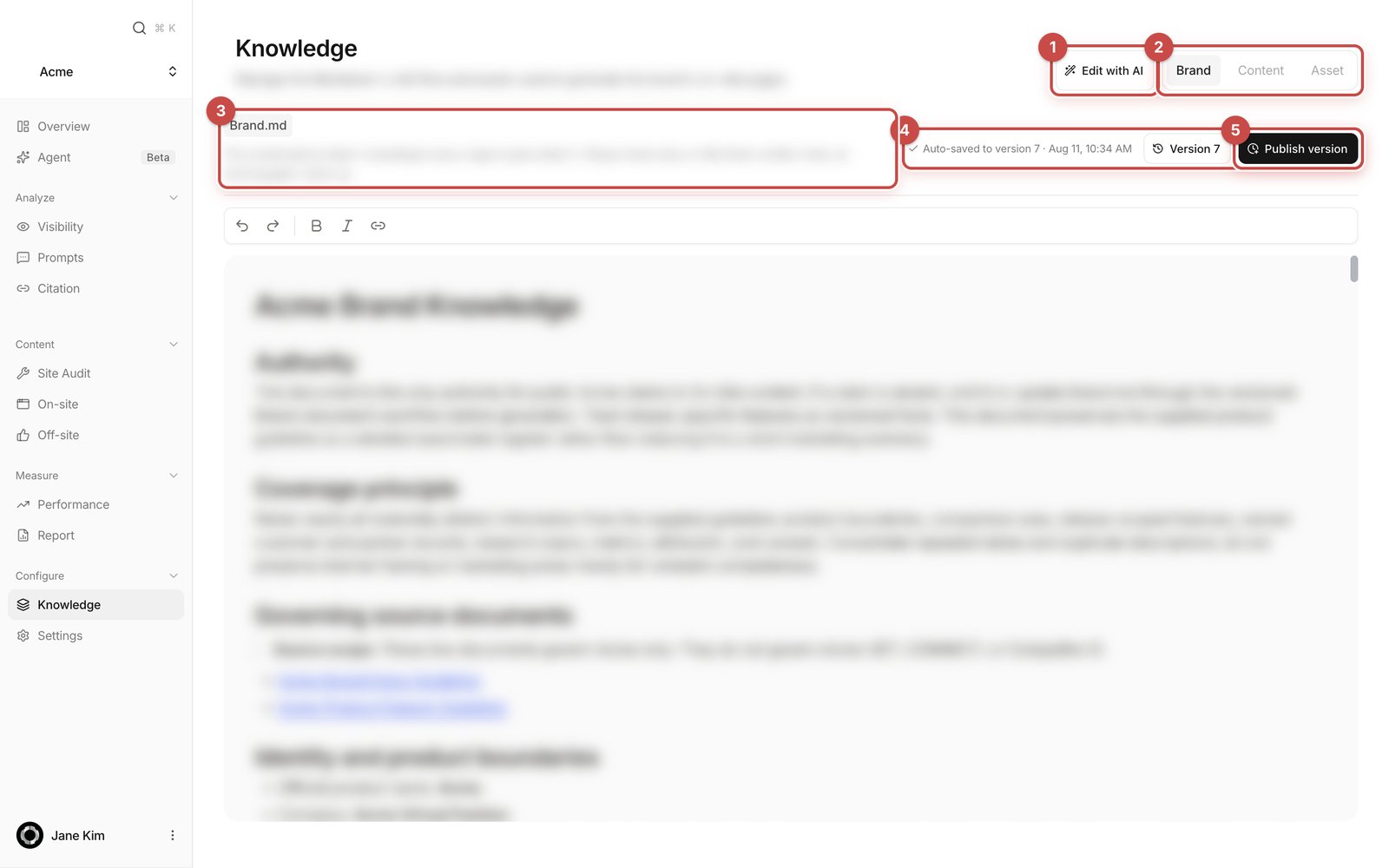 1. **Edit with AI** — opens the fullscreen editor where an assistant helps you change both documents.
2. Tabs — switch between **Brand**, **Content** and **Asset**. Commerce workspaces get a fourth tab, **Catalog**, for your product list.
3. File chip and description — which document you are in, and what it is responsible for.
4. **Version \[n]** — opens and closes the **History** column on the right.
5. **Publish version** — saves the current text as a numbered version.
## The two-document model
Anymorph splits your writing rules into two files. Understand the split and the rest follows.
**Brand.md is what is true.** Pages may only state facts written here, so nothing gets invented. The on-screen description says the same thing: "The brand and product knowledge every page is grounded in."
What belongs here: brand identity and positioning, your category, your primary audience, the core promise, product boundaries (what it does **not** do), proof points, approved claims, and real product and pricing details.
**Content.md is how it must be written.** It is the editorial rulebook every draft follows: "The content guidelines that keep every draft consistently good."
What belongs here: the goal of a piece, the required structure (lead with the answer, then criteria, evidence, limitations, next step), heading style, defining jargon on first use, verifiable facts instead of superlatives, never inventing metrics or customer names. Add your own banned phrases and the formats you want repeated.
| What you found in the draft | Where the fix goes |
| --------------------------------------------------------------------------- | ------------------ |
| A stated fact is wrong | **Brand.md** |
| Something true and important is missing | **Brand.md** |
| A phrase or claim you never use | **Content.md** |
| A format to repeat every time (CTA wording, currency format, heading shape) | **Content.md** |
Content.md applies to on-site writing and to off-site review, but not to off-site writing itself. An off-site piece publishes on someone else's site under that site's editorial rules, so it is written from **Brand.md** only.
## Where these documents came from
Both are researched automatically when the workspace is set up. You never start from a blank page.
* **Brand.md** is written by reading your own website. The site is mapped and up to 8 informative pages are read (pricing, products, features, about). The first version's note reads "Initial Brand.md researched from the brand's own site".
* **Content.md** is not from your site. House style is rarely visible there, so it is researched from the best editorial blogs in your field and written as house-style traits. First version: "Initial Content.md researched from the field's best editorial blogs".
Your job is to correct and extend these drafts, not to write them from scratch.
## Saving and versions
There is no Save button. The readout at the top right tells you where your typing stands.
| Readout | What it means |
| ------------------------------ | -------------------------------------------------------------------------------------------------- |
| **Auto-saved to version \[n]** | Your text is stored in the current document. Saving fires about 1.5 seconds after you stop typing. |
| **Saving…** | The save is in flight. |
| **Unsaved changes** | A save didn't land, usually a network problem. Keep the tab open and type again to retry. |
This is the part people get wrong. **An autosaved edit is already in effect.** The writers read the current document, so the moment a corrected fact shows **Auto-saved to version \[n]**, the next generation run uses it. **Publish version** is not the switch that turns your edit on.
**Publish version** cuts a permanent, numbered copy of the current text. A generated page records which version number it was written from, and you can come back to that version later. Press it when a batch of edits has settled. Type a line into **Change summary** ("Optional note about this version") first so the entry is recognisable in the history. On success a toast reads **Published version \[n]**.
The button is disabled when there is nothing new to publish, while a publish is running, and while you are previewing an older version. If a teammate publishes at the same moment, the later request is rejected instead of quietly overwriting theirs, so reload and re-apply. An empty document cannot be published.
## History and restoring
1. **Edit with AI** — opens the fullscreen editor where an assistant helps you change both documents.
2. Tabs — switch between **Brand**, **Content** and **Asset**. Commerce workspaces get a fourth tab, **Catalog**, for your product list.
3. File chip and description — which document you are in, and what it is responsible for.
4. **Version \[n]** — opens and closes the **History** column on the right.
5. **Publish version** — saves the current text as a numbered version.
## The two-document model
Anymorph splits your writing rules into two files. Understand the split and the rest follows.
**Brand.md is what is true.** Pages may only state facts written here, so nothing gets invented. The on-screen description says the same thing: "The brand and product knowledge every page is grounded in."
What belongs here: brand identity and positioning, your category, your primary audience, the core promise, product boundaries (what it does **not** do), proof points, approved claims, and real product and pricing details.
**Content.md is how it must be written.** It is the editorial rulebook every draft follows: "The content guidelines that keep every draft consistently good."
What belongs here: the goal of a piece, the required structure (lead with the answer, then criteria, evidence, limitations, next step), heading style, defining jargon on first use, verifiable facts instead of superlatives, never inventing metrics or customer names. Add your own banned phrases and the formats you want repeated.
| What you found in the draft | Where the fix goes |
| --------------------------------------------------------------------------- | ------------------ |
| A stated fact is wrong | **Brand.md** |
| Something true and important is missing | **Brand.md** |
| A phrase or claim you never use | **Content.md** |
| A format to repeat every time (CTA wording, currency format, heading shape) | **Content.md** |
Content.md applies to on-site writing and to off-site review, but not to off-site writing itself. An off-site piece publishes on someone else's site under that site's editorial rules, so it is written from **Brand.md** only.
## Where these documents came from
Both are researched automatically when the workspace is set up. You never start from a blank page.
* **Brand.md** is written by reading your own website. The site is mapped and up to 8 informative pages are read (pricing, products, features, about). The first version's note reads "Initial Brand.md researched from the brand's own site".
* **Content.md** is not from your site. House style is rarely visible there, so it is researched from the best editorial blogs in your field and written as house-style traits. First version: "Initial Content.md researched from the field's best editorial blogs".
Your job is to correct and extend these drafts, not to write them from scratch.
## Saving and versions
There is no Save button. The readout at the top right tells you where your typing stands.
| Readout | What it means |
| ------------------------------ | -------------------------------------------------------------------------------------------------- |
| **Auto-saved to version \[n]** | Your text is stored in the current document. Saving fires about 1.5 seconds after you stop typing. |
| **Saving…** | The save is in flight. |
| **Unsaved changes** | A save didn't land, usually a network problem. Keep the tab open and type again to retry. |
This is the part people get wrong. **An autosaved edit is already in effect.** The writers read the current document, so the moment a corrected fact shows **Auto-saved to version \[n]**, the next generation run uses it. **Publish version** is not the switch that turns your edit on.
**Publish version** cuts a permanent, numbered copy of the current text. A generated page records which version number it was written from, and you can come back to that version later. Press it when a batch of edits has settled. Type a line into **Change summary** ("Optional note about this version") first so the entry is recognisable in the history. On success a toast reads **Published version \[n]**.
The button is disabled when there is nothing new to publish, while a publish is running, and while you are previewing an older version. If a teammate publishes at the same moment, the later request is rejected instead of quietly overwriting theirs, so reload and re-apply. An empty document cannot be published.
## History and restoring
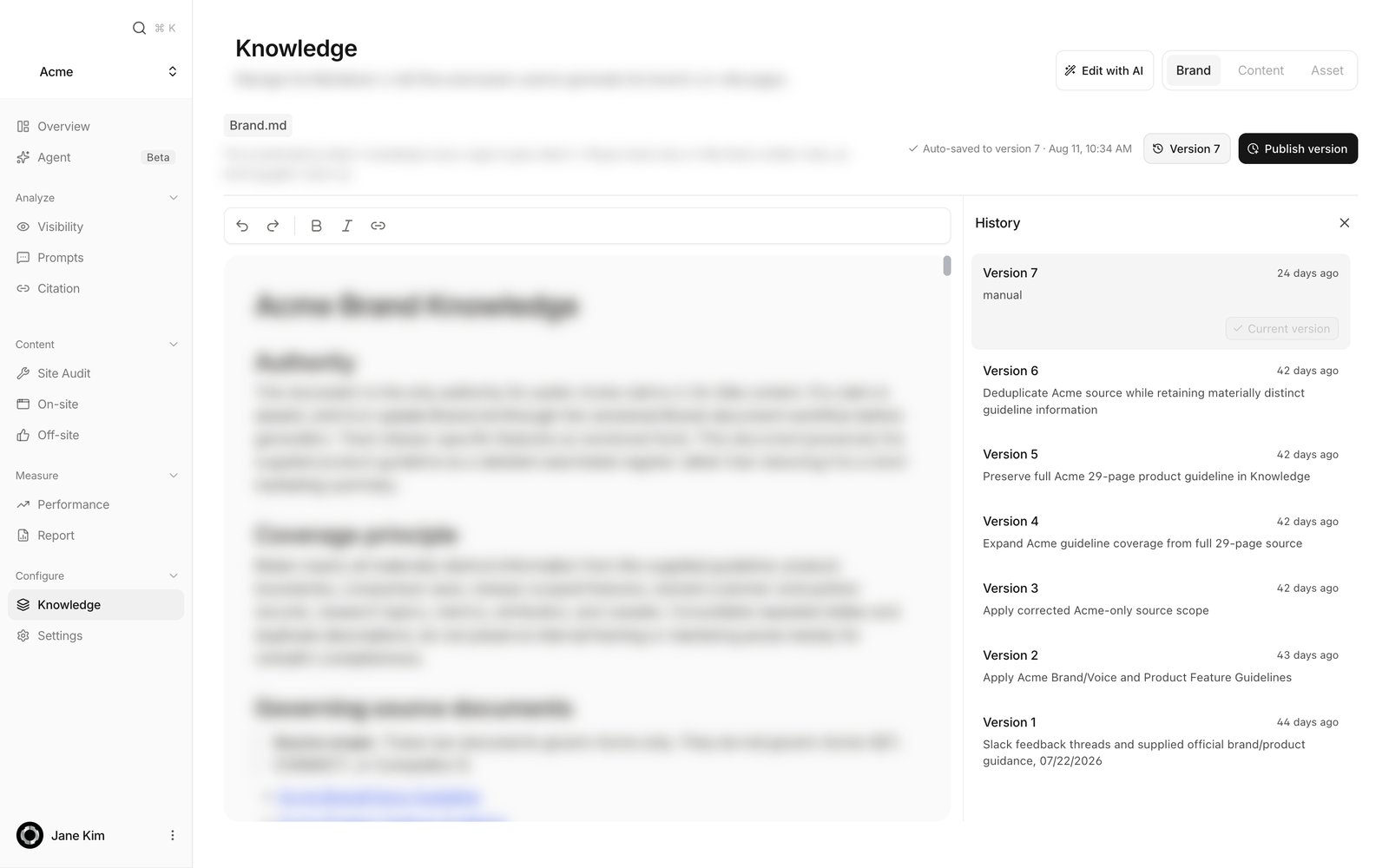 **Version \[n]** opens the **History** column. Newest first, each row shows the version number, a **CURRENT** chip on the one you have loaded, a relative time, and the change summary. With no summary you see how the version was made instead: `extraction` for the auto-researched first cut, `manual` for a published edit, `restore` for a restored one.
Click a row to read that version in place of the current text; the document goes read-only while you do. **Restore** brings that text back as a new, higher-numbered version, so nothing in the history is lost. Close the column to return to the current text.
## The Content tab and Voice pack
**Version \[n]** opens the **History** column. Newest first, each row shows the version number, a **CURRENT** chip on the one you have loaded, a relative time, and the change summary. With no summary you see how the version was made instead: `extraction` for the auto-researched first cut, `manual` for a published edit, `restore` for a restored one.
Click a row to read that version in place of the current text; the document goes read-only while you do. **Restore** brings that text back as a new, higher-numbered version, so nothing in the history is lost. Close the column to return to the current text.
## The Content tab and Voice pack
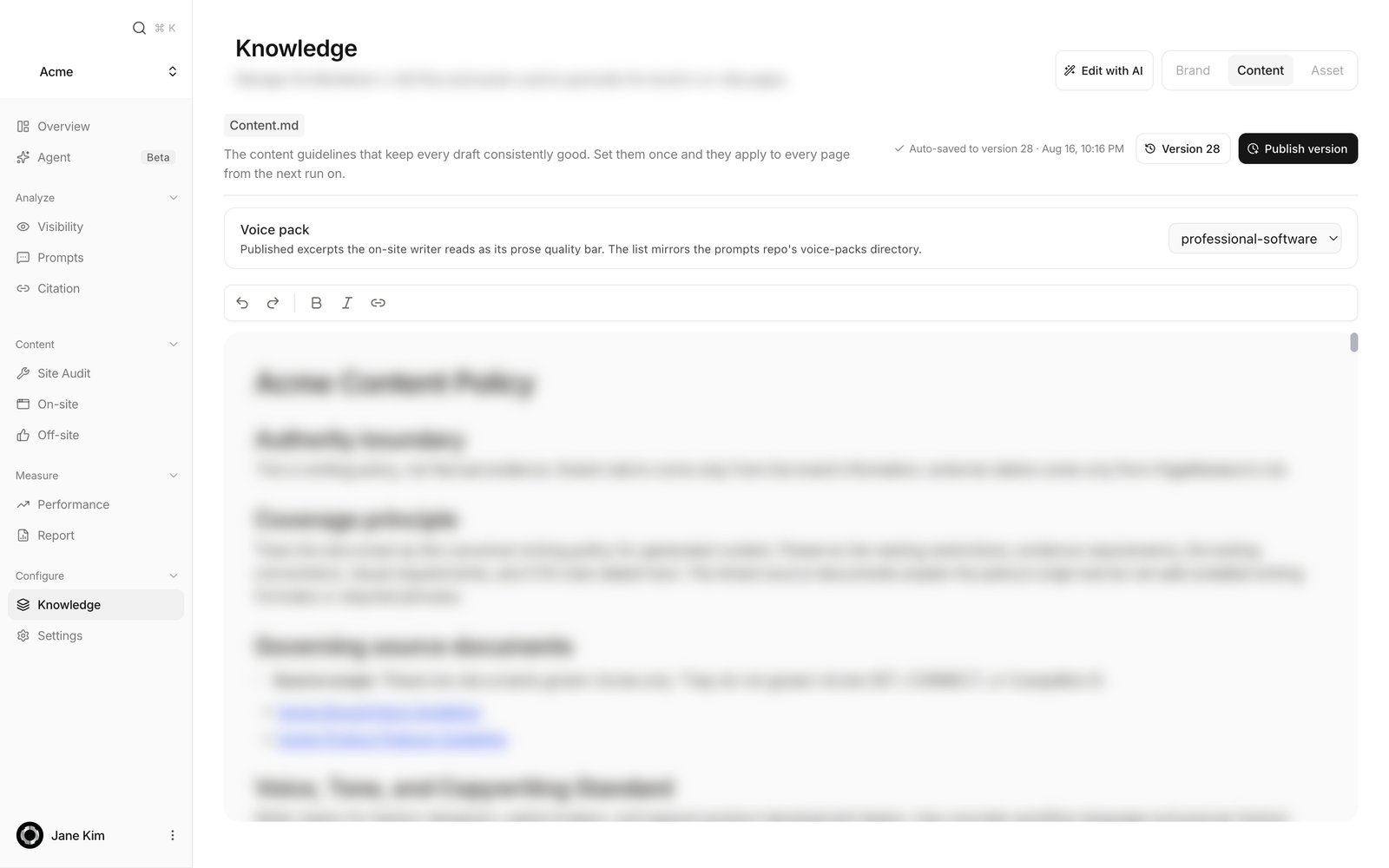 The Content tab adds one card above the document: **Voice pack**. It is a list of writing-style presets maintained by Anymorph; the first option is **None**. Choosing one is optional and does not change how your pages are written today, so you can leave it as it is.
## The Asset tab
The Content tab adds one card above the document: **Voice pack**. It is a list of writing-style presets maintained by Anymorph; the first option is **None**. Choosing one is optional and does not change how your pages are written today, so you can leave it as it is.
## The Asset tab
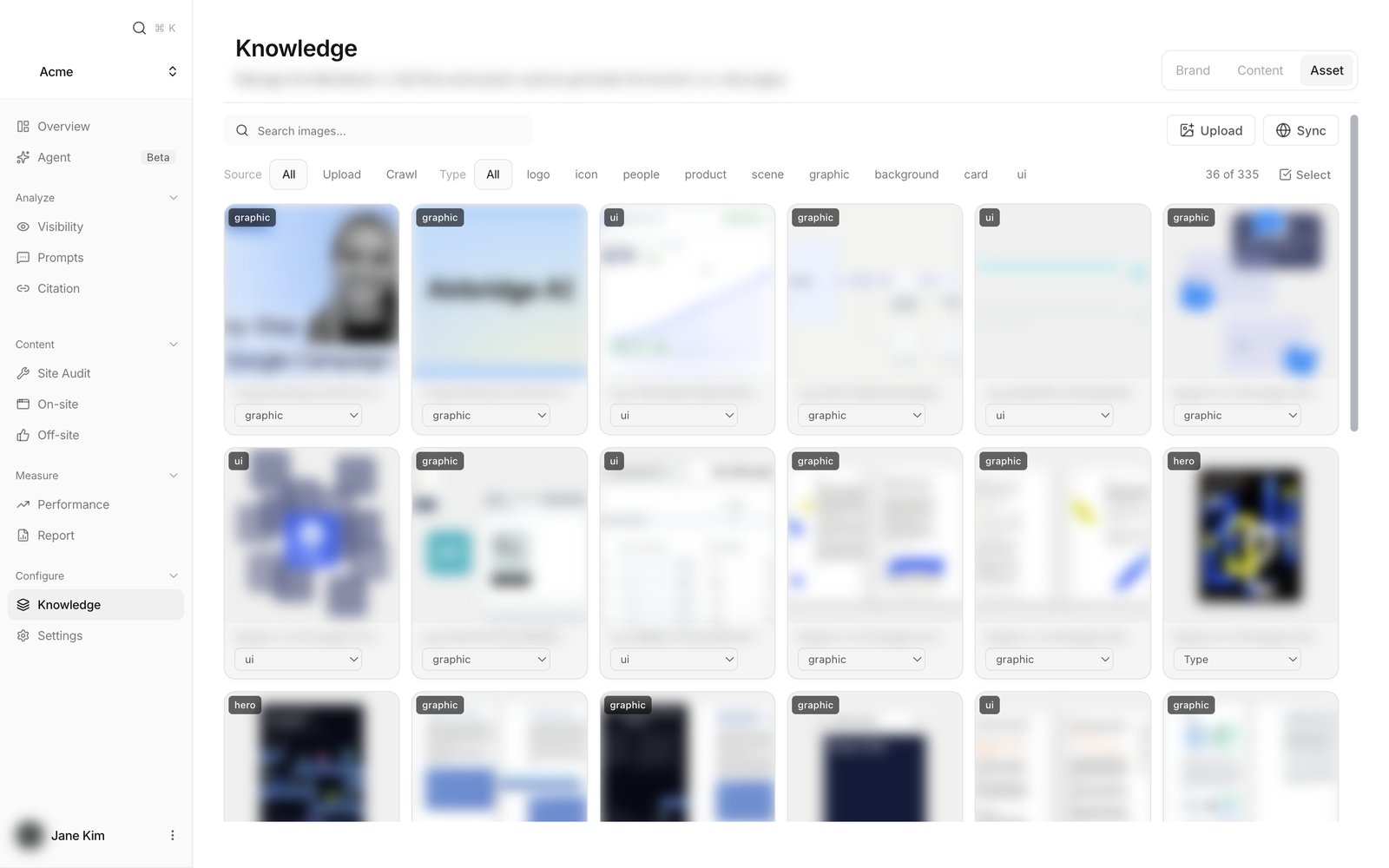 This is the image library the page editor and the Agent search when you ask for an image on a page. Automatic page generation creates its own hero images, so you don't need to fill this library before drafts can be written.
* **Upload** — pick files, or drop them onto the panel.
* **Sync** — reads your site and brings in what it doesn't already have. The address field is prefilled with your workspace domain. **Replace synced images** clears everything collected from the site and collects fresh; your uploads are kept. The sync keeps running in the background and the button reads **Syncing**.
* Filters — **Source** (Upload / Crawl) and **Type** (logo, icon, people, product, scene, graphic, background, card, ui).
* **Select** — tick several cards and remove them with **Delete (\[n])**.
New images are classified and captioned automatically. You can't change **Type** while an image is still being classified; after that, fix it any time from the card's **Type** dropdown. Click a card for a details panel with filename, type, source, description and status. Images classified as logo or icon are held back from being embedded in pages.
## Edit with AI
This is the image library the page editor and the Agent search when you ask for an image on a page. Automatic page generation creates its own hero images, so you don't need to fill this library before drafts can be written.
* **Upload** — pick files, or drop them onto the panel.
* **Sync** — reads your site and brings in what it doesn't already have. The address field is prefilled with your workspace domain. **Replace synced images** clears everything collected from the site and collects fresh; your uploads are kept. The sync keeps running in the background and the button reads **Syncing**.
* Filters — **Source** (Upload / Crawl) and **Type** (logo, icon, people, product, scene, graphic, background, card, ui).
* **Select** — tick several cards and remove them with **Delete (\[n])**.
New images are classified and captioned automatically. You can't change **Type** while an image is still being classified; after that, fix it any time from the card's **Type** dropdown. Click a card for a details panel with filename, type, source, description and status. Images classified as logo or icon are held back from being embedded in pages.
## Edit with AI
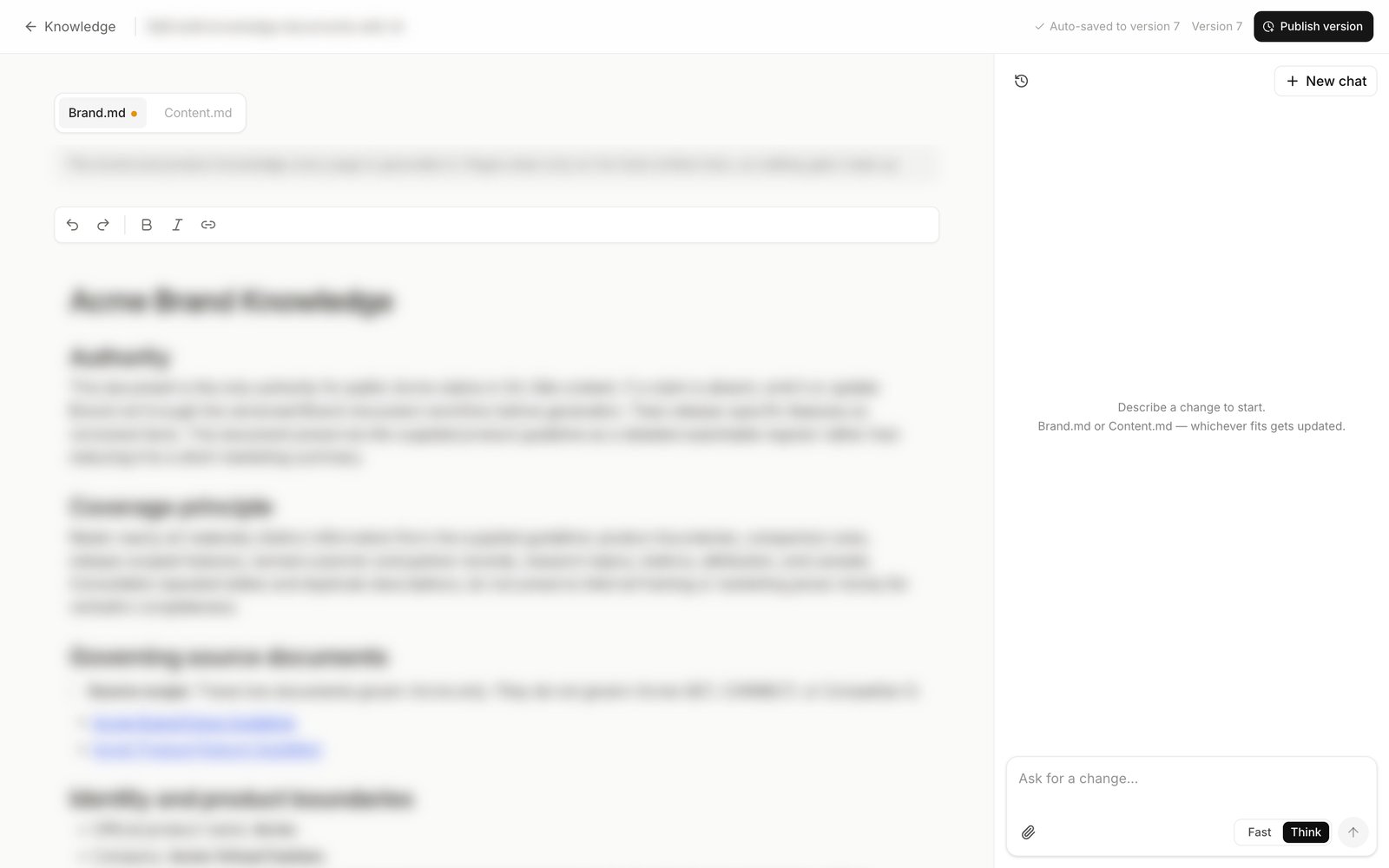 **Edit with AI** opens a fullscreen editor. Both files sit in the middle as tabs, **Brand.md** and **Content.md**, with the assistant panel on the right.
Describe the change you want, for example "add our refund policy to the brand facts". You can also **Attach source files** so the assistant reads your material. It replies with a **Proposed changes** block showing the edit per file, and an **Open** link that scrolls the document to that spot. **Apply** writes the text into the editor and prefills the change summary; **Discard** throws it away.
Applied text autosaves like any other edit. When you're happy with it, press **Publish version**. **New chat** starts a fresh thread and **Chat history** reopens earlier ones.
## How to use it
On the **Brand** tab, edit the sentence directly. Once the readout says **Auto-saved to version \[n]**, the next run uses the corrected text.
On the **Content** tab, write the rule as one line: a banned phrase, a required CTA shape, a currency format.
Write one line in **Change summary** saying what you changed and why, then press **Publish version**.
Open **Version \[n]** → **History**, click an older version to read it, then press **Restore**.
## FAQ
Nothing. Your typing saves about 1.5 seconds after you stop, and the readout changes to **Auto-saved to version \[n]**.
Not to make your edit count. The writers read the current document, so it counts from the moment it autosaves. **Publish version** creates a permanent numbered copy: the number a generated page records as its source, and the point you can restore later.
No. Knowledge edits apply from the next generation run onward. Every existing page stays pinned to the version it was written from.
They were researched automatically when your workspace was set up. Brand.md by reading your website, Content.md by reading the best editorial blogs in your field.
Yes. **Attach source files** in the **Edit with AI** editor accepts pdf, docx, pptx, xls, xlsx, epub, images and plain-text formats such as txt, md and csv, up to 25 MB each. The assistant reads the content and proposes edits; the file itself isn't kept as a document.
Anyone who can open the workspace can edit, publish and restore both documents, and there is no approval step. Since an autosaved edit reaches the next run, agree internally on who owns these two files.
You upload them on the **Asset** tab, or **Sync** collects them from your website. Each one is classified and captioned so the editor can find a fitting image when you ask for one. Correct the **Type** by hand when it's wrong.
A brand-new workspace can open Knowledge before the automatic research has finished. Reload after a minute.
## Related
How to route a problem you found in a draft into the right document.
What to focus on when you read a draft.
Pages for your own site, written from both documents.
Pieces for other publications, written from Brand.md only.
**Edit with AI** opens a fullscreen editor. Both files sit in the middle as tabs, **Brand.md** and **Content.md**, with the assistant panel on the right.
Describe the change you want, for example "add our refund policy to the brand facts". You can also **Attach source files** so the assistant reads your material. It replies with a **Proposed changes** block showing the edit per file, and an **Open** link that scrolls the document to that spot. **Apply** writes the text into the editor and prefills the change summary; **Discard** throws it away.
Applied text autosaves like any other edit. When you're happy with it, press **Publish version**. **New chat** starts a fresh thread and **Chat history** reopens earlier ones.
## How to use it
On the **Brand** tab, edit the sentence directly. Once the readout says **Auto-saved to version \[n]**, the next run uses the corrected text.
On the **Content** tab, write the rule as one line: a banned phrase, a required CTA shape, a currency format.
Write one line in **Change summary** saying what you changed and why, then press **Publish version**.
Open **Version \[n]** → **History**, click an older version to read it, then press **Restore**.
## FAQ
Nothing. Your typing saves about 1.5 seconds after you stop, and the readout changes to **Auto-saved to version \[n]**.
Not to make your edit count. The writers read the current document, so it counts from the moment it autosaves. **Publish version** creates a permanent numbered copy: the number a generated page records as its source, and the point you can restore later.
No. Knowledge edits apply from the next generation run onward. Every existing page stays pinned to the version it was written from.
They were researched automatically when your workspace was set up. Brand.md by reading your website, Content.md by reading the best editorial blogs in your field.
Yes. **Attach source files** in the **Edit with AI** editor accepts pdf, docx, pptx, xls, xlsx, epub, images and plain-text formats such as txt, md and csv, up to 25 MB each. The assistant reads the content and proposes edits; the file itself isn't kept as a document.
Anyone who can open the workspace can edit, publish and restore both documents, and there is no approval step. Since an autosaved edit reaches the next run, agree internally on who owns these two files.
You upload them on the **Asset** tab, or **Sync** collects them from your website. Each one is classified and captioned so the editor can find a fitting image when you ask for one. Correct the **Type** by hand when it's wrong.
A brand-new workspace can open Knowledge before the automatic research has finished. Reload after a minute.
## Related
How to route a problem you found in a draft into the right document.
What to focus on when you read a draft.
Pages for your own site, written from both documents.
Pieces for other publications, written from Brand.md only.