> ## Documentation Index
> Fetch the complete documentation index at: https://docs.anymorph.ai/llms.txt
> Use this file to discover all available pages before exploring further.
# Dashboard tour
> What every sidebar item does, plus the workspace switcher, search and account menu
An Anymorph workspace has no top bar. The left sidebar does all the navigating, and each screen draws its own title and filters inside the content area. Read this page and you'll know which item answers which question.
 1. **Workspace switcher** — the brand you're looking at. Switch here if you run more than one.
2. **Overview** and **Agent** — the two items sitting at the top with no group header.
3. **Analyze** — Visibility, Prompts, Citation: how AI engines talk about you today.
4. **Content** — Site Audit, On-site, Off-site: what gets written and reviewed.
5. **Measure** — Performance, Report: what happened after you published.
6. **Configure** — Knowledge, Settings: what shapes the next pages.
7. **Account row** — your avatar, your name, and a three-dot menu.
## What's on the screen
### Every sidebar item
The order of the menu is the order of the work: measure (Analyze), write (Content), check results (Measure), adjust (Configure).
| Item | The question it answers | Docs |
| ---------------- | ---------------------------------------------------------- | --------------------------------------- |
| **Overview** | What was produced this week, and how did the numbers move? | [Overview](/dashboard/overview) |
| **Agent** `Beta` | A chat you can ask about your own data | [Agent](/dashboard/agent) |
| **Visibility** | How often, and how prominently, do AI answers name us? | [Visibility](/dashboard/visibility) |
| **Prompts** | What are we measuring against? (the questions and topics) | [Prompts](/dashboard/prompts) |
| **Citation** | Which sources did AI engines cite in their answers? | [Citation](/dashboard/citation) |
| **Site Audit** | Is anything on our current site hard for AI to read? | [Site Audit](/dashboard/site-audit) |
| **On-site** | Review and publish pages for your own domain | [On-site](/dashboard/on-site) |
| **Off-site** | Review and publish articles for external placements | [Off-site](/dashboard/off-site) |
| **Performance** | Did published content actually bring people in? | [Performance](/dashboard/performance) |
| **Report** | A period write-up you can share | [Report](/dashboard/report) |
| **Knowledge** | The documents everything new is written from | [Knowledge](/dashboard/knowledge) |
| **Settings** | Domain, team, plan, connections | [Settings › Profile](/settings/profile) |
The `Beta` badge on **Agent** means it's usable but still changing. Badge words stay in English whatever language you set.
Click a group header (**Analyze**, **Content**, **Measure**, **Configure**) to fold or unfold it. Folding the groups you rarely use shortens the rail.
A few screens aren't in the sidebar and open when you click through from another screen. [Mentions](/dashboard/mentions) opens when you click a Visibility number to read the actual AI answers, and the [page editor](/dashboard/page-editor) opens when you open an On-site draft.
### Workspace switcher
One brand is one workspace. Switching workspaces changes every number on every screen.
Click the chip to open the list. Type into **Find Workspace...** to filter by name or domain. Arrow keys move, Enter selects, Esc closes. Selecting a workspace takes you to that workspace's **Visibility** screen — always Visibility, not the screen you were on.
At the bottom of the list, **Create Workspace** opens the domain form for a new brand. One domain gets one workspace. See the [onboarding guide](/guides/onboarding).
Clicking the logo at the top left also goes to **Visibility**, not Overview. To read the weekly summary, click the **Overview** item or find it in search.
### Search (⌘K / Ctrl+K)
Click the magnifier at the top of the sidebar, or press `⌘K` (Mac) / `Ctrl+K` (Windows) from anywhere. The field reads **Type a command or search...**
1. **Workspace switcher** — the brand you're looking at. Switch here if you run more than one.
2. **Overview** and **Agent** — the two items sitting at the top with no group header.
3. **Analyze** — Visibility, Prompts, Citation: how AI engines talk about you today.
4. **Content** — Site Audit, On-site, Off-site: what gets written and reviewed.
5. **Measure** — Performance, Report: what happened after you published.
6. **Configure** — Knowledge, Settings: what shapes the next pages.
7. **Account row** — your avatar, your name, and a three-dot menu.
## What's on the screen
### Every sidebar item
The order of the menu is the order of the work: measure (Analyze), write (Content), check results (Measure), adjust (Configure).
| Item | The question it answers | Docs |
| ---------------- | ---------------------------------------------------------- | --------------------------------------- |
| **Overview** | What was produced this week, and how did the numbers move? | [Overview](/dashboard/overview) |
| **Agent** `Beta` | A chat you can ask about your own data | [Agent](/dashboard/agent) |
| **Visibility** | How often, and how prominently, do AI answers name us? | [Visibility](/dashboard/visibility) |
| **Prompts** | What are we measuring against? (the questions and topics) | [Prompts](/dashboard/prompts) |
| **Citation** | Which sources did AI engines cite in their answers? | [Citation](/dashboard/citation) |
| **Site Audit** | Is anything on our current site hard for AI to read? | [Site Audit](/dashboard/site-audit) |
| **On-site** | Review and publish pages for your own domain | [On-site](/dashboard/on-site) |
| **Off-site** | Review and publish articles for external placements | [Off-site](/dashboard/off-site) |
| **Performance** | Did published content actually bring people in? | [Performance](/dashboard/performance) |
| **Report** | A period write-up you can share | [Report](/dashboard/report) |
| **Knowledge** | The documents everything new is written from | [Knowledge](/dashboard/knowledge) |
| **Settings** | Domain, team, plan, connections | [Settings › Profile](/settings/profile) |
The `Beta` badge on **Agent** means it's usable but still changing. Badge words stay in English whatever language you set.
Click a group header (**Analyze**, **Content**, **Measure**, **Configure**) to fold or unfold it. Folding the groups you rarely use shortens the rail.
A few screens aren't in the sidebar and open when you click through from another screen. [Mentions](/dashboard/mentions) opens when you click a Visibility number to read the actual AI answers, and the [page editor](/dashboard/page-editor) opens when you open an On-site draft.
### Workspace switcher
One brand is one workspace. Switching workspaces changes every number on every screen.
Click the chip to open the list. Type into **Find Workspace...** to filter by name or domain. Arrow keys move, Enter selects, Esc closes. Selecting a workspace takes you to that workspace's **Visibility** screen — always Visibility, not the screen you were on.
At the bottom of the list, **Create Workspace** opens the domain form for a new brand. One domain gets one workspace. See the [onboarding guide](/guides/onboarding).
Clicking the logo at the top left also goes to **Visibility**, not Overview. To read the weekly summary, click the **Overview** item or find it in search.
### Search (⌘K / Ctrl+K)
Click the magnifier at the top of the sidebar, or press `⌘K` (Mac) / `Ctrl+K` (Windows) from anywhere. The field reads **Type a command or search...**
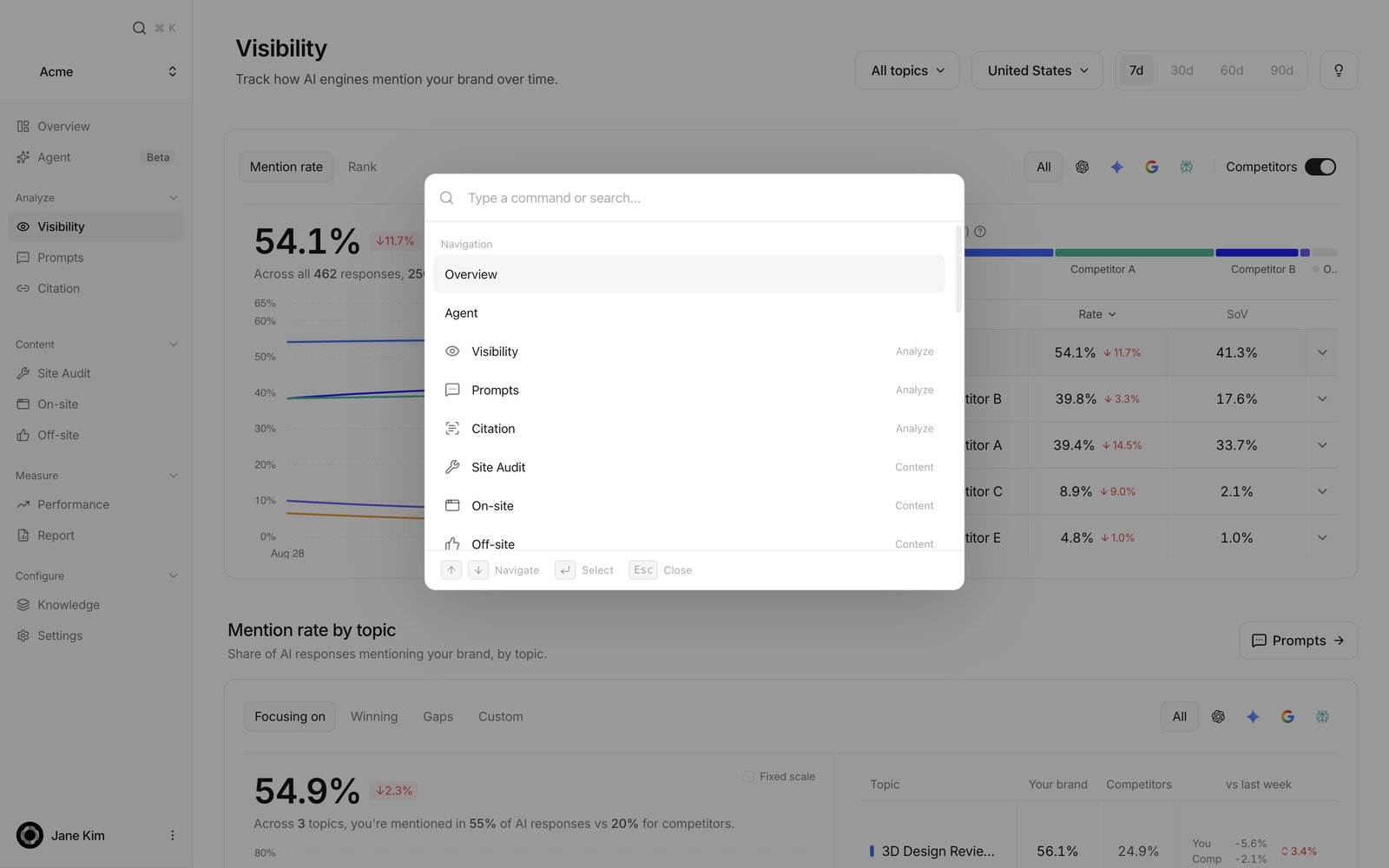 Results come in four sections.
* **Navigation** — every screen in the sidebar, each tagged with its group on the right.
* **Settings** — Profile, Domain, Design, Team, Plan, Integrations, General.
* **Quick Access** — **AI Performance**, **Web Traffic**, **Competitors**, **Citations**, which jump straight to a specific tab.
* **Theme** — **Light**, **Dark**, **System**. The one in use is tagged **Active**. Picking one switches immediately and closes the dialog.
You don't need the exact screen name. Type what you actually call it: "share of voice" or "GEO score" finds Visibility, "Google Analytics" finds Performance, "publish" finds On-site. Nothing matching shows **No results found.**
The footer says the rest: ↑ ↓ to move, Enter to select, Esc to close.
### Account menu
Click the row with your name at the bottom of the sidebar and a menu opens upward, with your name and email at the top.
Results come in four sections.
* **Navigation** — every screen in the sidebar, each tagged with its group on the right.
* **Settings** — Profile, Domain, Design, Team, Plan, Integrations, General.
* **Quick Access** — **AI Performance**, **Web Traffic**, **Competitors**, **Citations**, which jump straight to a specific tab.
* **Theme** — **Light**, **Dark**, **System**. The one in use is tagged **Active**. Picking one switches immediately and closes the dialog.
You don't need the exact screen name. Type what you actually call it: "share of voice" or "GEO score" finds Visibility, "Google Analytics" finds Performance, "publish" finds On-site. Nothing matching shows **No results found.**
The footer says the rest: ↑ ↓ to move, Enter to select, Esc to close.
### Account menu
Click the row with your name at the bottom of the sidebar and a menu opens upward, with your name and email at the top.
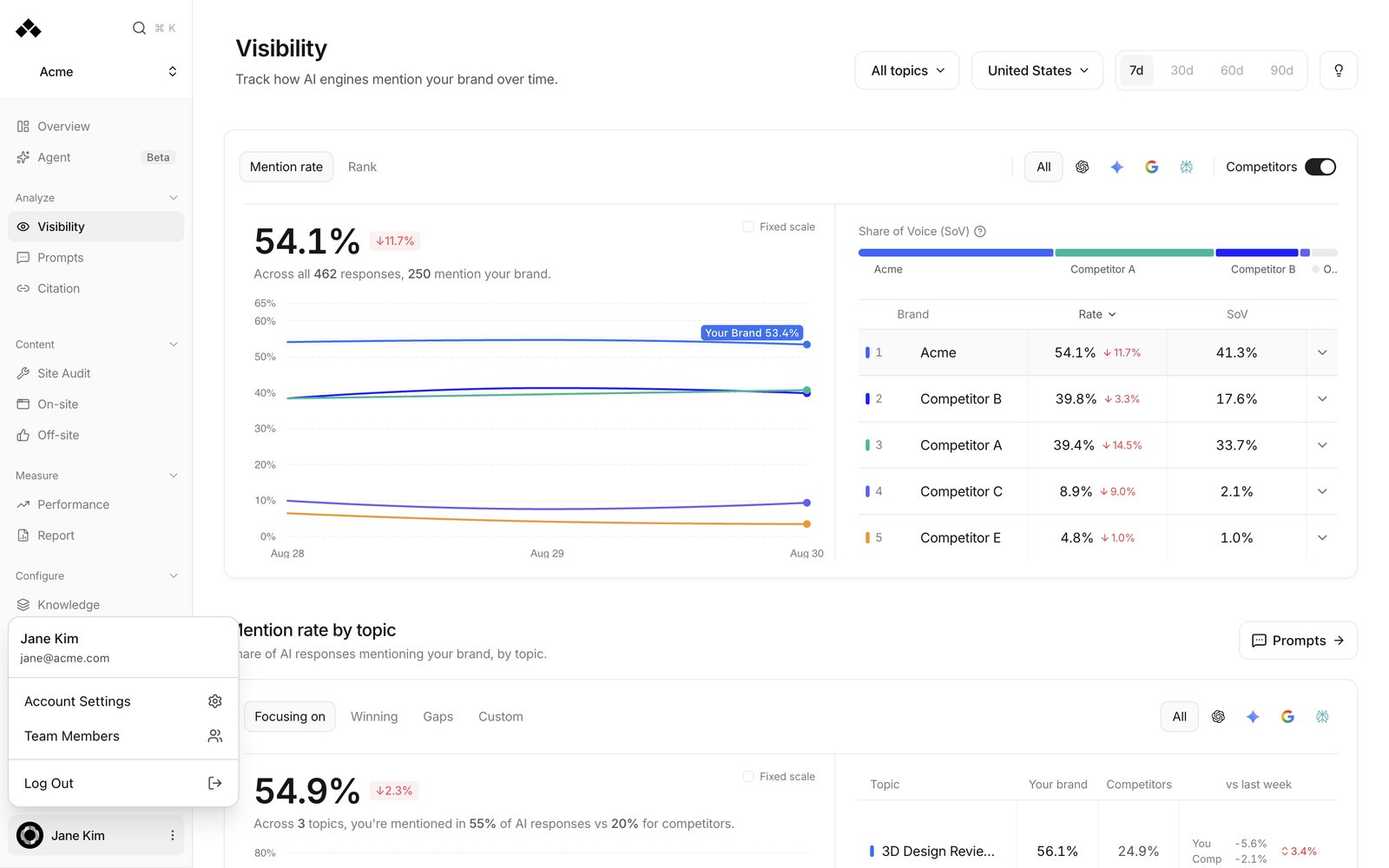 * **Account Settings** — opens a panel over the dashboard for your name, email, password and two-factor authentication. This is your sign-in account, separate from workspace settings.
* **Team Members** — goes to the screen where you invite people and manage their roles. It's the same screen as [Settings › Team](/settings/team).
* **Log Out** — signs you out and returns you to the sign-in page.
### Theme and language
The fastest way to switch light and dark is `⌘K`, then type "dark" or "light". Theme and the interface language can also be changed in [Settings › General](/settings/general).
The workspace opens on laptops and desktops only. Below tablet width you get a "please continue on a laptop or desktop computer" message instead of the workspace. Mobile support is on the roadmap.
## How to use it
Open **Overview** first. This week's drafts and the movement in your numbers are on one screen. If drafts are waiting, use the **On-site (n)** / **Off-site (n)** links under the card to go straight to them.
Click the workspace chip, type into **Find Workspace...** or arrow to the row, press Enter. You land on that workspace's Visibility screen.
Press `⌘K` and type what you're trying to do. Plain words like "sessions" or "publish" work.
Account menu → **Team Members**, or **Settings** › **Team**, then **Add Member**.
## FAQ
The logo and the workspace switcher both land on Visibility, and so does signing in. Open the weekly summary with the **Overview** item, or `⌘K` → "Overview".
Some items are internal Anymorph operations screens. They're not visible on customer accounts, and nothing is wrong with yours.
One workspace per brand. Switch with the chip at the top; create a new one with **Create Workspace** in the same list. A given domain belongs to exactly one workspace across the whole platform.
**Settings** → Account → [Plan](/settings/plan).
**Settings** → Account → [Integrations](/settings/integrations). The step-by-step is in [Search Console and indexing](/guides/search-console-indexing).
Into [Knowledge](/dashboard/knowledge), on its Catalog tab — not Settings.
Not yet. Below tablet width the app asks you to continue on a laptop or desktop.
`⌘K`. Type what you're looking for in your own words, not the official screen name.
## Related
The screen you open every morning.
From signing in to your first publish.
What happens while your workspace is being prepared.
Invitations and roles.
* **Account Settings** — opens a panel over the dashboard for your name, email, password and two-factor authentication. This is your sign-in account, separate from workspace settings.
* **Team Members** — goes to the screen where you invite people and manage their roles. It's the same screen as [Settings › Team](/settings/team).
* **Log Out** — signs you out and returns you to the sign-in page.
### Theme and language
The fastest way to switch light and dark is `⌘K`, then type "dark" or "light". Theme and the interface language can also be changed in [Settings › General](/settings/general).
The workspace opens on laptops and desktops only. Below tablet width you get a "please continue on a laptop or desktop computer" message instead of the workspace. Mobile support is on the roadmap.
## How to use it
Open **Overview** first. This week's drafts and the movement in your numbers are on one screen. If drafts are waiting, use the **On-site (n)** / **Off-site (n)** links under the card to go straight to them.
Click the workspace chip, type into **Find Workspace...** or arrow to the row, press Enter. You land on that workspace's Visibility screen.
Press `⌘K` and type what you're trying to do. Plain words like "sessions" or "publish" work.
Account menu → **Team Members**, or **Settings** › **Team**, then **Add Member**.
## FAQ
The logo and the workspace switcher both land on Visibility, and so does signing in. Open the weekly summary with the **Overview** item, or `⌘K` → "Overview".
Some items are internal Anymorph operations screens. They're not visible on customer accounts, and nothing is wrong with yours.
One workspace per brand. Switch with the chip at the top; create a new one with **Create Workspace** in the same list. A given domain belongs to exactly one workspace across the whole platform.
**Settings** → Account → [Plan](/settings/plan).
**Settings** → Account → [Integrations](/settings/integrations). The step-by-step is in [Search Console and indexing](/guides/search-console-indexing).
Into [Knowledge](/dashboard/knowledge), on its Catalog tab — not Settings.
Not yet. Below tablet width the app asks you to continue on a laptop or desktop.
`⌘K`. Type what you're looking for in your own words, not the official screen name.
## Related
The screen you open every morning.
From signing in to your first publish.
What happens while your workspace is being prepared.
Invitations and roles.