> ## Documentation Index
> Fetch the complete documentation index at: https://docs.anymorph.ai/llms.txt
> Use this file to discover all available pages before exploring further.
# Track AI engine conversions in GA4
> Build a GA4 Explore report to see whether traffic from ChatGPT, Perplexity, Claude, Gemini, and other AI engines converts.
Use this guide when you want to confirm whether traffic from AI engines leads to purchases, sign-ups, inquiries, or other key conversions in GA4.
The report uses `Session source / medium` as the traffic source dimension, then compares it with conversion and revenue metrics.
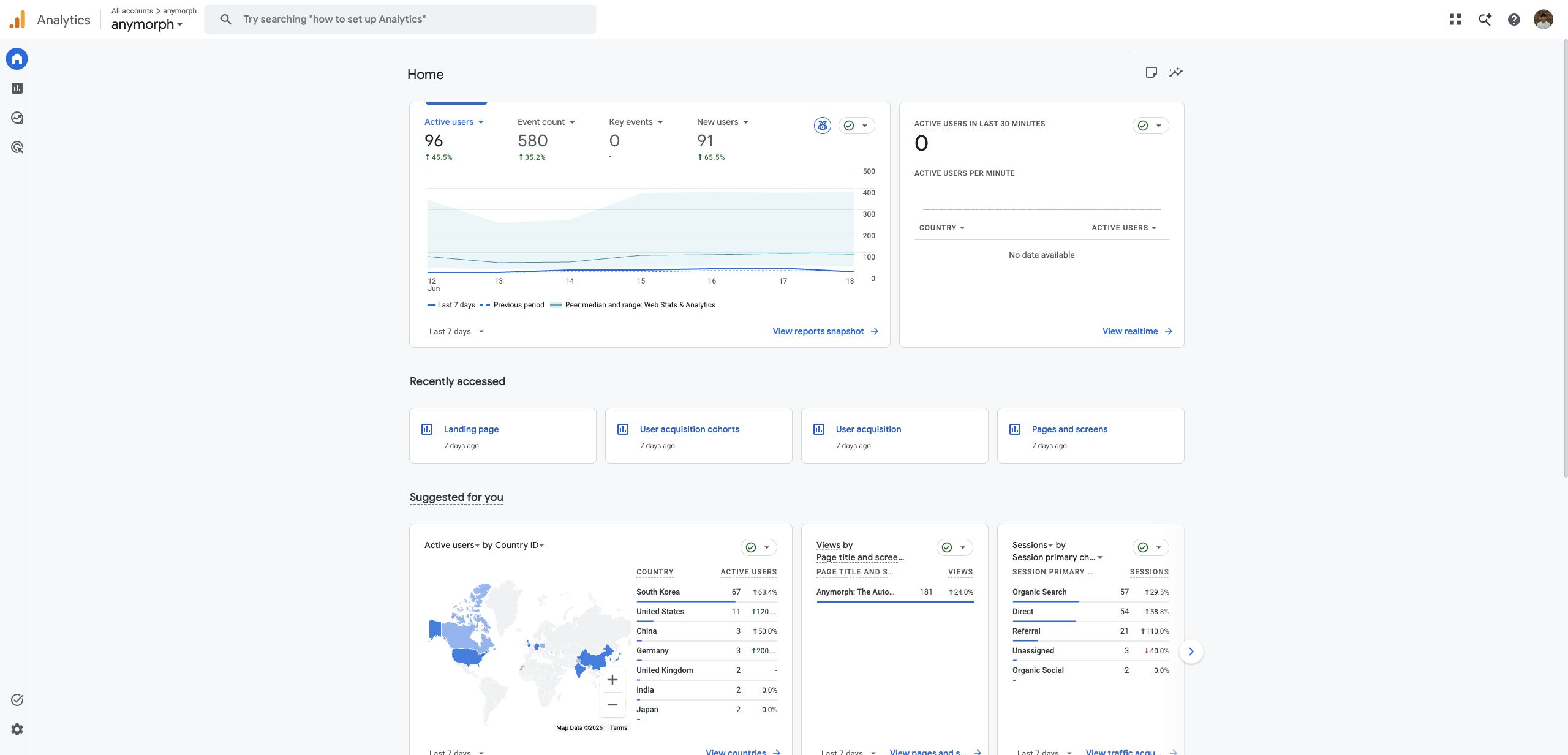
Select the GA4 property for your own website or service. Any screenshots or property names shared by Anymorph are examples only.
 ***
## Before You Start
Make sure the following items are already configured in GA4:
* Purchase or conversion events are being collected.
* The events you care about are marked as key events.
* Ecommerce tracking is configured if you want to use `Purchase revenue`.
If `Purchase revenue` is empty or always `0`, the ecommerce `purchase` event may not be implemented correctly yet.
***
## Build the Exploration
In GA4, open the property for your website or service, then click **Explore** in the left sidebar.
***
## Before You Start
Make sure the following items are already configured in GA4:
* Purchase or conversion events are being collected.
* The events you care about are marked as key events.
* Ecommerce tracking is configured if you want to use `Purchase revenue`.
If `Purchase revenue` is empty or always `0`, the ecommerce `purchase` event may not be implemented correctly yet.
***
## Build the Exploration
In GA4, open the property for your website or service, then click **Explore** in the left sidebar.
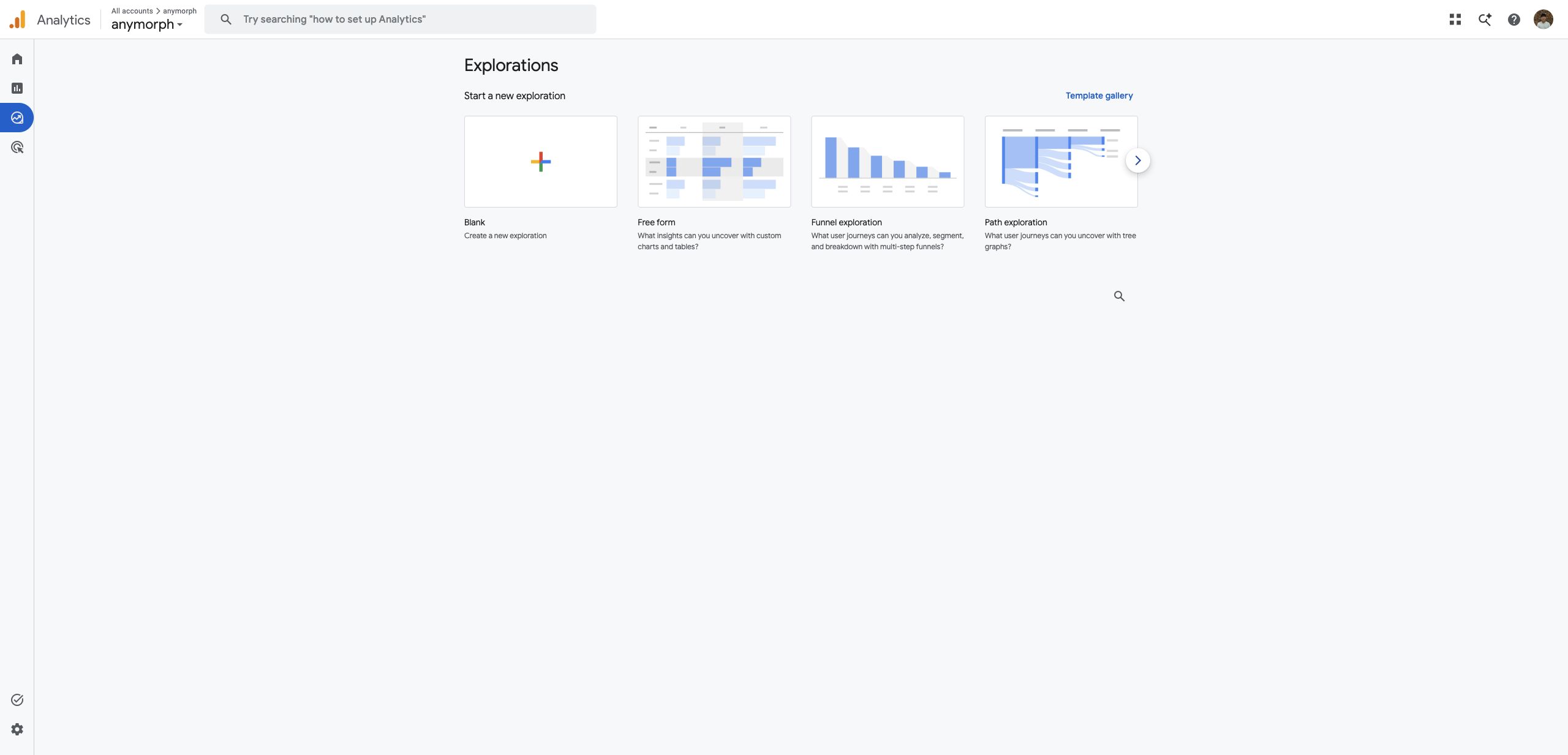
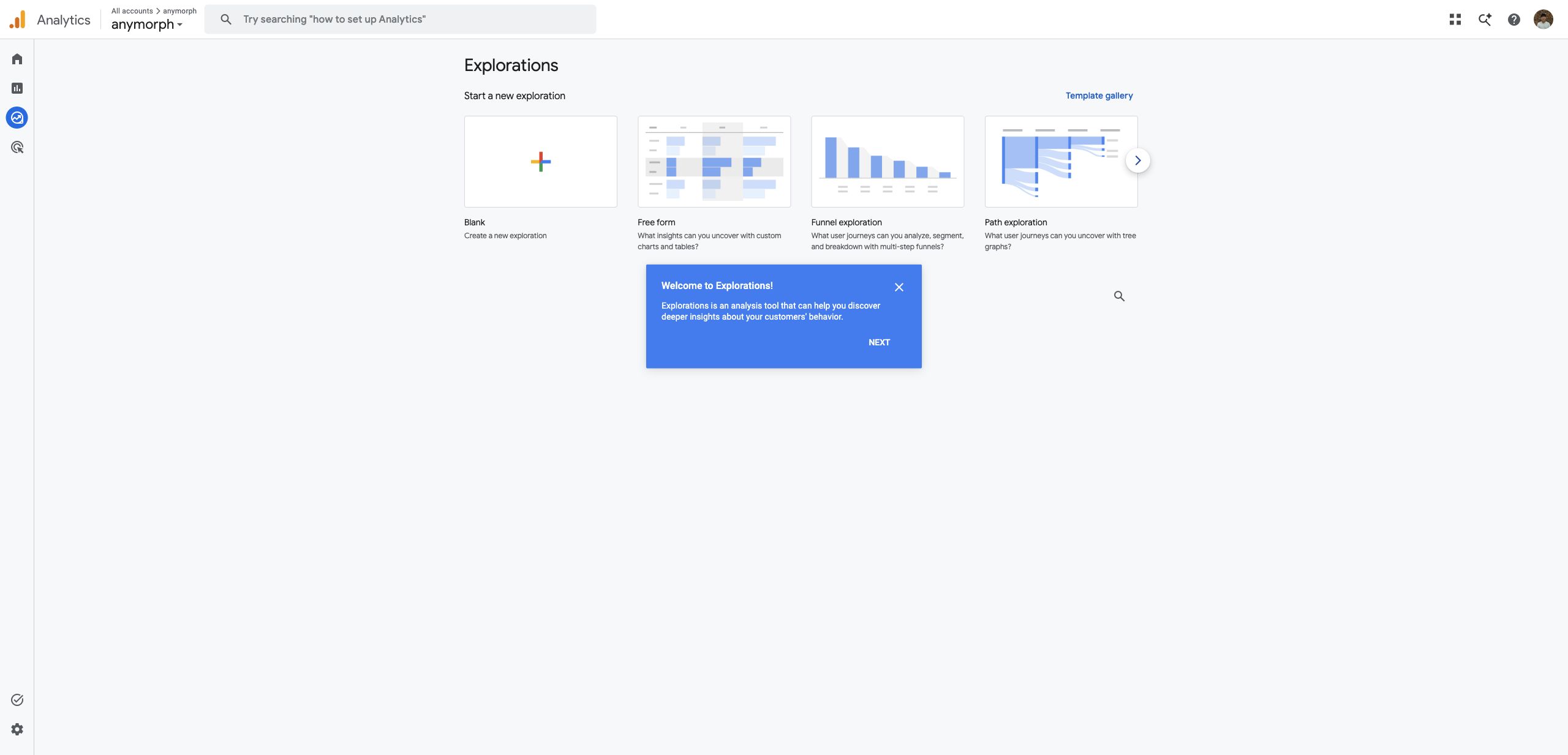 Under **Start a new exploration**, choose **Blank**. This opens a Free form exploration.
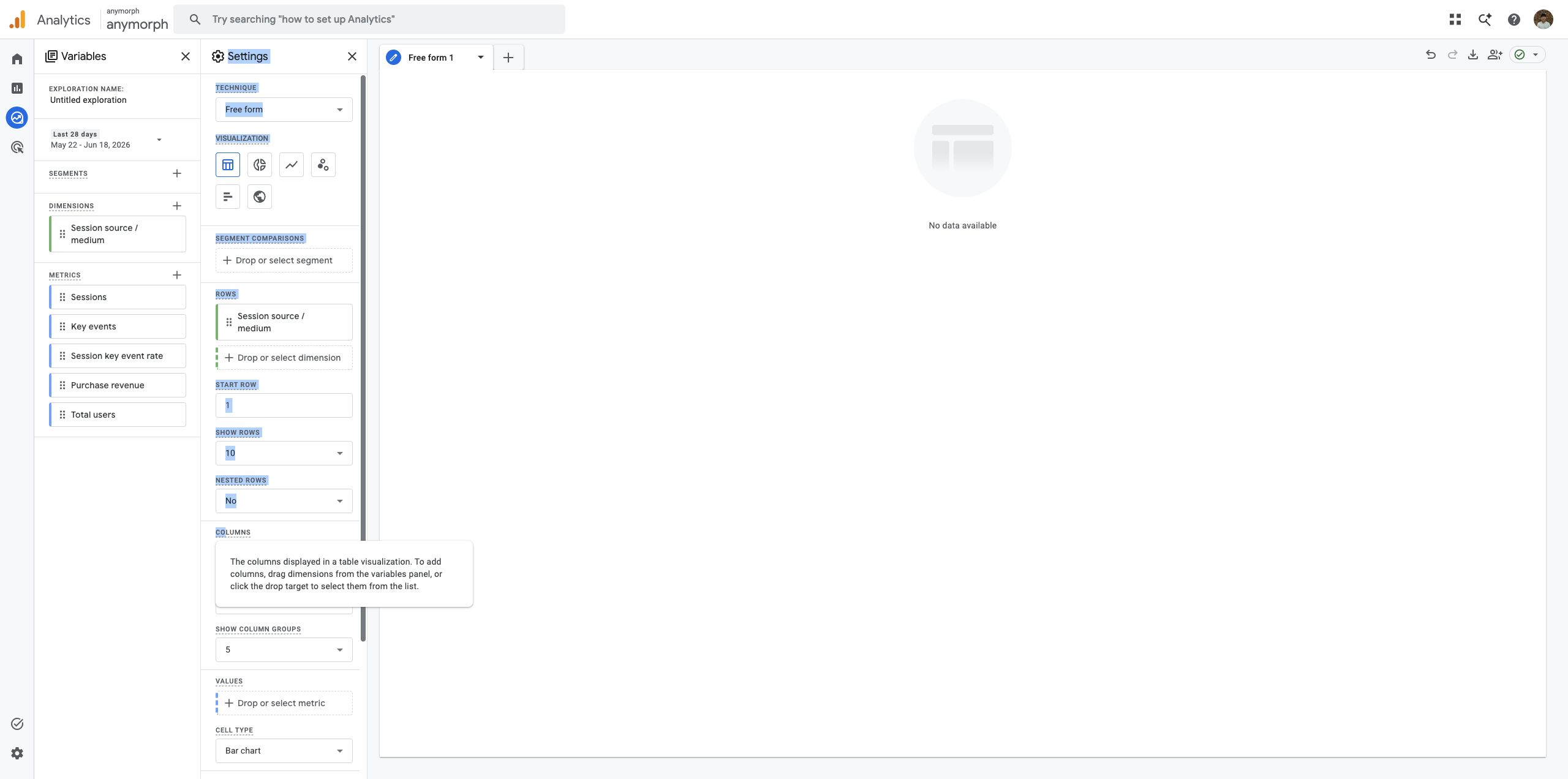
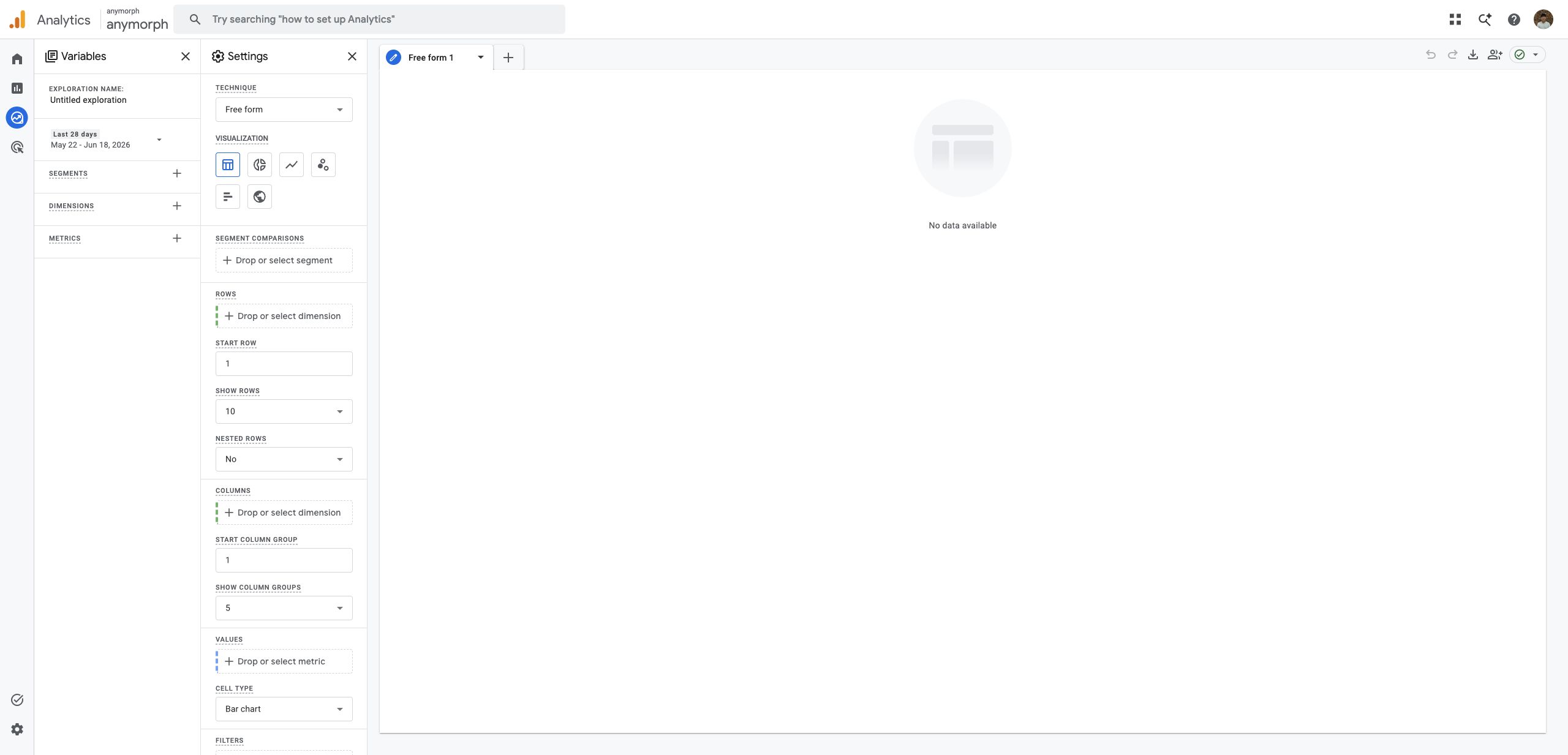 In the **Variables** panel, click **+** next to **Dimensions**. Search for `Session source / medium`, select it, and click **Confirm**.
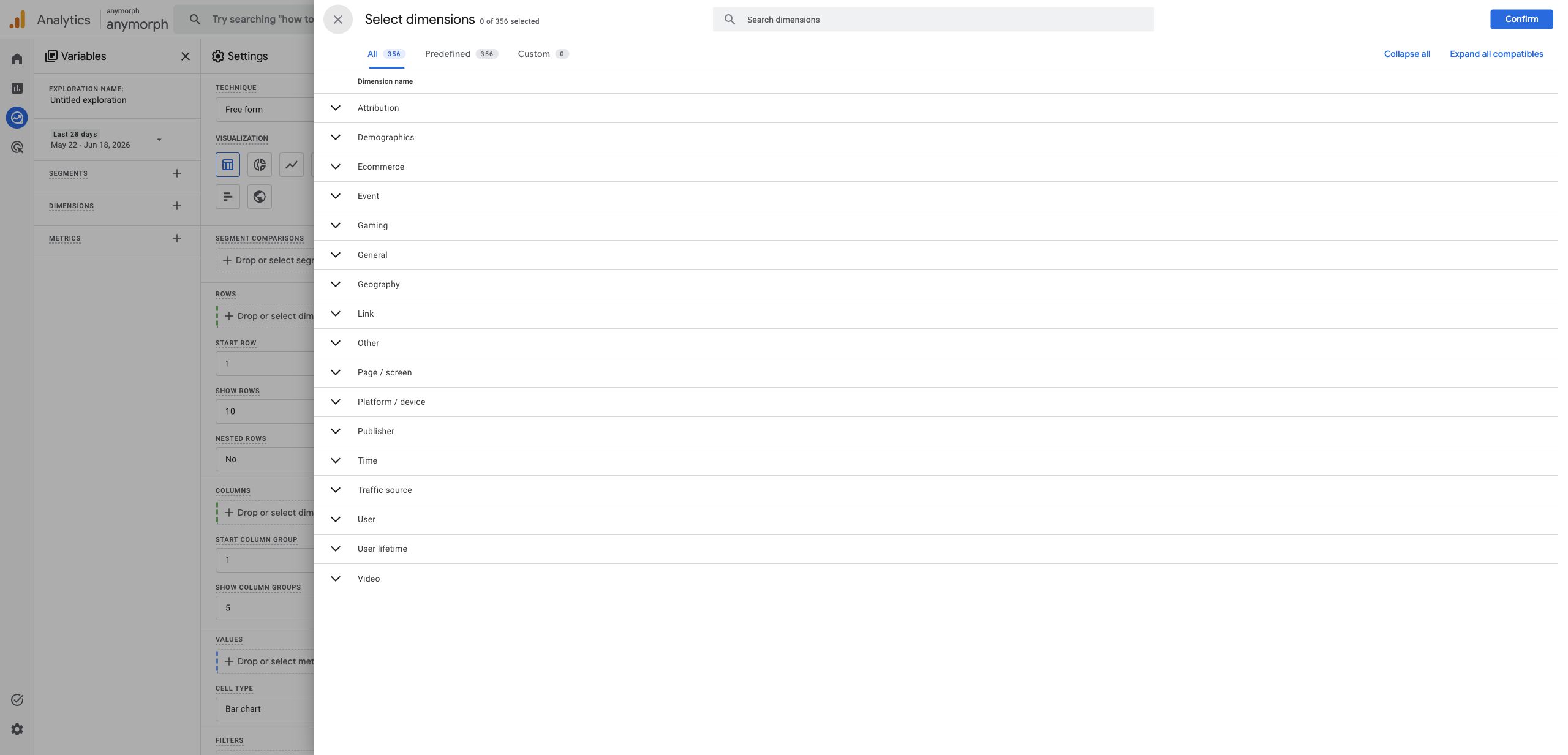
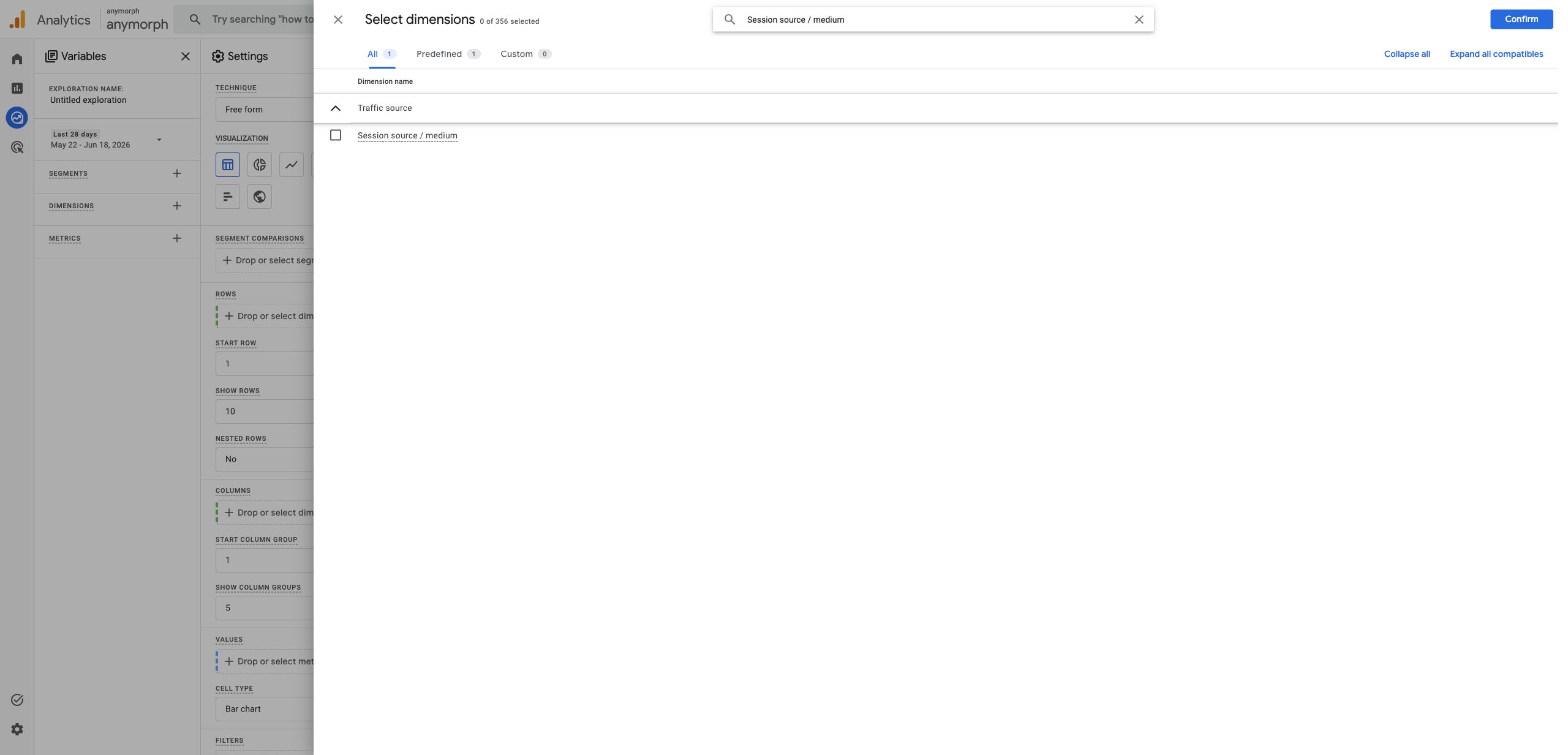
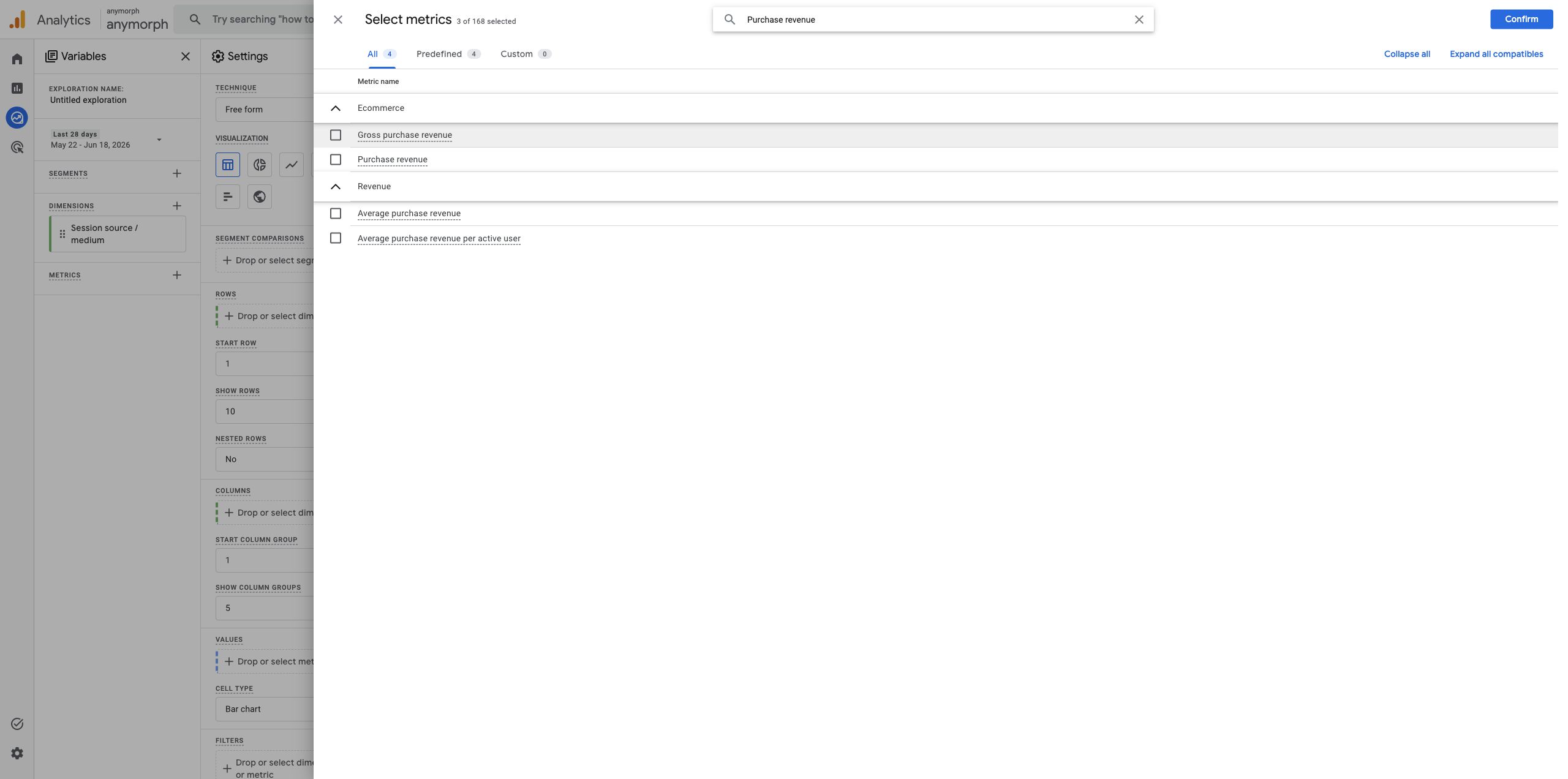
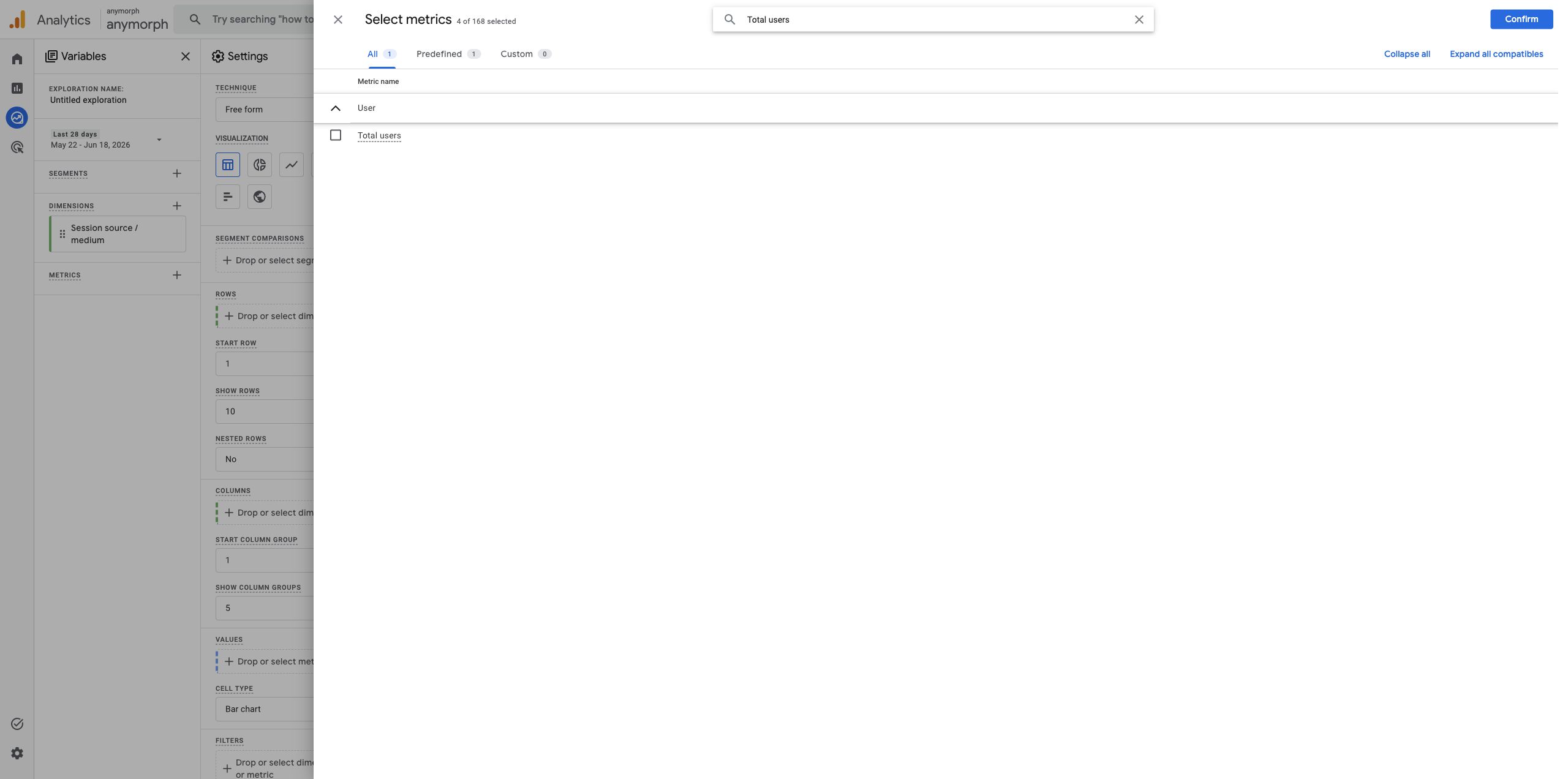
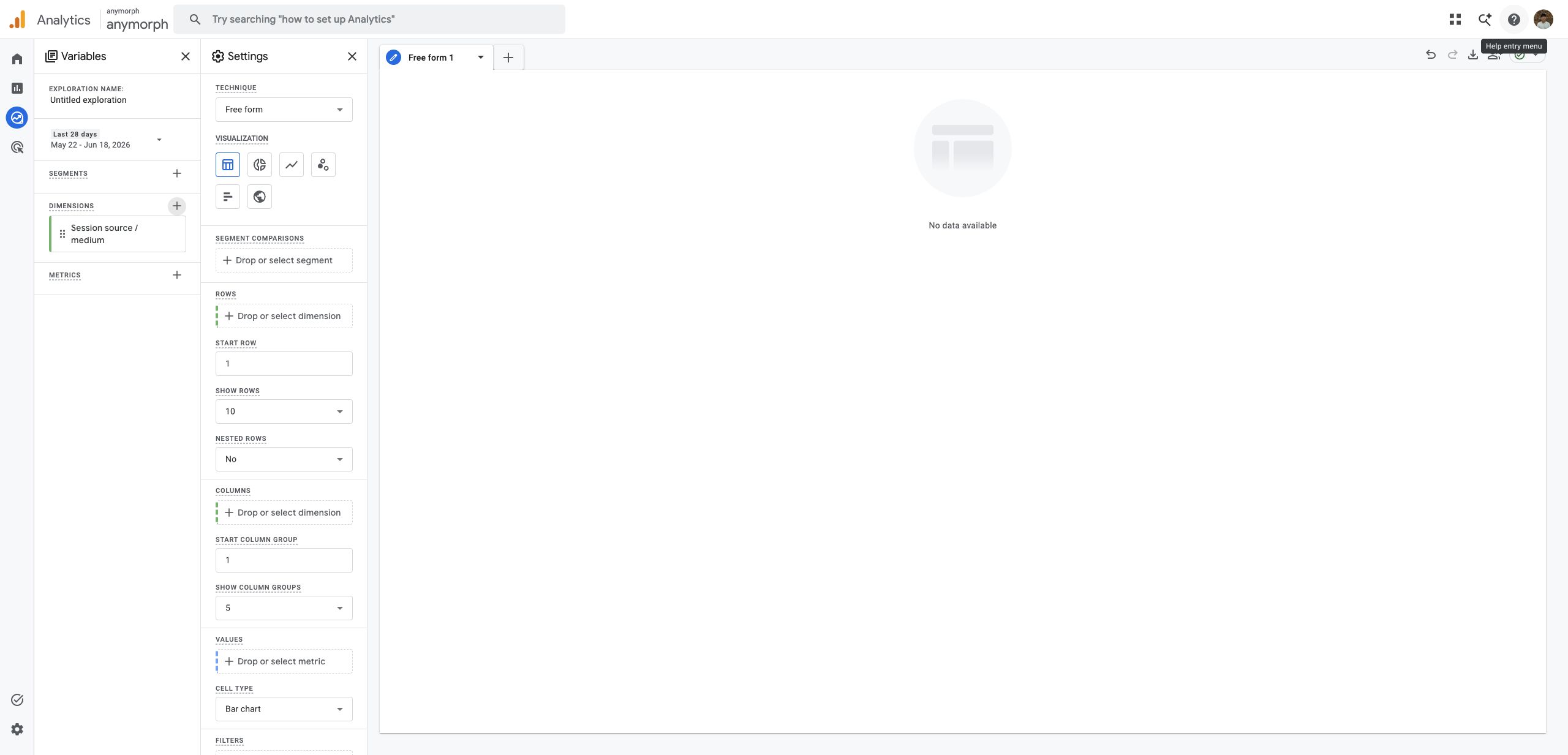 In the **Variables** panel, click **+** next to **Metrics**. Add `Sessions`, `Total users`, `Key events`, `Session key event rate`, and `Purchase revenue`.
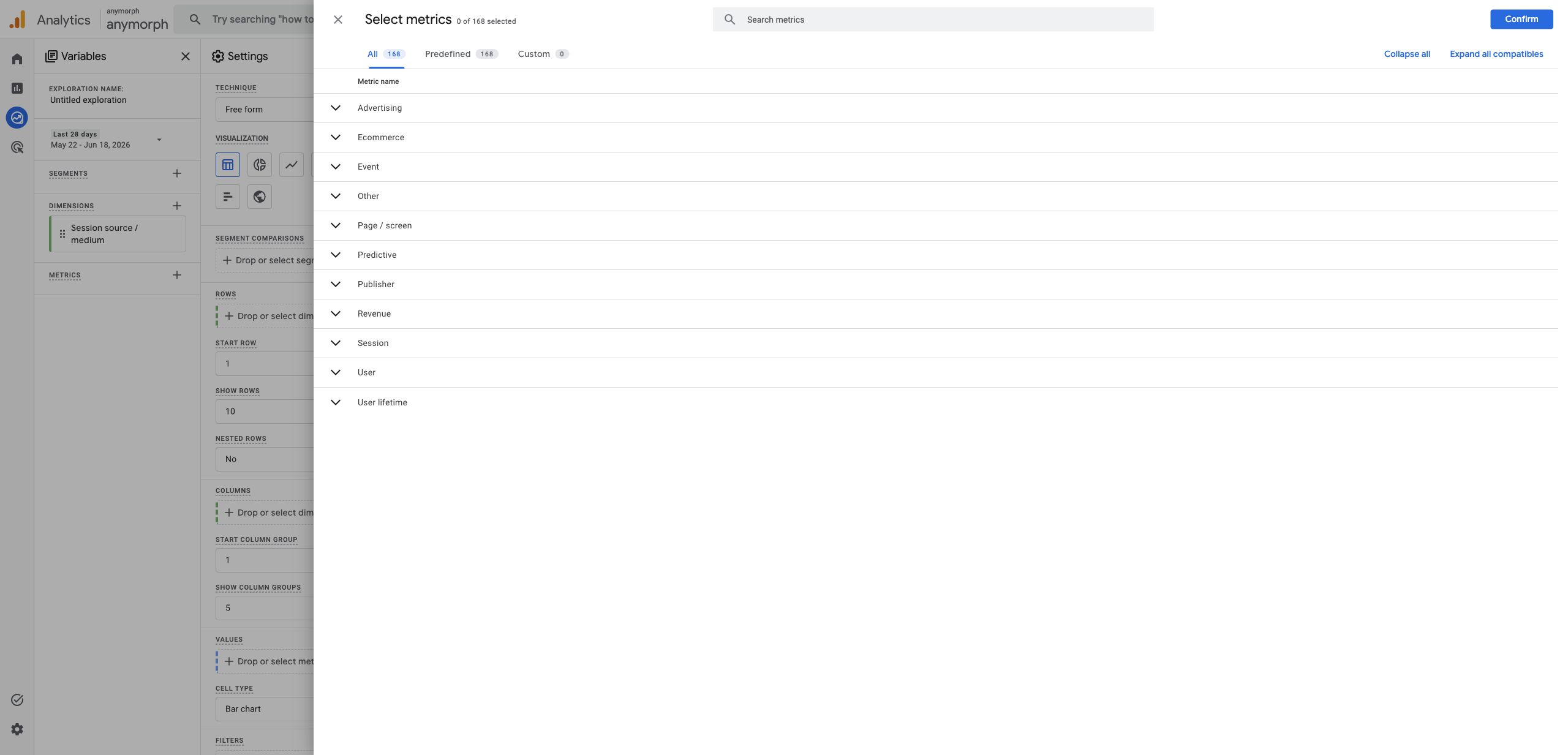
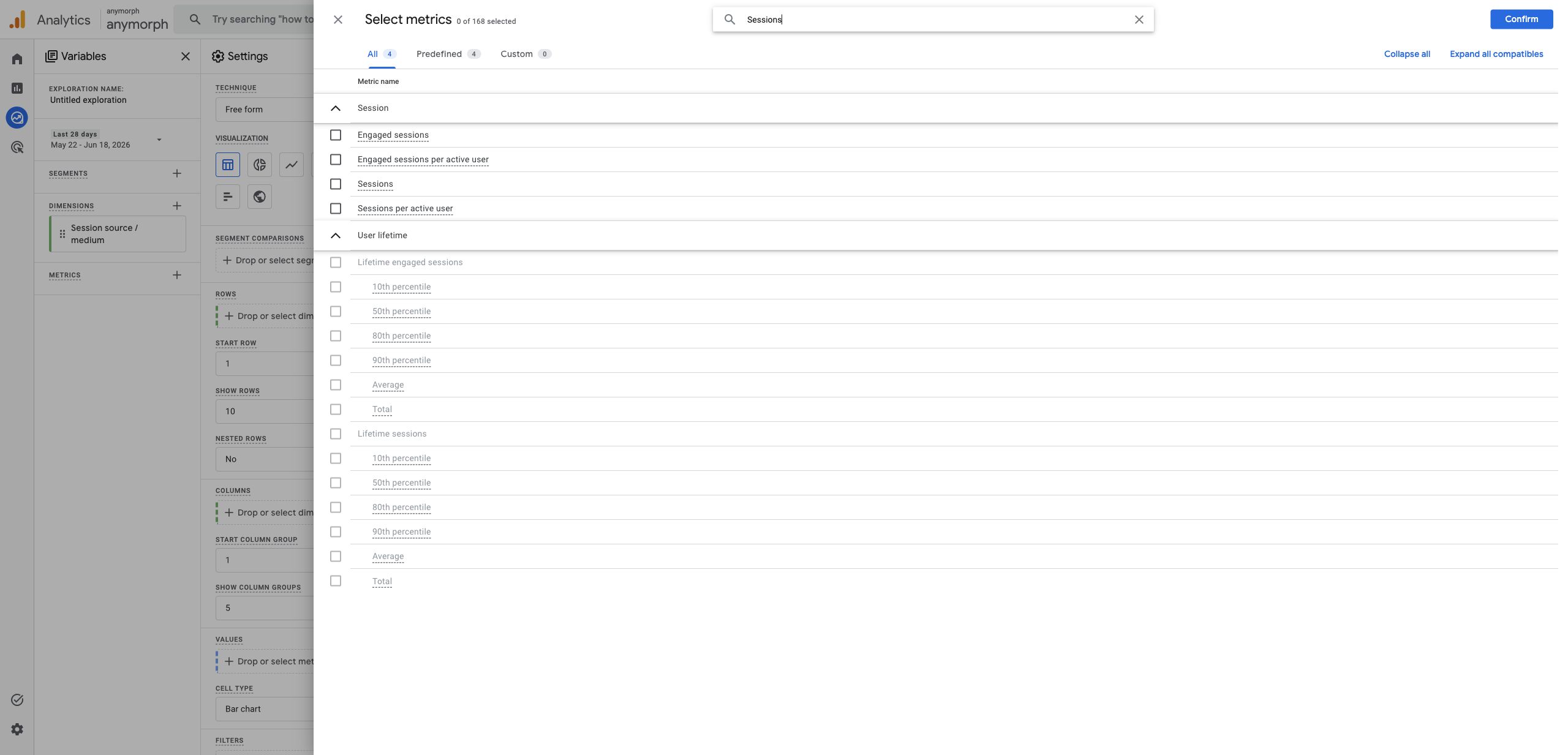
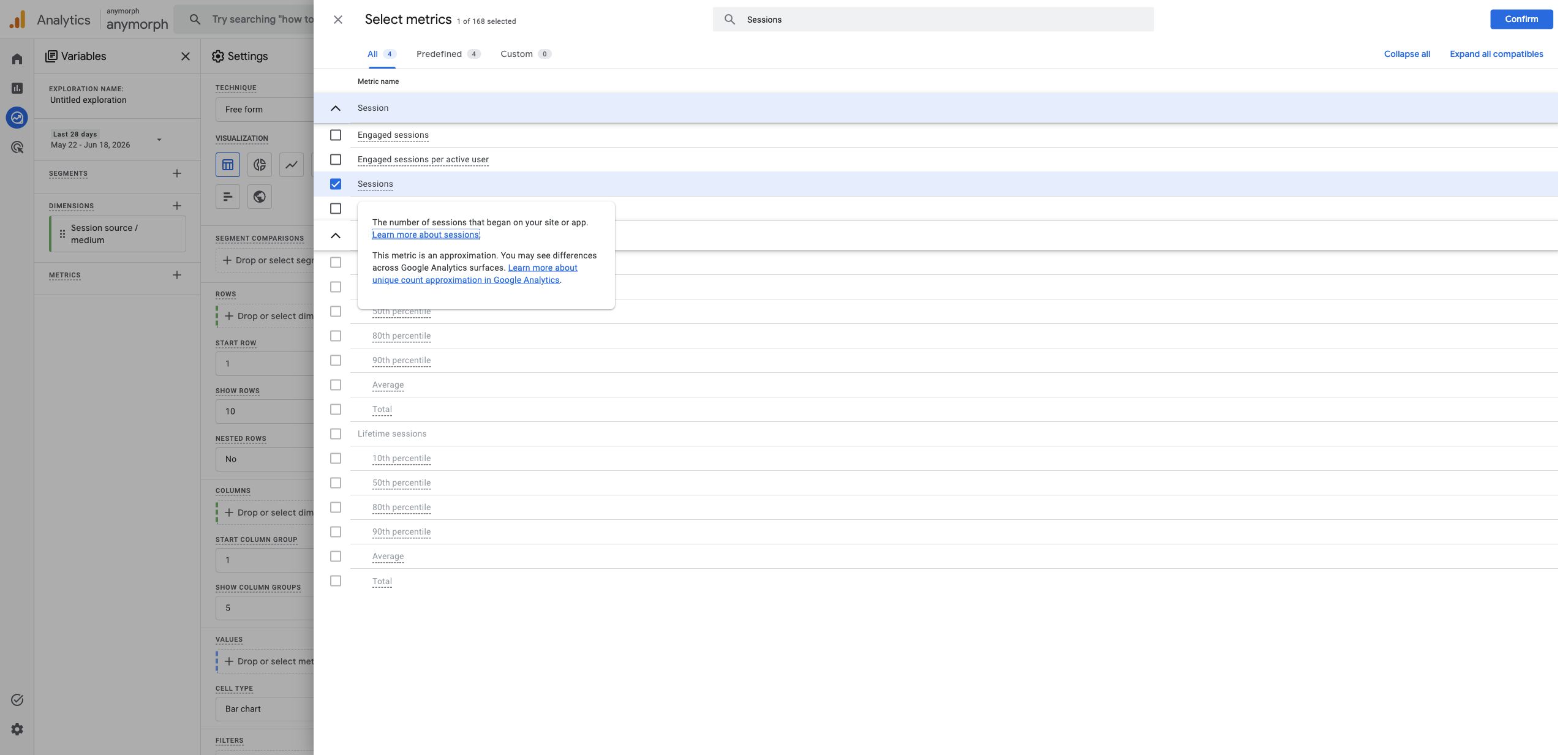
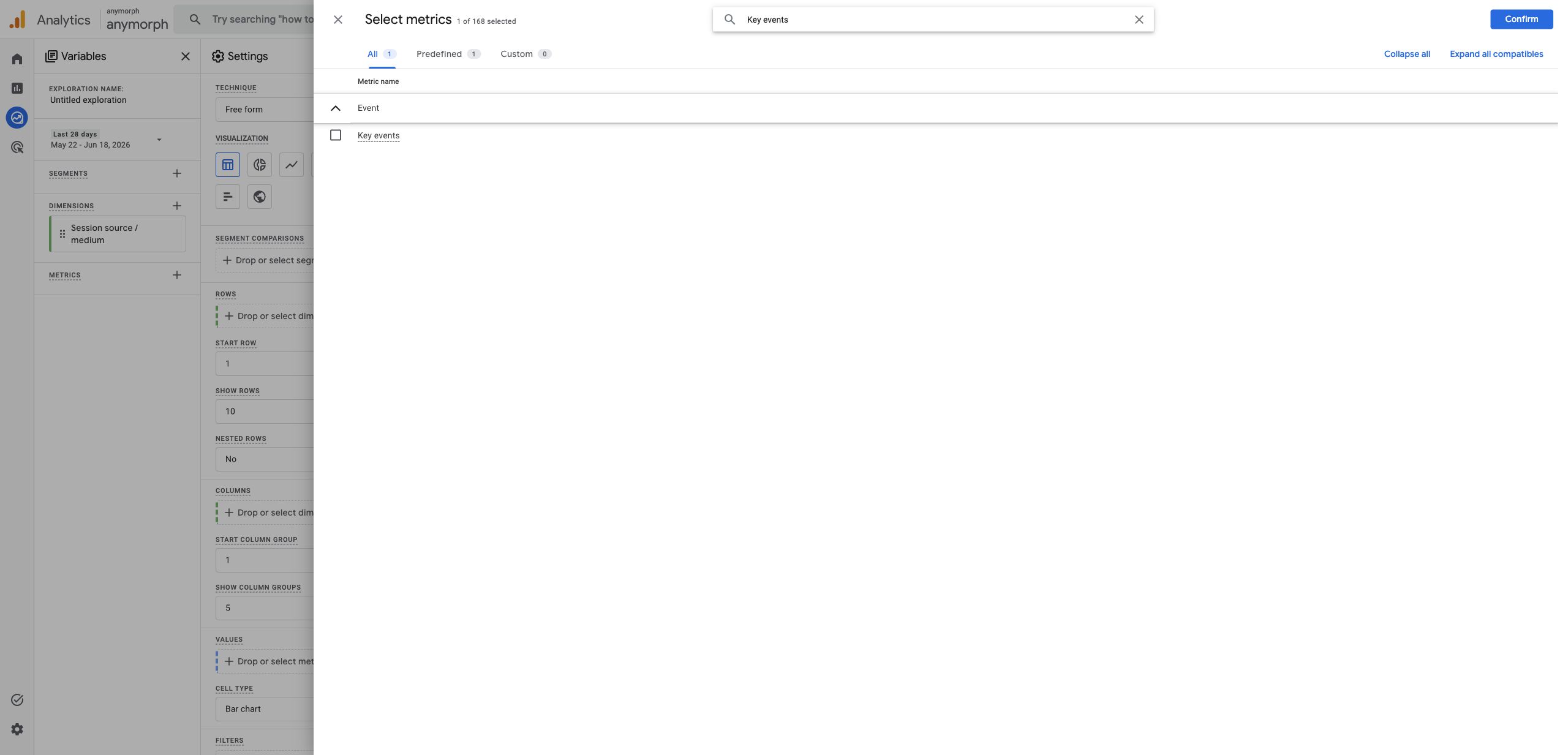
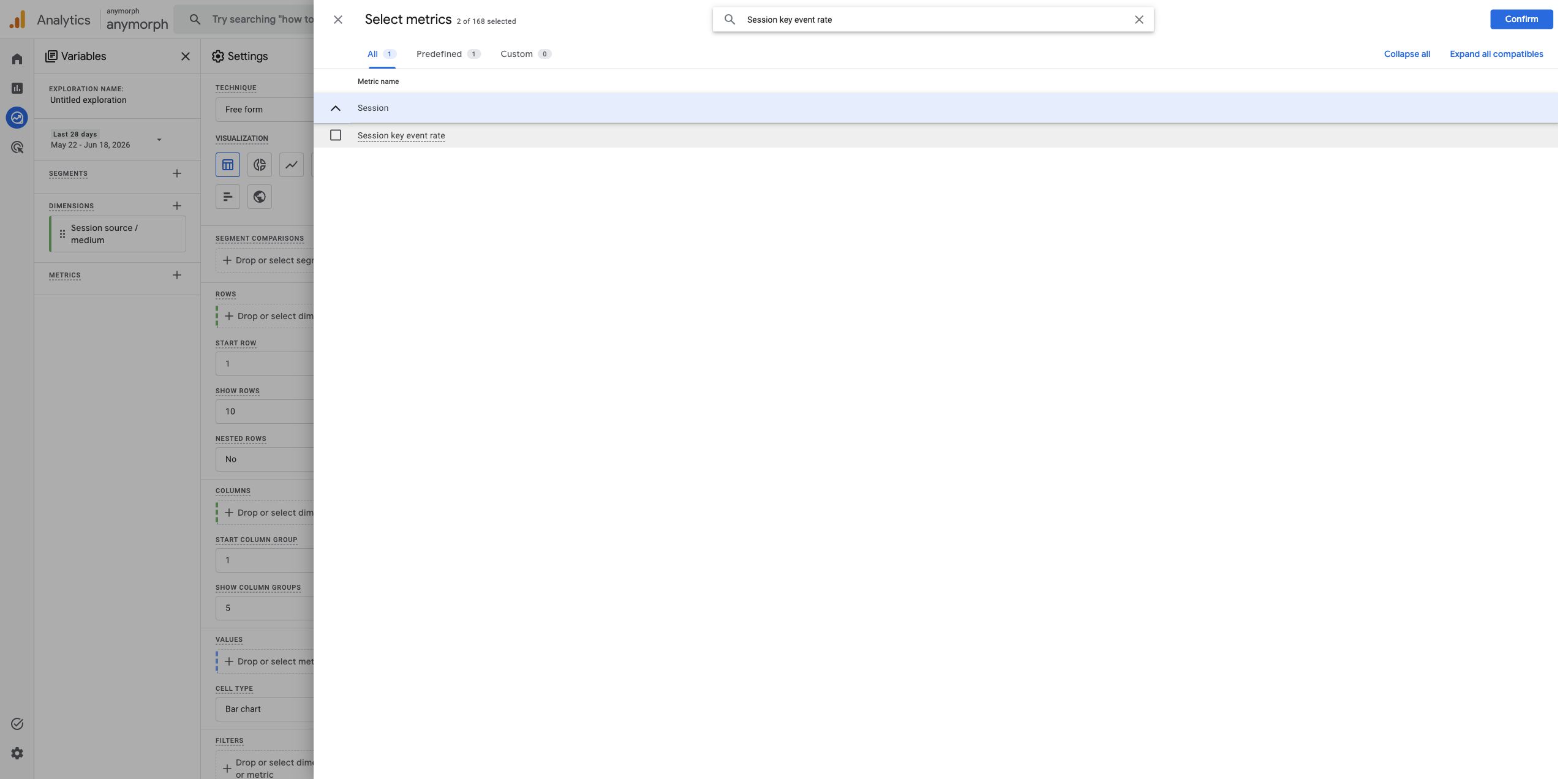
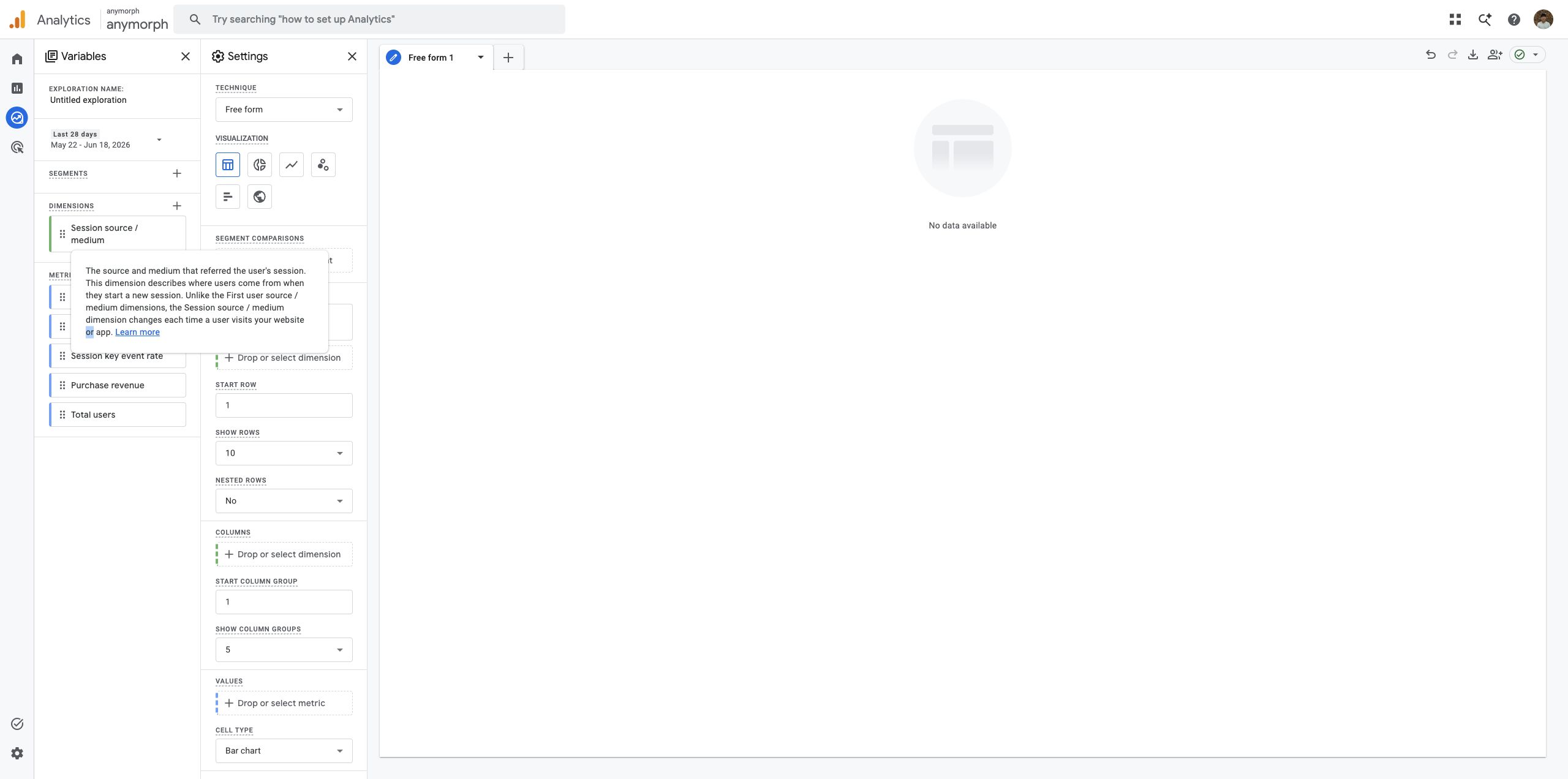
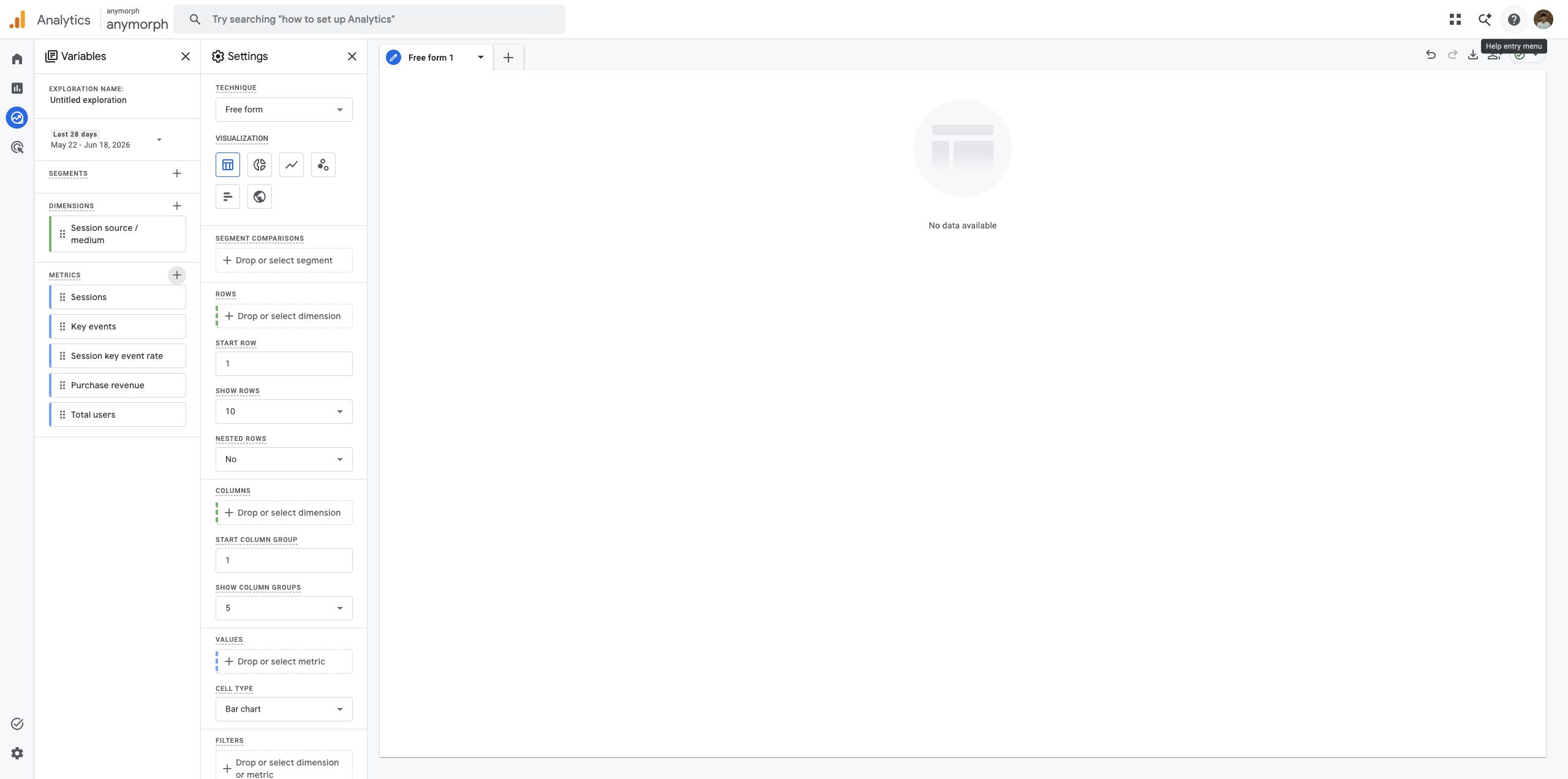 Add `Session source / medium` to **Rows**. Add all selected metrics to **Values**.
 ***
## Filter for AI Engine Sources
Add `Session source / medium` or `Session source` to **Filters**, then use a `contains` condition for the AI engine source you want to inspect.
Common AI engine sources include:
```text theme={null}
chatgpt
chat.openai
perplexity
claude.ai
gemini.google
bard.google
copilot.microsoft
m365.cloud.microsoft
grok
meta.ai
you.com
```
GA4 Explore can be awkward for broad OR conditions. If you need to review all AI engines together, use one of these approaches:
1. Build the `Session source / medium` table first, then search or filter each engine source individually.
2. If you use Looker Studio or BigQuery export, combine the source list with a regex or contains condition there.
***
## Filter for AI Engine Sources
Add `Session source / medium` or `Session source` to **Filters**, then use a `contains` condition for the AI engine source you want to inspect.
Common AI engine sources include:
```text theme={null}
chatgpt
chat.openai
perplexity
claude.ai
gemini.google
bard.google
copilot.microsoft
m365.cloud.microsoft
grok
meta.ai
you.com
```
GA4 Explore can be awkward for broad OR conditions. If you need to review all AI engines together, use one of these approaches:
1. Build the `Session source / medium` table first, then search or filter each engine source individually.
2. If you use Looker Studio or BigQuery export, combine the source list with a regex or contains condition there.
 ***
## Read the Results
| Metric | What it tells you |
| ------------------------ | -------------------------------------------------------------------- |
| `Sessions` | Sessions that started from the selected AI engine source |
| `Total users` | Users who arrived from the selected AI engine source |
| `Key events` | Purchases, sign-ups, inquiries, or other events marked as key events |
| `Session key event rate` | The percentage of AI-sourced sessions that triggered a key event |
| `Purchase revenue` | Purchase revenue attributed to that source |
Use these metrics together. For example, a source with fewer sessions but a higher `Session key event rate` may be more commercially valuable than a source with more visits and no conversions.
If a user goes from an AI engine to an Anymorph GEO page and then to your main website, your main website's GA4 property may not preserve the original AI engine as the session source. To measure that handoff by engine, pass the original AI source through outbound CTA UTMs.
Example UTM structure:
```text theme={null}
utm_medium=ai_referral
utm_source=chatgpt
utm_campaign=anymorph_geo
```
***
## Related
Review traffic and conversion performance in Anymorph.
Connect GA4 and other measurement tools.
***
## Read the Results
| Metric | What it tells you |
| ------------------------ | -------------------------------------------------------------------- |
| `Sessions` | Sessions that started from the selected AI engine source |
| `Total users` | Users who arrived from the selected AI engine source |
| `Key events` | Purchases, sign-ups, inquiries, or other events marked as key events |
| `Session key event rate` | The percentage of AI-sourced sessions that triggered a key event |
| `Purchase revenue` | Purchase revenue attributed to that source |
Use these metrics together. For example, a source with fewer sessions but a higher `Session key event rate` may be more commercially valuable than a source with more visits and no conversions.
If a user goes from an AI engine to an Anymorph GEO page and then to your main website, your main website's GA4 property may not preserve the original AI engine as the session source. To measure that handoff by engine, pass the original AI source through outbound CTA UTMs.
Example UTM structure:
```text theme={null}
utm_medium=ai_referral
utm_source=chatgpt
utm_campaign=anymorph_geo
```
***
## Related
Review traffic and conversion performance in Anymorph.
Connect GA4 and other measurement tools.