> ## Documentation Index
> Fetch the complete documentation index at: https://docs.anymorph.ai/llms.txt
> Use this file to discover all available pages before exploring further.
# Connect your domain
> How to connect a domain so generated pages publish on your own site.
Anymorph writes pages, but they have to be served from a web address. Until you connect a domain, pages sit on an Anymorph preview address — fine for review, but it builds no authority for your brand. Connect a domain and your pages publish on your own site, where AI engines and search engines read them as yours.
**Publish** requires an active custom domain. Without one, publishing fails with "No active custom domain configured".
 ***
## Pick one of three shapes
| Shape | Where pages live | What it needs | Best when |
| --------------------------------- | ---------------------------- | ---------------------------------------------------------------- | ---------------------------------------------------------------------- |
| **Subpath Routing** — recommended | `yourdomain.com/a/page-name` | No DNS change. One forwarding rule on your hosting platform | Your platform supports rewrites. Fastest to set up and easiest to undo |
| **Subdomain Routing** | `pages.yourdomain.com` | One CNAME record plus a TXT record for the certificate | You would rather not touch the root domain |
| **Domain Routing** | `yourdomain.com/page-name` | Same records, plus a DNS provider that supports CNAME flattening | Pages must serve straight from the root domain |
Root domains (`example.com`) only work with a DNS provider that supports CNAME flattening. Anymorph detects your provider from your nameservers, and only **Cloudflare** and **Namecheap** count as supporting it. On Vercel DNS, Route 53, Google Domains, GoDaddy, Netlify DNS, Azure DNS or DigitalOcean, use a subdomain such as `pages.example.com` instead.
DNS is the address book that decides where a web address points. A CNAME record says "this address follows that address"; a TXT record is a note used to prove you own the domain.
### Who does what
| Step | Marketer | Developer / IT |
| --------------------------------------- | ---------------- | --------------------- |
| Run the wizard, pick platform and shape | You | — |
| Add the CNAME and TXT records | — | In your DNS provider |
| Ship the subpath forwarding rule | Copy the snippet | Ships it on your site |
| Certificate (SSL), status checks | — | Anymorph handles it |
***
## Steps
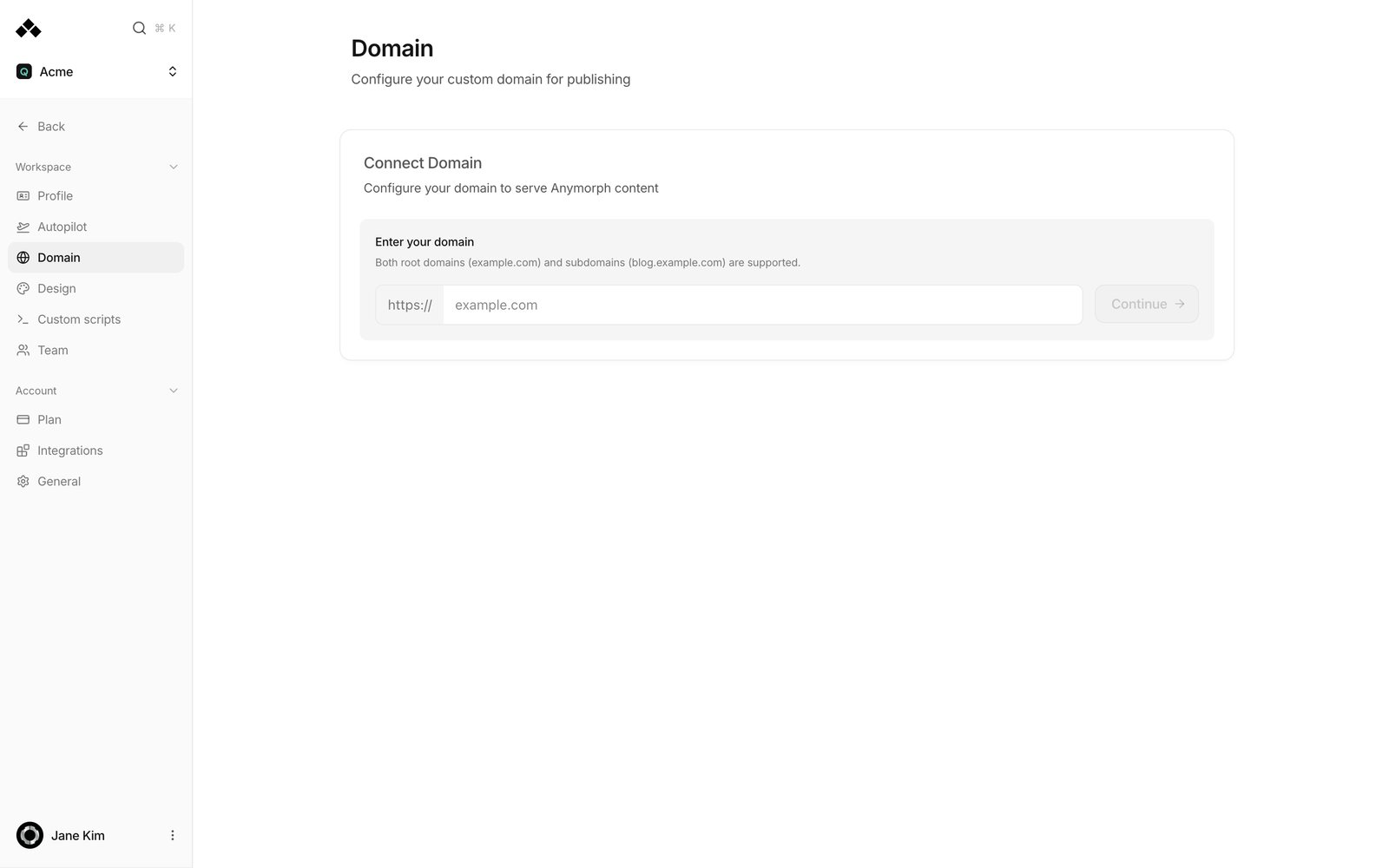
Go to **Settings** → **Domain** → the **Connect Domain** card and type your address into *Enter your domain* (for example `example.com`). Root domains and subdomains are both accepted. **Continue** first checks whether that address redirects elsewhere. If you see *"This domain redirects"*, take the suggestion with the **Use \[canonical]** button — pointing at an address that redirects breaks the setup.
Under *What platform hosts your site?* pick your host (Vercel, Netlify, Cloudflare Pages, Cloudflare Workers, AWS CloudFront, GCP Cloud CDN, Azure CDN, Framer, Webflow, Wix, Shopify, Squarespace, Other / Self-hosted). Then choose **Subpath Routing**, **Domain Routing** or **Subdomain Routing**. Subpath carries a **Recommended** badge where the platform supports it and is greyed out with *"Not supported by \[platform]"* where it does not. For a subdomain you also enter a **Subdomain prefix** such as `pages`.
The **Origin URL** is where your existing site really lives right now. Anymorph forwards every non-Anymorph request to it. Leave it out and requests loop back on themselves forever. The screen shows a hint per platform — Framer `your-site.framer.app`, Wix `username.wixsite.com/mysite`, Squarespace `your-site.squarespace.com`, Vercel `your-project.vercel.app`. For Webflow and Shopify, Anymorph generates a hidden address instead (`wf.yourdomain.com` / `sp.yourdomain.com`) and walks you through pointing that one first.
Click **Add Domain** and you get the **Configure DNS Records** table — Type / Name / Value, with a copy button on every cell. Hand that table to whoever runs your DNS.
| Type | What it does |
| ------------------------------ | --------------------------------------------------------------------------------------- |
| `CNAME` → `proxy.anymorph.app` | Routes requests for this address to Anymorph |
| `TXT` (`_acme-challenge.…`) | Proves you own the domain so the security certificate (SSL) can be issued automatically |
On Cloudflare, this CNAME must be set to **DNS only** (grey cloud). Proxied (orange cloud) will not complete the connection.
Choosing subpath shows **Configure Your Proxy** with your workspace's proxy address (`https://p-…anymorph.app`), the **Route prefix** (default `a`) and a copy-ready snippet for your platform — a rewrites entry in `vercel.json`, a redirects block in `netlify.toml`, one `_redirects` line on Cloudflare Pages, a path passthrough on Cloudflare Workers, or a `/a/*` path pattern on AWS CloudFront. Your developer ships that change, then you come back and click **Verify Connection**.
What **Verify Connection** tells you:
* *"Connection verified successfully!"* — done, and the domain flips to **Active**.
* *"Domain is already connected"* — nothing to do.
* *"Proxy returned \[code]. Make sure your rewrite is configured correctly."* — the forwarding rule is wrong.
* *"Failed to connect: \[reason]. Make sure your rewrite is configured and deployed."* — the rule is not live on your site yet.
***
## How long it takes
The screen says 5–30 minutes, and that is typical. Anymorph re-checks the domain every 15 seconds and looks for your CNAME every 5 seconds while setup is incomplete. DNS propagation itself is outside Anymorph's control, so if the old record had a long lifetime it can take up to a day.
**Reading the status chips**
* **Active** — connected. You can publish pages now.
* **Pending** — still waiting on records. You will see *"Waiting for CNAME & SSL"*, *"SSL certificate will be issued automatically after CNAME propagation"* or *"SSL certificate issued! Waiting for CNAME propagation…"*.
* **Error** — something in the address or the records is wrong. See Troubleshooting.
* **SSL \[status]** — the certificate is being issued. You never buy or install one yourself.
* **CNAME Routing** / **Subpath Routing** — the shape you are on.
***
## Pick one of three shapes
| Shape | Where pages live | What it needs | Best when |
| --------------------------------- | ---------------------------- | ---------------------------------------------------------------- | ---------------------------------------------------------------------- |
| **Subpath Routing** — recommended | `yourdomain.com/a/page-name` | No DNS change. One forwarding rule on your hosting platform | Your platform supports rewrites. Fastest to set up and easiest to undo |
| **Subdomain Routing** | `pages.yourdomain.com` | One CNAME record plus a TXT record for the certificate | You would rather not touch the root domain |
| **Domain Routing** | `yourdomain.com/page-name` | Same records, plus a DNS provider that supports CNAME flattening | Pages must serve straight from the root domain |
Root domains (`example.com`) only work with a DNS provider that supports CNAME flattening. Anymorph detects your provider from your nameservers, and only **Cloudflare** and **Namecheap** count as supporting it. On Vercel DNS, Route 53, Google Domains, GoDaddy, Netlify DNS, Azure DNS or DigitalOcean, use a subdomain such as `pages.example.com` instead.
DNS is the address book that decides where a web address points. A CNAME record says "this address follows that address"; a TXT record is a note used to prove you own the domain.
### Who does what
| Step | Marketer | Developer / IT |
| --------------------------------------- | ---------------- | --------------------- |
| Run the wizard, pick platform and shape | You | — |
| Add the CNAME and TXT records | — | In your DNS provider |
| Ship the subpath forwarding rule | Copy the snippet | Ships it on your site |
| Certificate (SSL), status checks | — | Anymorph handles it |
***
## Steps
Go to **Settings** → **Domain** → the **Connect Domain** card and type your address into *Enter your domain* (for example `example.com`). Root domains and subdomains are both accepted. **Continue** first checks whether that address redirects elsewhere. If you see *"This domain redirects"*, take the suggestion with the **Use \[canonical]** button — pointing at an address that redirects breaks the setup.
Under *What platform hosts your site?* pick your host (Vercel, Netlify, Cloudflare Pages, Cloudflare Workers, AWS CloudFront, GCP Cloud CDN, Azure CDN, Framer, Webflow, Wix, Shopify, Squarespace, Other / Self-hosted). Then choose **Subpath Routing**, **Domain Routing** or **Subdomain Routing**. Subpath carries a **Recommended** badge where the platform supports it and is greyed out with *"Not supported by \[platform]"* where it does not. For a subdomain you also enter a **Subdomain prefix** such as `pages`.
The **Origin URL** is where your existing site really lives right now. Anymorph forwards every non-Anymorph request to it. Leave it out and requests loop back on themselves forever. The screen shows a hint per platform — Framer `your-site.framer.app`, Wix `username.wixsite.com/mysite`, Squarespace `your-site.squarespace.com`, Vercel `your-project.vercel.app`. For Webflow and Shopify, Anymorph generates a hidden address instead (`wf.yourdomain.com` / `sp.yourdomain.com`) and walks you through pointing that one first.
Click **Add Domain** and you get the **Configure DNS Records** table — Type / Name / Value, with a copy button on every cell. Hand that table to whoever runs your DNS.
| Type | What it does |
| ------------------------------ | --------------------------------------------------------------------------------------- |
| `CNAME` → `proxy.anymorph.app` | Routes requests for this address to Anymorph |
| `TXT` (`_acme-challenge.…`) | Proves you own the domain so the security certificate (SSL) can be issued automatically |
On Cloudflare, this CNAME must be set to **DNS only** (grey cloud). Proxied (orange cloud) will not complete the connection.
Choosing subpath shows **Configure Your Proxy** with your workspace's proxy address (`https://p-…anymorph.app`), the **Route prefix** (default `a`) and a copy-ready snippet for your platform — a rewrites entry in `vercel.json`, a redirects block in `netlify.toml`, one `_redirects` line on Cloudflare Pages, a path passthrough on Cloudflare Workers, or a `/a/*` path pattern on AWS CloudFront. Your developer ships that change, then you come back and click **Verify Connection**.
What **Verify Connection** tells you:
* *"Connection verified successfully!"* — done, and the domain flips to **Active**.
* *"Domain is already connected"* — nothing to do.
* *"Proxy returned \[code]. Make sure your rewrite is configured correctly."* — the forwarding rule is wrong.
* *"Failed to connect: \[reason]. Make sure your rewrite is configured and deployed."* — the rule is not live on your site yet.
***
## How long it takes
The screen says 5–30 minutes, and that is typical. Anymorph re-checks the domain every 15 seconds and looks for your CNAME every 5 seconds while setup is incomplete. DNS propagation itself is outside Anymorph's control, so if the old record had a long lifetime it can take up to a day.
**Reading the status chips**
* **Active** — connected. You can publish pages now.
* **Pending** — still waiting on records. You will see *"Waiting for CNAME & SSL"*, *"SSL certificate will be issued automatically after CNAME propagation"* or *"SSL certificate issued! Waiting for CNAME propagation…"*.
* **Error** — something in the address or the records is wrong. See Troubleshooting.
* **SSL \[status]** — the certificate is being issued. You never buy or install one yourself.
* **CNAME Routing** / **Subpath Routing** — the shape you are on.
 **Shopify has one more step, later.** Once the domain reads **Active**, the card shows **Complete Setup (Zero-Downtime Cutover)**. During initial setup the wizard warns *"Do not set as primary domain yet!"* — so switch your Shopify primary domain only after the connected domain is Active.
***
## Troubleshooting
The address you typed forwards somewhere else. Click **Use \[canonical]** to connect the final address instead. Connecting the redirecting one never completes.
The hostname was rejected (`Invalid domain format`, `Invalid hostname format`, `hostname is required`). Enter just the domain name — no `https://`, no path, no spaces.
The record is not resolving yet. Check the Name and Value in your DNS provider match the table exactly, and on Cloudflare that it is grey cloud (DNS only). If it all matches, wait a few minutes and press **Refresh** or **Check**.
The `_acme-challenge` TXT record has not resolved. Confirm it was added exactly as shown, record name included. The certificate is issued automatically the moment it resolves.
A CNAME at the root needs a DNS provider that flattens it (Cloudflare, Namecheap). If yours does not, connect a subdomain such as `pages.example.com` instead.
The **Origin URL** is wrong. It must be where your site is actually served today. Webflow in particular must not use `cdn.webflow.com` as the origin — use the hidden address the wizard set up.
The forwarding rule is not live, or the path is different. Ask your developer to open `https://yourdomain.com/[prefix]/__check__` directly — that address has to reach Anymorph before **Verify Connection** succeeds.
On the domain row, kebab menu → **Remove domain** → **Remove** in the *"Remove this domain?"* dialog. You get a *"Domain disconnected"* toast and can reconnect later.
***
## The checklist after activation
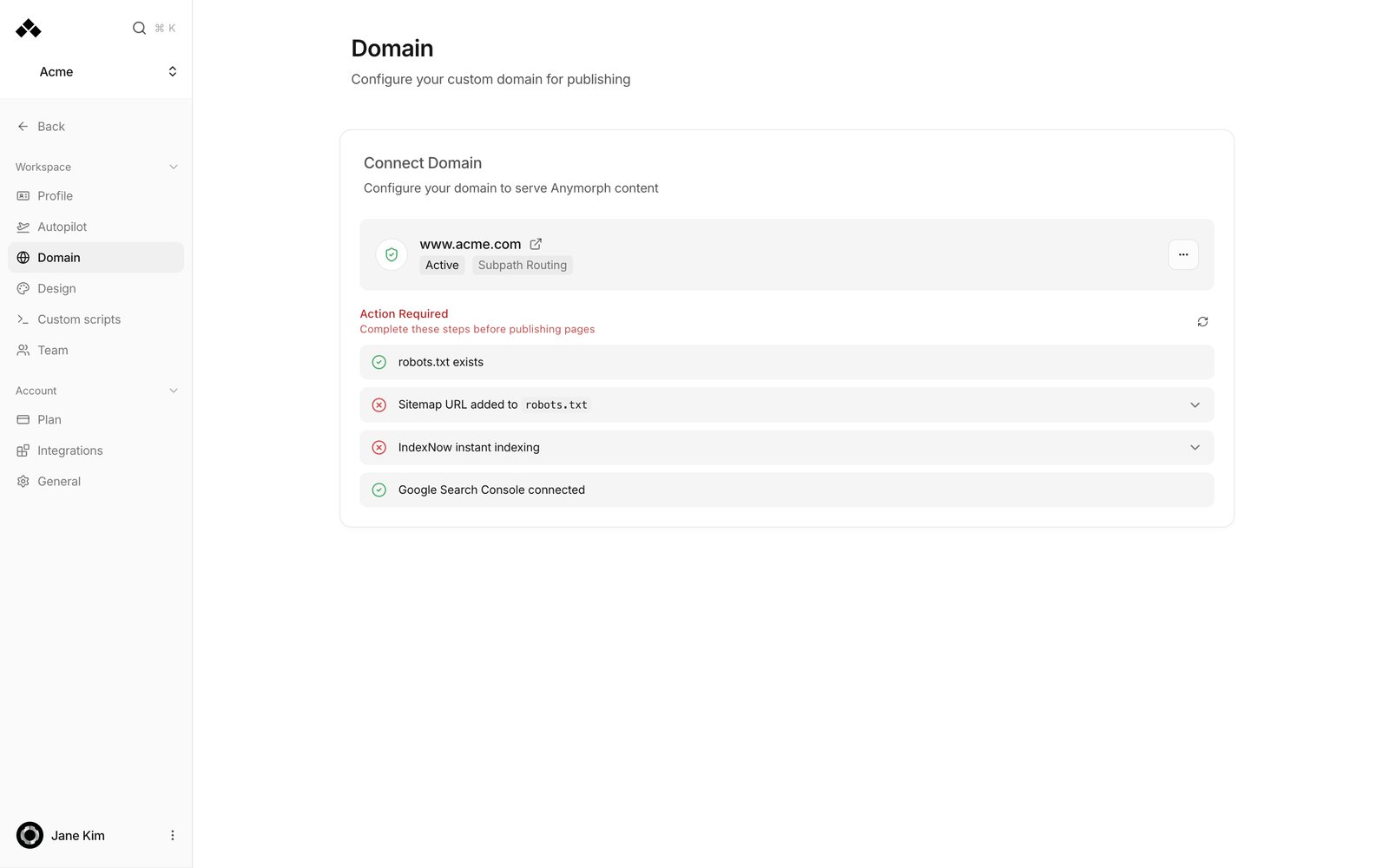
Once the domain reads **Active**, a **Checklist** appears under the card (or **Action Required** if something is failing). It matters most on subpath routing, because those files live on your site rather than on Anymorph.
* **robots.txt exists** — the file that tells search and AI crawlers what they may read. Copy-ready content is provided.
* **Sitemap URL added to robots.txt** — one line pointing at the list of your generated pages.
* **IndexNow instant indexing** — instantly notifies Bing and similar engines about new pages. Paste a key or click **Generate**, then save.
* **Google Search Console connected** — use the **GSC Integrations** link. Full steps are in [Search Console and indexing](/guides/search-console-indexing).
When everything passes you see *"All done! You're ready to publish pages."* On CNAME and subdomain shapes, Anymorph handles robots.txt, the sitemap and IndexNow for you, so those items do not appear.
Your generated pages are served by Anymorph, so your site-wide tracking tags are not on them automatically. Add your GA4 measurement ID or GTM container ID under [Custom scripts](/settings/custom-scripts).
***
## Related
Every field and status on the Domain screen.
Getting your published pages into Google.
Where you publish pages once the domain is live.
Put your tracking tags on generated pages.
**Shopify has one more step, later.** Once the domain reads **Active**, the card shows **Complete Setup (Zero-Downtime Cutover)**. During initial setup the wizard warns *"Do not set as primary domain yet!"* — so switch your Shopify primary domain only after the connected domain is Active.
***
## Troubleshooting
The address you typed forwards somewhere else. Click **Use \[canonical]** to connect the final address instead. Connecting the redirecting one never completes.
The hostname was rejected (`Invalid domain format`, `Invalid hostname format`, `hostname is required`). Enter just the domain name — no `https://`, no path, no spaces.
The record is not resolving yet. Check the Name and Value in your DNS provider match the table exactly, and on Cloudflare that it is grey cloud (DNS only). If it all matches, wait a few minutes and press **Refresh** or **Check**.
The `_acme-challenge` TXT record has not resolved. Confirm it was added exactly as shown, record name included. The certificate is issued automatically the moment it resolves.
A CNAME at the root needs a DNS provider that flattens it (Cloudflare, Namecheap). If yours does not, connect a subdomain such as `pages.example.com` instead.
The **Origin URL** is wrong. It must be where your site is actually served today. Webflow in particular must not use `cdn.webflow.com` as the origin — use the hidden address the wizard set up.
The forwarding rule is not live, or the path is different. Ask your developer to open `https://yourdomain.com/[prefix]/__check__` directly — that address has to reach Anymorph before **Verify Connection** succeeds.
On the domain row, kebab menu → **Remove domain** → **Remove** in the *"Remove this domain?"* dialog. You get a *"Domain disconnected"* toast and can reconnect later.
***
## The checklist after activation
Once the domain reads **Active**, a **Checklist** appears under the card (or **Action Required** if something is failing). It matters most on subpath routing, because those files live on your site rather than on Anymorph.
* **robots.txt exists** — the file that tells search and AI crawlers what they may read. Copy-ready content is provided.
* **Sitemap URL added to robots.txt** — one line pointing at the list of your generated pages.
* **IndexNow instant indexing** — instantly notifies Bing and similar engines about new pages. Paste a key or click **Generate**, then save.
* **Google Search Console connected** — use the **GSC Integrations** link. Full steps are in [Search Console and indexing](/guides/search-console-indexing).
When everything passes you see *"All done! You're ready to publish pages."* On CNAME and subdomain shapes, Anymorph handles robots.txt, the sitemap and IndexNow for you, so those items do not appear.
Your generated pages are served by Anymorph, so your site-wide tracking tags are not on them automatically. Add your GA4 measurement ID or GTM container ID under [Custom scripts](/settings/custom-scripts).
***
## Related
Every field and status on the Domain screen.
Getting your published pages into Google.
Where you publish pages once the domain is live.
Put your tracking tags on generated pages.