> ## Documentation Index
> Fetch the complete documentation index at: https://docs.anymorph.ai/llms.txt
> Use this file to discover all available pages before exploring further.
# Editing prompts
> How to choose between the AI chat, in-place editing and CSV — and make the change safely
There are three ways to change the questions your brand is measured on. For most jobs the AI chat is the simplest and safest. Use CSV only when you're adding dozens of prompts at once or rebuilding the panel.
## Before you start
* You need access to the [Prompts](/dashboard/prompts) screen. Any workspace member has it.
* For CSV you need a spreadsheet program.
* You can't go over your plan cap. Check the **Prompts (12/500)** count next to the title first.
Wording edits are staged whichever route you use, and apply when you **save a version**. Adding and deleting prompts takes effect straight away.
## 1. Choosing the route
| What you want to do | Recommended | Verdict |
| ---------------------------------- | --------------------------------------- | --------------- |
| Change the wording of a question | AI chat, or edit in place on the screen | Don't use CSV |
| Add or delete a handful of prompts | AI chat | CSV not advised |
| Rename, create or delete a group | AI chat | CSV not advised |
| Move prompts to another group | AI chat | CSV not advised |
| Add dozens of prompts | CSV upload · **Add** | Recommended |
| Replace the whole panel | CSV upload · **Replace** | Recommended |
| Restructure your topics | CSV upload · **Replace** | Recommended |
The reason not to reach for CSV over a single wording change is simple: the moment you open the file you risk blanking a cell or dropping a column, and those mistakes go through silently.
## 2. Editing with the AI chat
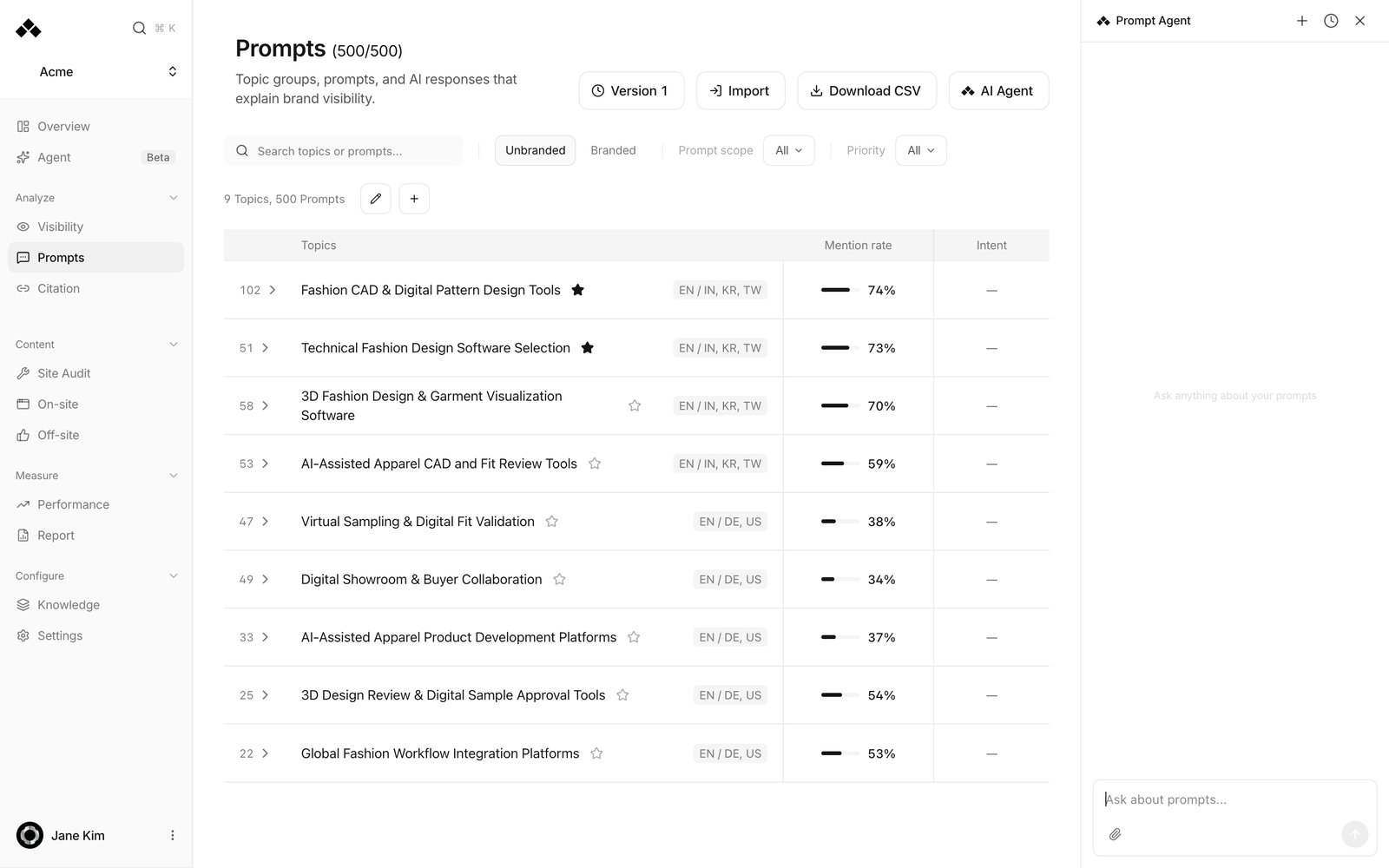 **AI Agent** at the top right of the Prompts screen opens the chat. Just say what you want in plain language. Anything that changes data appears first as a **Needs approval** card showing the before and after, and nothing happens until you press **Approve**.
| What you want | What to say |
| ----------------------- | ------------------------------------------ |
| Rename a group | Rename the group X to Y |
| Change wording | Change the question X in group Y to Z |
| Add prompts | Add five questions about X to group Y |
| Delete prompts | Remove the question about X from group Y |
| Create a group | Create a new group called X |
| Move prompts | Move these questions into group X |
| Check the current setup | Show me how many groups and prompts I have |
If you don't like the wording it proposes, press **Edit** on the approval card, rewrite it, then approve.
Some things the chat can't do: save a version, run a CSV import, change your plan limit, or change classification values like scope (`prompt_tier`) and question shape (`structure`). Ask us if you need those changed.
You can also edit directly on the screen: expand a topic, hover a prompt, click the pencil, and change the wording in place.
## 3. The CSV procedure
Follow the order. If you skip step 1 and upload an old or hand-built file, existing prompts get recreated as new ones or deleted.
Press **Download CSV** at the top right of the Prompts screen. **Edit that file.** The value that identifies your existing prompts (`prompt_id`) only exists in the downloaded file.
Add or remove rows and change only the cells you need. Don't delete or rename any columns.
Press **Import** and choose your file. It's checked first, then the **Import topics and prompts** dialog opens in **Add** mode. Switch to **Replace** if that's what you want; switching re-checks the file.
You'll see the topic and prompt counts and what will change (**50 new · 12 updated · 3 removed · 0 skipped**). **Make sure the numbers match what you expect.** Problems show up here, and nothing is saved yet.
An upload does not create a version by itself. Click the **Version N** chip in the header and press **Save version** so your wording changes take effect.
## 4. Add vs Replace
| | **Add** | **Replace** |
| -------------------------------- | ----------------------- | ------------------------------------------------------ |
| What the file means | A list of rows to add | The whole panel |
| Existing prompts not in the file | Kept | Deleted |
| Existing topics not in the file | Kept | Deleted |
| When to use it | Layering new prompts on | When something needs removing, or you're restructuring |
If you pick Replace, the file must contain every prompt you want to keep. Any row you leave out is silently deleted and stops being measured. If nothing needs deleting, there's no reason to use Replace.
In both modes, **wording changes to rows that already exist are staged.** Only new rows and removals are live immediately. Deleted prompts keep their past measurements, and saved versions stay intact.
## 5. prompt\_id rules
| Where the row came from | What to do with prompt\_id |
| --------------------------------------- | ----------------------------------------- |
| A row that was already in your download | Leave it as it is |
| A row you're creating | Leave it blank — it becomes a new prompt |
| A row copied from another workspace | Clear it, or the whole upload is rejected |
`prompt_id` is the prompt's identity. Keeping it and changing the wording **rewrites that prompt**; it does not create a new one.
## 6. The 16 columns
You can reorder them, but don't rename or delete any.
**Required**
| Column | Meaning |
| ----------------- | ------------------------------------------------------------- |
| `cluster_name` | The topic this prompt belongs to. An empty cell drops the row |
| `prompt_template` | The question itself |
**Fixed values only**
| Column | Accepted values |
| ----------------- | --------------------------------------------------------------------- |
| `intent_type` | informational · commercial · transactional |
| `structure` | recommendation · problem-solving · comparison · entry-point · pricing |
| `prompt_category` | unbranded · brand-comparison (re-derived by the system on save) |
| `prompt_tier` | head · torso · tail — **shown on screen as Broad / Specific / Niche** |
| `funnel_stage` | awareness · consideration · decision, or TOFU · MOFU · BOFU |
Anything outside those values is saved as an empty cell without an error, and only shows up in the warnings list.
**Free text**
| Column | Format |
| -------------------- | ----------------------------------------------- |
| `language` | Lowercase, e.g. ko, en |
| `target_country` | Uppercase, e.g. KR, US |
| `estimated_volume` | Digits only, no separators |
| `description` | A note on this row |
| `intent_description` | One-line description of the topic |
| `topic` | The group name above the topic |
| `tags` | Free tags |
| `product_name` | Must match a registered product exactly to link |
| `prompt_id` | See the rules above |
`language`, `target_country` and `product_name` cannot be changed on a row that already has a `prompt_id`.
## Troubleshooting
When it's rejected, **nothing is saved**. Each reason is listed with the row number.
* *prompt\_id values belong to another workspace* → Clear `prompt_id` on the rows you copied in and upload again.
* *Duplicate prompt\_id values are not allowed* → Clear `prompt_id` on the duplicated rows.
* *Duplicate prompt templates are not allowed* → Delete one of the identical rows.
* *prompt\_id values use a template belonging to another prompt* → Download a fresh file and start over.
* *Existing prompt scope cannot be changed by CSV import* → Put `language`, `target_country` and `product_name` back as they were on existing rows.
* *Prompt classification conflicts must be fixed before import* → For an explicit brand-versus-competitor question use torso or tail in `prompt_tier`, or remove the comparison wording.
**Some cells could not be read** doesn't block the import. Only the affected cells come through empty.
* *prompt\_tier "Broad" is not a value this column accepts* → The screen shows Broad / Specific / Niche, but the file needs `head` / `torso` / `tail`.
* *estimated\_volume "5,640" is not a whole number* → Write `5640`, with no separators.
* *cluster\_name is empty, so this prompt was not imported* → Fill in the topic name and upload again.
These go through with no warning at all.
* **Blanking a cell** overwrites the whole row, wiping the old value. Only touch the cells you're changing.
* **Deleting a column** wipes that value on every row.
* **A row missing in Replace mode** deletes that prompt and stops its measurement.
* **A row with an empty `cluster_name`** is ignored.
* **A value outside the accepted list** is saved as empty.
* **A misspelt `product_name`** doesn't link.
* **Changing wording but leaving `cluster_name`** keeps the old group name.
If the preview counts don't match what you expect, it's one of these. Check the file before confirming.
Save as comma-separated CSV in UTF-8. You can reorder columns and case doesn't matter, but don't rename or delete one. Don't put line breaks inside a question. Commas and quotation marks are fine. The blank lines between topics are normal — leave them.
## Finish by saving a version
**AI Agent** at the top right of the Prompts screen opens the chat. Just say what you want in plain language. Anything that changes data appears first as a **Needs approval** card showing the before and after, and nothing happens until you press **Approve**.
| What you want | What to say |
| ----------------------- | ------------------------------------------ |
| Rename a group | Rename the group X to Y |
| Change wording | Change the question X in group Y to Z |
| Add prompts | Add five questions about X to group Y |
| Delete prompts | Remove the question about X from group Y |
| Create a group | Create a new group called X |
| Move prompts | Move these questions into group X |
| Check the current setup | Show me how many groups and prompts I have |
If you don't like the wording it proposes, press **Edit** on the approval card, rewrite it, then approve.
Some things the chat can't do: save a version, run a CSV import, change your plan limit, or change classification values like scope (`prompt_tier`) and question shape (`structure`). Ask us if you need those changed.
You can also edit directly on the screen: expand a topic, hover a prompt, click the pencil, and change the wording in place.
## 3. The CSV procedure
Follow the order. If you skip step 1 and upload an old or hand-built file, existing prompts get recreated as new ones or deleted.
Press **Download CSV** at the top right of the Prompts screen. **Edit that file.** The value that identifies your existing prompts (`prompt_id`) only exists in the downloaded file.
Add or remove rows and change only the cells you need. Don't delete or rename any columns.
Press **Import** and choose your file. It's checked first, then the **Import topics and prompts** dialog opens in **Add** mode. Switch to **Replace** if that's what you want; switching re-checks the file.
You'll see the topic and prompt counts and what will change (**50 new · 12 updated · 3 removed · 0 skipped**). **Make sure the numbers match what you expect.** Problems show up here, and nothing is saved yet.
An upload does not create a version by itself. Click the **Version N** chip in the header and press **Save version** so your wording changes take effect.
## 4. Add vs Replace
| | **Add** | **Replace** |
| -------------------------------- | ----------------------- | ------------------------------------------------------ |
| What the file means | A list of rows to add | The whole panel |
| Existing prompts not in the file | Kept | Deleted |
| Existing topics not in the file | Kept | Deleted |
| When to use it | Layering new prompts on | When something needs removing, or you're restructuring |
If you pick Replace, the file must contain every prompt you want to keep. Any row you leave out is silently deleted and stops being measured. If nothing needs deleting, there's no reason to use Replace.
In both modes, **wording changes to rows that already exist are staged.** Only new rows and removals are live immediately. Deleted prompts keep their past measurements, and saved versions stay intact.
## 5. prompt\_id rules
| Where the row came from | What to do with prompt\_id |
| --------------------------------------- | ----------------------------------------- |
| A row that was already in your download | Leave it as it is |
| A row you're creating | Leave it blank — it becomes a new prompt |
| A row copied from another workspace | Clear it, or the whole upload is rejected |
`prompt_id` is the prompt's identity. Keeping it and changing the wording **rewrites that prompt**; it does not create a new one.
## 6. The 16 columns
You can reorder them, but don't rename or delete any.
**Required**
| Column | Meaning |
| ----------------- | ------------------------------------------------------------- |
| `cluster_name` | The topic this prompt belongs to. An empty cell drops the row |
| `prompt_template` | The question itself |
**Fixed values only**
| Column | Accepted values |
| ----------------- | --------------------------------------------------------------------- |
| `intent_type` | informational · commercial · transactional |
| `structure` | recommendation · problem-solving · comparison · entry-point · pricing |
| `prompt_category` | unbranded · brand-comparison (re-derived by the system on save) |
| `prompt_tier` | head · torso · tail — **shown on screen as Broad / Specific / Niche** |
| `funnel_stage` | awareness · consideration · decision, or TOFU · MOFU · BOFU |
Anything outside those values is saved as an empty cell without an error, and only shows up in the warnings list.
**Free text**
| Column | Format |
| -------------------- | ----------------------------------------------- |
| `language` | Lowercase, e.g. ko, en |
| `target_country` | Uppercase, e.g. KR, US |
| `estimated_volume` | Digits only, no separators |
| `description` | A note on this row |
| `intent_description` | One-line description of the topic |
| `topic` | The group name above the topic |
| `tags` | Free tags |
| `product_name` | Must match a registered product exactly to link |
| `prompt_id` | See the rules above |
`language`, `target_country` and `product_name` cannot be changed on a row that already has a `prompt_id`.
## Troubleshooting
When it's rejected, **nothing is saved**. Each reason is listed with the row number.
* *prompt\_id values belong to another workspace* → Clear `prompt_id` on the rows you copied in and upload again.
* *Duplicate prompt\_id values are not allowed* → Clear `prompt_id` on the duplicated rows.
* *Duplicate prompt templates are not allowed* → Delete one of the identical rows.
* *prompt\_id values use a template belonging to another prompt* → Download a fresh file and start over.
* *Existing prompt scope cannot be changed by CSV import* → Put `language`, `target_country` and `product_name` back as they were on existing rows.
* *Prompt classification conflicts must be fixed before import* → For an explicit brand-versus-competitor question use torso or tail in `prompt_tier`, or remove the comparison wording.
**Some cells could not be read** doesn't block the import. Only the affected cells come through empty.
* *prompt\_tier "Broad" is not a value this column accepts* → The screen shows Broad / Specific / Niche, but the file needs `head` / `torso` / `tail`.
* *estimated\_volume "5,640" is not a whole number* → Write `5640`, with no separators.
* *cluster\_name is empty, so this prompt was not imported* → Fill in the topic name and upload again.
These go through with no warning at all.
* **Blanking a cell** overwrites the whole row, wiping the old value. Only touch the cells you're changing.
* **Deleting a column** wipes that value on every row.
* **A row missing in Replace mode** deletes that prompt and stops its measurement.
* **A row with an empty `cluster_name`** is ignored.
* **A value outside the accepted list** is saved as empty.
* **A misspelt `product_name`** doesn't link.
* **Changing wording but leaving `cluster_name`** keeps the old group name.
If the preview counts don't match what you expect, it's one of these. Check the file before confirming.
Save as comma-separated CSV in UTF-8. You can reorder columns and case doesn't matter, but don't rename or delete one. Don't put line breaks inside a question. Commas and quotation marks are fine. The blank lines between topics are normal — leave them.
## Finish by saving a version
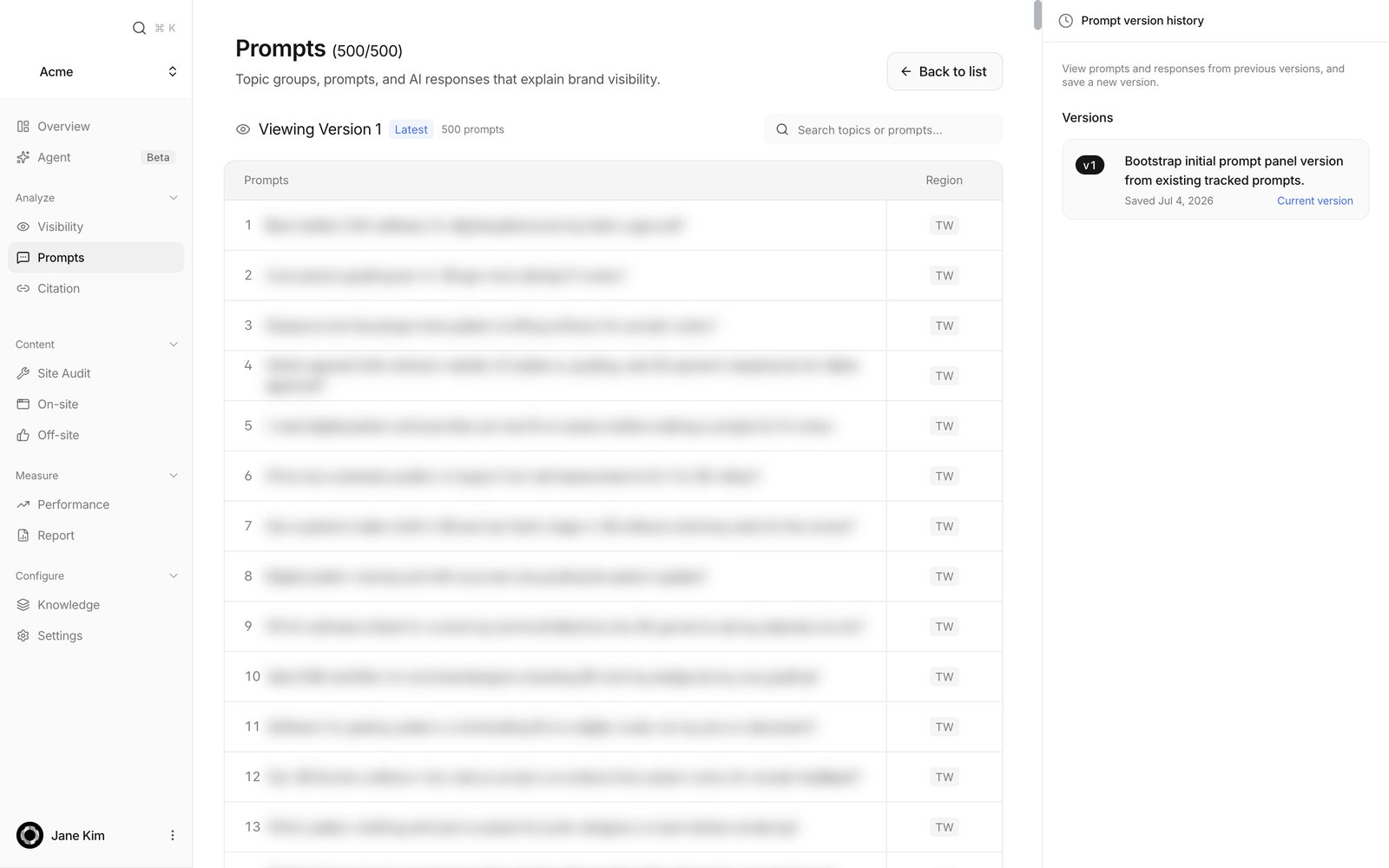 When you're done, click the **Version N** chip in the header and press **Save version**. That records the wording and panel membership at this moment as one version, and applies the wording edits you had staged.
The **Pending changes** card shows what's outstanding: adds and deletes as **Already applied to the live panel**, wording edits as **N prompt edits**. To throw the staged edits away instead, press **Discard**.
Saving takes a moment — large panels can take up to a minute, so keep the window open. Earlier versions stay as they were, and the **Version** picker on the analytics screens reads your data against any of them.
## Related
What's on the screen and how to read the numbers
What your edited panel measures
When you're done, click the **Version N** chip in the header and press **Save version**. That records the wording and panel membership at this moment as one version, and applies the wording edits you had staged.
The **Pending changes** card shows what's outstanding: adds and deletes as **Already applied to the live panel**, wording edits as **N prompt edits**. To throw the staged edits away instead, press **Discard**.
Saving takes a moment — large panels can take up to a minute, so keep the window open. Earlier versions stay as they were, and the **Version** picker on the analytics screens reads your data against any of them.
## Related
What's on the screen and how to read the numbers
What your edited panel measures