> ## Documentation Index
> Fetch the complete documentation index at: https://docs.anymorph.ai/llms.txt
> Use this file to discover all available pages before exploring further.
# Reviewing content
> What to fix in an on-site draft, what to leave alone, and how to stop the same problem coming back.
A batch of on-site drafts has arrived. This guide is about how to read them. The short version: **check whether the content is true.** Most of the rest is deliberate.
## Why these pages read differently
A GEO page isn't an article someone reads start to finish. It's material ChatGPT or Perplexity **pulls from as evidence** while answering someone's question.
Pages that get cited over and over have things in common.
* They define the thing in the opening paragraphs.
* Each section makes sense on its own, without the paragraphs around it.
* They cover limits too — where the thing doesn't work, what it can't replace.
* Talk about your own product comes later, in its own place, not up front.
To a human that reads a bit stiff and repetitive. Pages with low pageviews often get cited the most. Those structural requirements are already built into how the page is generated.
## What you don't need to fix
The following is either intentional or unrelated to results. Change it if you like, but don't spend your review time here.
* The opening isn't a hook
* The structure feels rigid; lots of tables and lists
* The subject's name is repeated in every paragraph
* It's too long, or too short
## What to look for
Four things.
Product specs, feature names, prices, plan tiers, what's supported, launch dates, customer names, numbers. If one of these is wrong, it gets cited wrong. This is the most important category.
A condition or a strength that has to be there for this topic.
For example: the "Enterprise plan only" condition isn't stated / real-time collaboration, your key differentiator, never comes up / a required disclosure is missing.
Anything that runs into regulatory, review-board, or legal limits, or that your own internal rules forbid. Depending on your industry a single sentence can be a problem, so read this part carefully.
For example: a CTA at the bottom linking to a specific URL, or prices always shown in both local currency and dollars. Not something for this page only, but for every page from now on.
## How to fix it
On the Preview tab of [On-site](/dashboard/on-site), select a page and press **Review** to open the fullscreen editor.
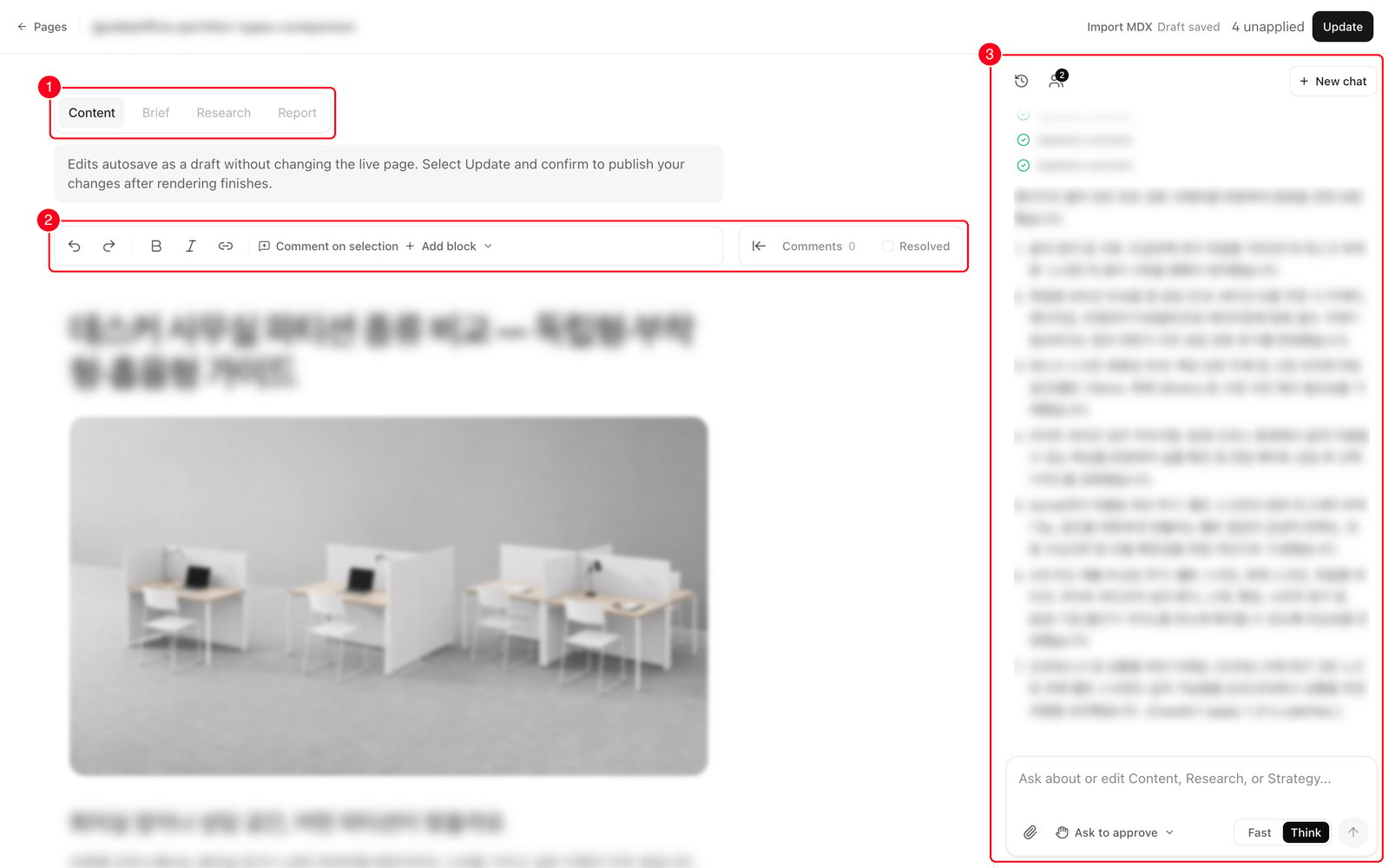 * **2. Document tabs** — **Content**, **Brief**, **Research**, **Report**.
* **3. Toolbar and comments** — undo and redo, bold, italic, link, **Add block**, and the comment count.
* **4. AI chat panel** — where you ask for a change.
There are three ways to work, and you can mix them.
### Type it yourself
Click into the body and edit it like any blog post. For short corrections — one number, one word, one sentence — this is fastest. Your changes autosave as a private draft 1.5 seconds after you stop typing.
### Ask the AI chat
Write what you want in the right-hand panel, in plain language. What matters is being **specific about where and what**.
| Ask it this way | Example |
| ------------------------ | ------------------------------------------------------------------------------------------------------------------ |
| Quote the sentence | Take the sentence "digital sampling replaces physical samples" and make it less absolute |
| Name the place | Shorten only the second paragraph of the "Results" section to three lines |
| Point at part of a table | In the comparison table, rewrite only the "lead time" row / check the official store and update the "price" column |
| Name the item | Shorten just the answer to "Is there a free trial?" in the FAQ |
It can also research the web, so say so when you need current information. Every change is shown as a before/after first, and nothing lands until you press **Apply**.
Select the paragraph you want changed, or put your cursor in it, and that selection is sent along as the working context.
### Leave comments, then hand them over
Best when you have several separate objections. Hover a paragraph, press the comment button in the margin, and write. Teammates can reply in the same place.
Once the comments are in, ask the chat to **address the comments on the page**. It reads each thread and the exact text it's anchored to, and proposes fixes. You can also push one comment at a time into the chat with **Ask AI** on the comment card.
## The step that matters most — send it back to the documents
Fixing a page fixes that page. But a problem you found on one page is usually already on other pages, and it will keep appearing in the ones generated next.
Every page is written from the two documents in [Knowledge](/dashboard/knowledge). **Brand.md** holds what is true; **Content.md** holds how it must be written. Correcting those two matters far more than correcting a single page.
* **2. Document tabs** — **Content**, **Brief**, **Research**, **Report**.
* **3. Toolbar and comments** — undo and redo, bold, italic, link, **Add block**, and the comment count.
* **4. AI chat panel** — where you ask for a change.
There are three ways to work, and you can mix them.
### Type it yourself
Click into the body and edit it like any blog post. For short corrections — one number, one word, one sentence — this is fastest. Your changes autosave as a private draft 1.5 seconds after you stop typing.
### Ask the AI chat
Write what you want in the right-hand panel, in plain language. What matters is being **specific about where and what**.
| Ask it this way | Example |
| ------------------------ | ------------------------------------------------------------------------------------------------------------------ |
| Quote the sentence | Take the sentence "digital sampling replaces physical samples" and make it less absolute |
| Name the place | Shorten only the second paragraph of the "Results" section to three lines |
| Point at part of a table | In the comparison table, rewrite only the "lead time" row / check the official store and update the "price" column |
| Name the item | Shorten just the answer to "Is there a free trial?" in the FAQ |
It can also research the web, so say so when you need current information. Every change is shown as a before/after first, and nothing lands until you press **Apply**.
Select the paragraph you want changed, or put your cursor in it, and that selection is sent along as the working context.
### Leave comments, then hand them over
Best when you have several separate objections. Hover a paragraph, press the comment button in the margin, and write. Teammates can reply in the same place.
Once the comments are in, ask the chat to **address the comments on the page**. It reads each thread and the exact text it's anchored to, and proposes fixes. You can also push one comment at a time into the chat with **Ask AI** on the comment card.
## The step that matters most — send it back to the documents
Fixing a page fixes that page. But a problem you found on one page is usually already on other pages, and it will keep appearing in the ones generated next.
Every page is written from the two documents in [Knowledge](/dashboard/knowledge). **Brand.md** holds what is true; **Content.md** holds how it must be written. Correcting those two matters far more than correcting a single page.
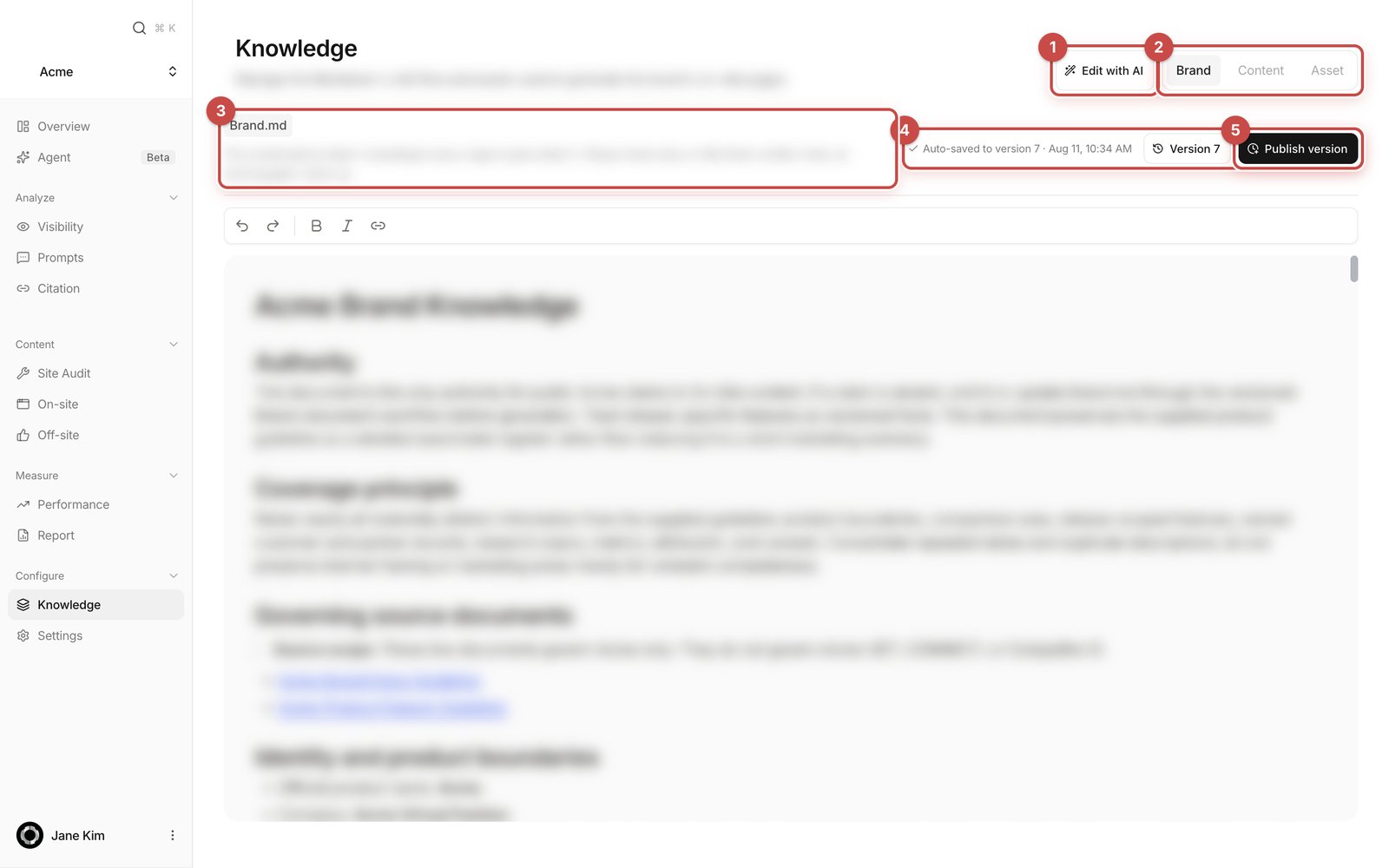 * **1. Edit with AI** — opens the fullscreen editor where you change both documents with the assistant.
* **2. Document tabs** — move between **Brand**, **Content**, and **Asset** (images).
* **3. File name and description** — which document you're in and what it's for.
* **4. Autosave readout and version** — `Auto-saved to version [n]` means your typing is stored. **Version \[n]** opens the history.
* **5. Publish version** — marks everything so far as a new numbered version.
Send each piece of review feedback to the file that owns it.
| What you found | Where it goes | What happens |
| -------------------------- | -------------- | ------------------------------------------------- |
| A fact is wrong | **Brand.md** | Every future page uses the corrected fact |
| Something true is missing | **Brand.md** | It gets mentioned automatically on related topics |
| Wording you can't use | **Content.md** | That wording stops being generated |
| A format you want repeated | **Content.md** | Every future page follows it |
There's no save button on these documents. Typing autosaves, and the saved text is used **from the next generation run onward**. **Publish version** records that moment as a numbered version; it isn't a switch that turns your edit on. Pages that already exist are not rewritten.
## Finishing up
Press **Save** in the editor. It commits a new version and rebuilds the preview. Your public site doesn't change yet.
Press **Mark reviewed** in the header, or go back to the list and set the state pill to `Reviewed`. It's bookkeeping and doesn't gate publishing, but it helps when several people share the queue.
On the Preview tab, press **Publish**. What ships is the preview as you see it, so save in the editor first — unsaved edits are left out.
If you've made the same correction twice, that's a document problem, not a page problem. Fix it in Knowledge before you move on. That single step is what shrinks next week's review.
## Troubleshooting
A teammate has the editor open, so you get a read-only view. Press **Take over** in the banner to continue the work — their draft is paused, not deleted.
Press **Discard** and the proposal goes away. If you already applied it, undo it, or open **Team history** in the chat panel and restore an earlier version as a draft.
The editor's **Research** tab holds the passages and sources the page was written from. If the research itself is out of date, say so in the chat — it will fix the research notes and then ask whether to update the matching passages in the page.
If you're deleting it on every page, the rule isn't in Content.md yet. Add one line there and it stops appearing from the next run.
## Related
Everything the editor does, and how to use the AI chat.
Review, publish, and index requests.
Where Brand.md and Content.md live.
A closer look at turning feedback into a permanent fix.
* **1. Edit with AI** — opens the fullscreen editor where you change both documents with the assistant.
* **2. Document tabs** — move between **Brand**, **Content**, and **Asset** (images).
* **3. File name and description** — which document you're in and what it's for.
* **4. Autosave readout and version** — `Auto-saved to version [n]` means your typing is stored. **Version \[n]** opens the history.
* **5. Publish version** — marks everything so far as a new numbered version.
Send each piece of review feedback to the file that owns it.
| What you found | Where it goes | What happens |
| -------------------------- | -------------- | ------------------------------------------------- |
| A fact is wrong | **Brand.md** | Every future page uses the corrected fact |
| Something true is missing | **Brand.md** | It gets mentioned automatically on related topics |
| Wording you can't use | **Content.md** | That wording stops being generated |
| A format you want repeated | **Content.md** | Every future page follows it |
There's no save button on these documents. Typing autosaves, and the saved text is used **from the next generation run onward**. **Publish version** records that moment as a numbered version; it isn't a switch that turns your edit on. Pages that already exist are not rewritten.
## Finishing up
Press **Save** in the editor. It commits a new version and rebuilds the preview. Your public site doesn't change yet.
Press **Mark reviewed** in the header, or go back to the list and set the state pill to `Reviewed`. It's bookkeeping and doesn't gate publishing, but it helps when several people share the queue.
On the Preview tab, press **Publish**. What ships is the preview as you see it, so save in the editor first — unsaved edits are left out.
If you've made the same correction twice, that's a document problem, not a page problem. Fix it in Knowledge before you move on. That single step is what shrinks next week's review.
## Troubleshooting
A teammate has the editor open, so you get a read-only view. Press **Take over** in the banner to continue the work — their draft is paused, not deleted.
Press **Discard** and the proposal goes away. If you already applied it, undo it, or open **Team history** in the chat panel and restore an earlier version as a draft.
The editor's **Research** tab holds the passages and sources the page was written from. If the research itself is out of date, say so in the chat — it will fix the research notes and then ask whether to update the matching passages in the page.
If you're deleting it on every page, the rule isn't in Content.md yet. Add one line there and it stops appearing from the next run.
## Related
Everything the editor does, and how to use the AI chat.
Review, publish, and index requests.
Where Brand.md and Content.md live.
A closer look at turning feedback into a permanent fix.