> ## Documentation Index
> Fetch the complete documentation index at: https://docs.anymorph.ai/llms.txt
> Use this file to discover all available pages before exploring further.
# Custom scripts
> Add tracking tags and your own code to the pages Anymorph generates.
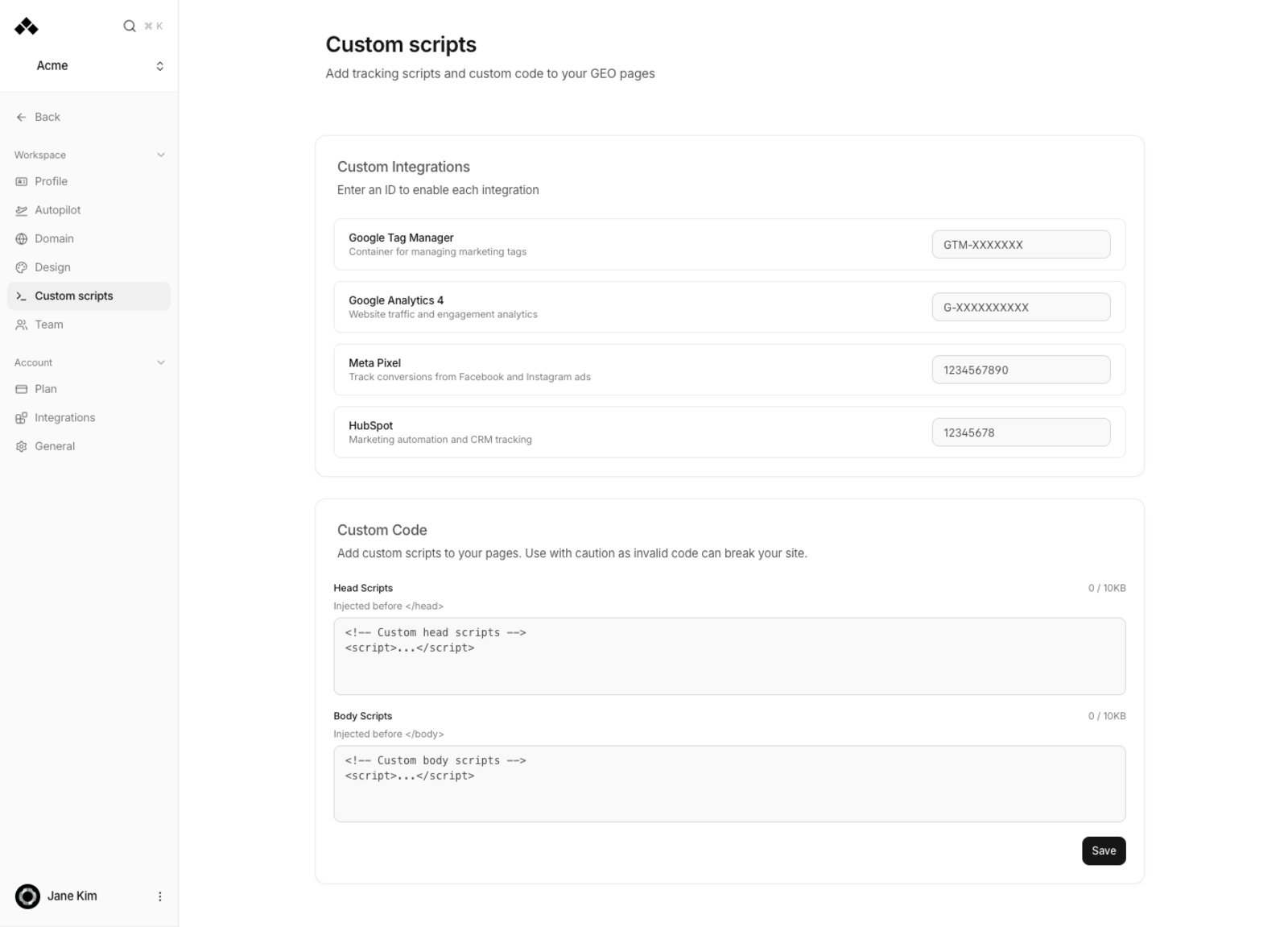
**Custom scripts** is where you add measurement tags to Anymorph-generated pages. Those pages are served separately from your main site, so the tags on your main site do not follow them. If you want visits and conversions on these pages, enter your IDs here.
 ## What's on the screen
### Custom Integrations
Entering an ID turns that integration on; clearing it turns it off. Create the container or property in the tool itself first.
| Field | What you paste | Example format |
| ---------------------- | -------------- | -------------- |
| **Google Tag Manager** | Container ID | `GTM-XXXXXXX` |
| **Google Analytics 4** | Measurement ID | `G-XXXXXXXXXX` |
| **Meta Pixel** | Pixel ID | `1234567890` |
| **HubSpot** | Portal ID | `12345678` |
A wrongly formatted ID is rejected when you save.
### Custom Code
Two boxes for code you write yourself.
| Field | Where it goes | Limit |
| ---------------- | -------------------------------------------------- | ----- |
| **Head Scripts** | Into the page head, just before `` | 10KB |
| **Body Scripts** | At the end of the page body, just before `` | 10KB |
The "\[n] / 10KB" counter under each box turns red past the limit and blocks **Save**. A successful save confirms with "Scripts saved successfully".
## What's on the screen
### Custom Integrations
Entering an ID turns that integration on; clearing it turns it off. Create the container or property in the tool itself first.
| Field | What you paste | Example format |
| ---------------------- | -------------- | -------------- |
| **Google Tag Manager** | Container ID | `GTM-XXXXXXX` |
| **Google Analytics 4** | Measurement ID | `G-XXXXXXXXXX` |
| **Meta Pixel** | Pixel ID | `1234567890` |
| **HubSpot** | Portal ID | `12345678` |
A wrongly formatted ID is rejected when you save.
### Custom Code
Two boxes for code you write yourself.
| Field | Where it goes | Limit |
| ---------------- | -------------------------------------------------- | ----- |
| **Head Scripts** | Into the page head, just before `` | 10KB |
| **Body Scripts** | At the end of the page body, just before `` | 10KB |
The "\[n] / 10KB" counter under each box turns red past the limit and blocks **Save**. A successful save confirms with "Scripts saved successfully".