> ## Documentation Index
> Fetch the complete documentation index at: https://docs.anymorph.ai/llms.txt
> Use this file to discover all available pages before exploring further.
# Plan
> See your current subscription and limits, and change plan.
**Plan** shows which subscription you are on and what it allows. Your daily prompts, monthly pages and available AI engines all come from here.
 ## What's on the screen
### Current Plan
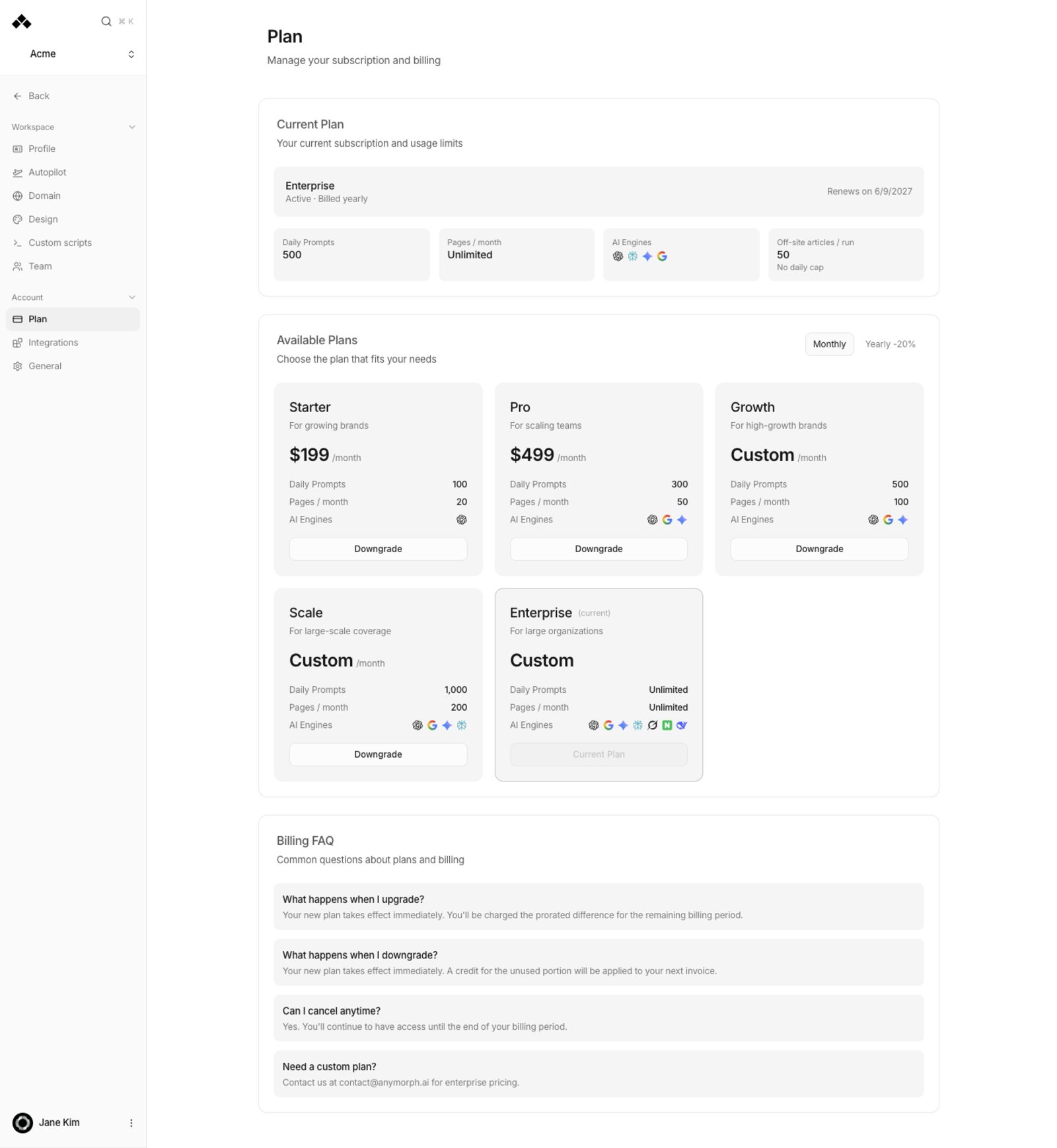
Your plan name, status, whether you are billed monthly or yearly, and the renewal or end date. Below that are four limit tiles.
| Tile | What it means |
| --------------------------- | ------------------------------------------------- |
| **Daily Prompts** | How many prompts are asked of AI engines each day |
| **Pages / month** | How many pages you can generate per month |
| **AI Engines** | Which AI engines are measured |
| **Off-site articles / run** | Articles per off-site run, or "Not scheduled" |
**Manage Billing** appears only with an active subscription. It opens the billing portal, where you can download invoices, change your card and cancel.
### Available Plans
Every plan you can move to, as cards. The **Monthly** / **Yearly -20%** switch at the top changes the billing cycle you are comparing. Each card shows the name, description, price and the same limits, with one button.
| Button | When it appears |
| ----------------- | ---------------------------------------- |
| **Current Plan** | Your plan today. Not clickable |
| **Upgrade** | Moving to a larger plan |
| **Downgrade** | Moving to a smaller plan |
| **Select** | Choosing a plan with no subscription yet |
| **Contact Sales** | Enterprise, priced as "Custom" |
With no subscription, the button takes you to a checkout page to enter your card. With one, the plan changes in place.
### Billing FAQ
A card summarising upgrades, downgrades, cancellation and custom plans.
## How charges work
| Situation | When it applies | What it costs |
| ------------ | ---------------------- | ------------------------------------------------------------------ |
| Upgrade | Immediately | You are charged the prorated difference for the rest of the period |
| Downgrade | Immediately | The difference lands as credit on your next invoice |
| Cancellation | End of the paid period | You keep access until then |
## How to use it
Read the four tiles under **Current Plan**.
Pick **Monthly** or **Yearly -20%**, then press **Upgrade** or **Downgrade** on the plan you want.
**Manage Billing** opens the billing portal for invoices, card changes and cancellation.
## FAQ
Immediately, with a prorated charge for the remainder of the period.
It applies immediately and the difference appears as credit on your next invoice.
Yes. You keep access until the end of the period you already paid for.
Daily analysis runs on Starter and above. The footer line on [Profile](/settings/profile) shows your current state.
It appears only with an active subscription. Choose a plan first.
Use **Contact Sales** on the Enterprise card.
## Related
Where the daily prompt limit is spent.
Where the monthly page limit is spent.
Check your analysis schedule.
Manage members and roles.
## What's on the screen
### Current Plan
Your plan name, status, whether you are billed monthly or yearly, and the renewal or end date. Below that are four limit tiles.
| Tile | What it means |
| --------------------------- | ------------------------------------------------- |
| **Daily Prompts** | How many prompts are asked of AI engines each day |
| **Pages / month** | How many pages you can generate per month |
| **AI Engines** | Which AI engines are measured |
| **Off-site articles / run** | Articles per off-site run, or "Not scheduled" |
**Manage Billing** appears only with an active subscription. It opens the billing portal, where you can download invoices, change your card and cancel.
### Available Plans
Every plan you can move to, as cards. The **Monthly** / **Yearly -20%** switch at the top changes the billing cycle you are comparing. Each card shows the name, description, price and the same limits, with one button.
| Button | When it appears |
| ----------------- | ---------------------------------------- |
| **Current Plan** | Your plan today. Not clickable |
| **Upgrade** | Moving to a larger plan |
| **Downgrade** | Moving to a smaller plan |
| **Select** | Choosing a plan with no subscription yet |
| **Contact Sales** | Enterprise, priced as "Custom" |
With no subscription, the button takes you to a checkout page to enter your card. With one, the plan changes in place.
### Billing FAQ
A card summarising upgrades, downgrades, cancellation and custom plans.
## How charges work
| Situation | When it applies | What it costs |
| ------------ | ---------------------- | ------------------------------------------------------------------ |
| Upgrade | Immediately | You are charged the prorated difference for the rest of the period |
| Downgrade | Immediately | The difference lands as credit on your next invoice |
| Cancellation | End of the paid period | You keep access until then |
## How to use it
Read the four tiles under **Current Plan**.
Pick **Monthly** or **Yearly -20%**, then press **Upgrade** or **Downgrade** on the plan you want.
**Manage Billing** opens the billing portal for invoices, card changes and cancellation.
## FAQ
Immediately, with a prorated charge for the remainder of the period.
It applies immediately and the difference appears as credit on your next invoice.
Yes. You keep access until the end of the period you already paid for.
Daily analysis runs on Starter and above. The footer line on [Profile](/settings/profile) shows your current state.
It appears only with an active subscription. Choose a plan first.
Use **Contact Sales** on the Enterprise card.
## Related
Where the daily prompt limit is spent.
Where the monthly page limit is spent.
Check your analysis schedule.
Manage members and roles.