> ## Documentation Index
> Fetch the complete documentation index at: https://docs.anymorph.ai/llms.txt
> Use this file to discover all available pages before exploring further.
# Team
> Invite people to the workspace, set their role, and manage pending invitations.
**Team** controls who can open this workspace. Come here to bring a colleague in, change someone's role, or remove someone who has left.
 ## What's on the screen
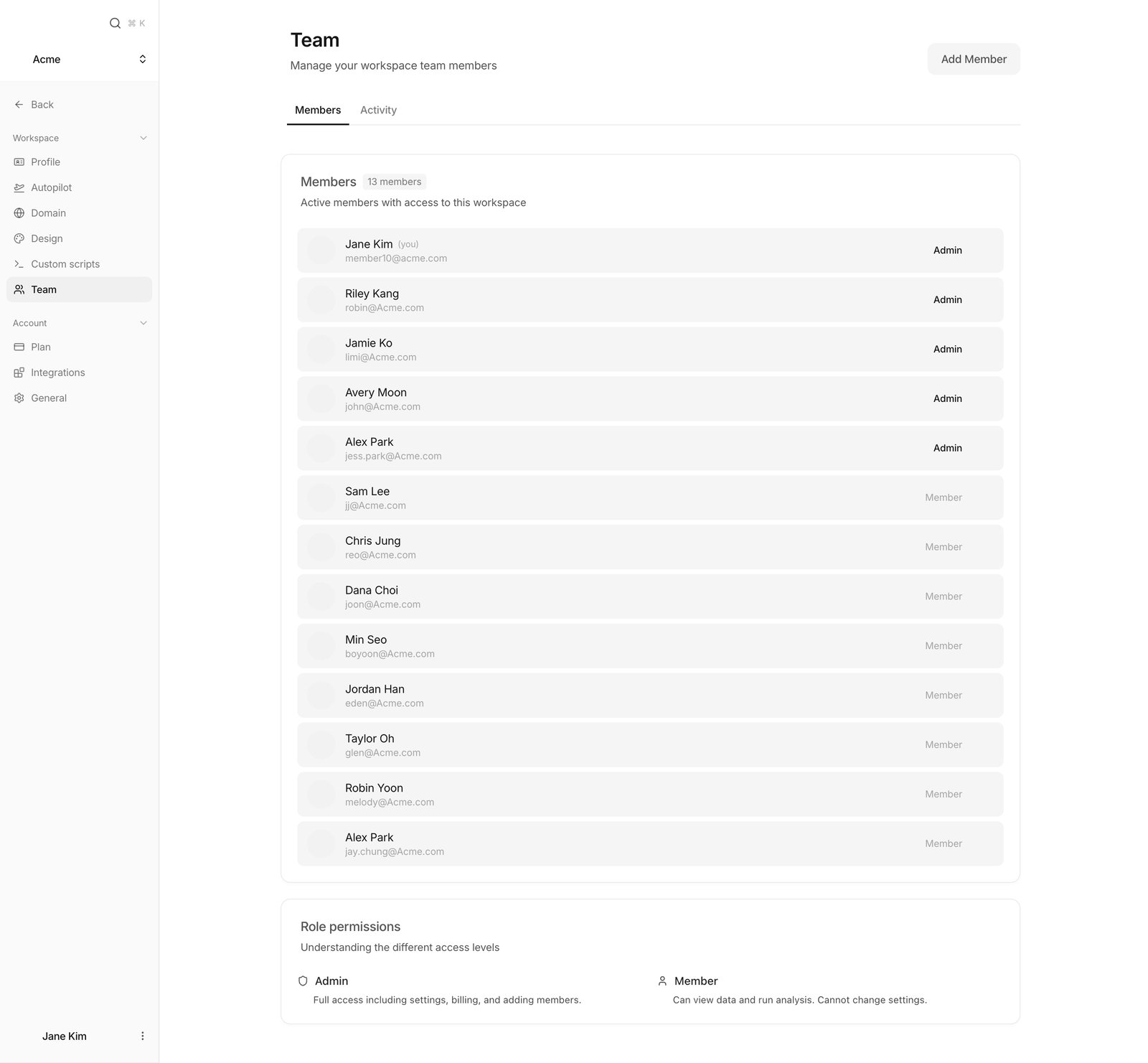
Two tabs sit at the top. **Members** shows people and roles; **Activity** shows what has happened in the workspace, filterable by All, Pages, Members, Settings, Domain, Brand and Integrations.
The **Members** card lists each person with their name, email and a role badge of **Admin** or **Member**. Admins get a row menu to change the role or **Remove** the person.
**Pending invitations** appears only when some are outstanding. Each row lets you copy the invitation link or cancel the invitation. Invitations expiring within 24 hours are flagged.
**Role permissions** summarises the difference between the two roles.
## Roles
| Action | Admin | Member |
| ------------------------------------------- | ----- | ------------------------------------ |
| Invite people, change roles, remove members | Yes | No |
| Cancel invitations | Yes | No |
| Delete the workspace | Yes | No. Sees **Leave Workspace** instead |
| View data and run analysis | Yes | Yes |
The last remaining admin cannot be removed and cannot leave: you get "Cannot remove the last admin of the workspace" or "Cannot leave as the last admin. Promote another member to admin first." Promote someone else first.
## Inviting people
## What's on the screen
Two tabs sit at the top. **Members** shows people and roles; **Activity** shows what has happened in the workspace, filterable by All, Pages, Members, Settings, Domain, Brand and Integrations.
The **Members** card lists each person with their name, email and a role badge of **Admin** or **Member**. Admins get a row menu to change the role or **Remove** the person.
**Pending invitations** appears only when some are outstanding. Each row lets you copy the invitation link or cancel the invitation. Invitations expiring within 24 hours are flagged.
**Role permissions** summarises the difference between the two roles.
## Roles
| Action | Admin | Member |
| ------------------------------------------- | ----- | ------------------------------------ |
| Invite people, change roles, remove members | Yes | No |
| Cancel invitations | Yes | No |
| Delete the workspace | Yes | No. Sees **Leave Workspace** instead |
| View data and run analysis | Yes | Yes |
The last remaining admin cannot be removed and cannot leave: you get "Cannot remove the last admin of the workspace" or "Cannot leave as the last admin. Promote another member to admin first." Promote someone else first.
## Inviting people
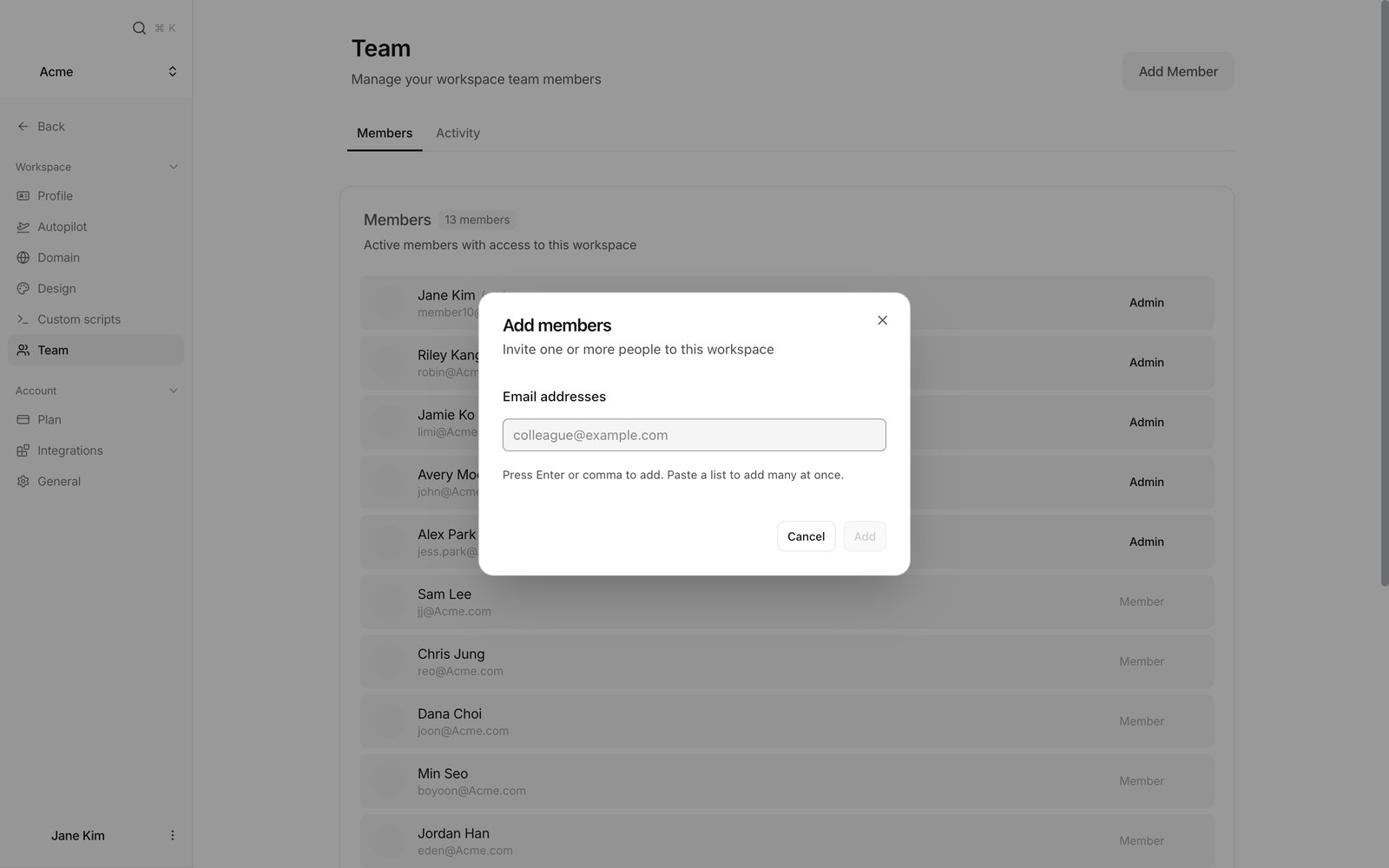 Top right of the screen. Only admins see it.
Type one and press Enter or comma to turn it into a chip. You can also paste a whole list at once. A bad address shows "Enter a valid email address".
Choose Member or Admin on each chip. Only admins can grant Admin.
You get "Invitation sent" or "\[n] invitations sent". Any failures stay in the box with the reason.
If the email doesn't arrive, copy the invitation link from **Pending invitations** and send it yourself.
## Cleaning up
Row menu → **Remove** → **Remove member** in the confirmation. Access ends immediately.
The cancel button in **Pending invitations** → **Cancel invitation**. The old link stops working.
## FAQ
Only admins can invite. Ask a workspace admin.
Seven days. The list flags any expiring within 24 hours. If one lapses, invite again.
Yes. Paste a list of addresses and each becomes its own chip.
Promote someone else to Admin first, then remove the original admin or have them leave.
Changes to pages, members, settings, domain, brand and integrations.
## Related
Leaving and deleting a workspace.
Subscription and usage limits.
Brand information and competitors.
Connect external services.
Top right of the screen. Only admins see it.
Type one and press Enter or comma to turn it into a chip. You can also paste a whole list at once. A bad address shows "Enter a valid email address".
Choose Member or Admin on each chip. Only admins can grant Admin.
You get "Invitation sent" or "\[n] invitations sent". Any failures stay in the box with the reason.
If the email doesn't arrive, copy the invitation link from **Pending invitations** and send it yourself.
## Cleaning up
Row menu → **Remove** → **Remove member** in the confirmation. Access ends immediately.
The cancel button in **Pending invitations** → **Cancel invitation**. The old link stops working.
## FAQ
Only admins can invite. Ask a workspace admin.
Seven days. The list flags any expiring within 24 hours. If one lapses, invite again.
Yes. Paste a list of addresses and each becomes its own chip.
Promote someone else to Admin first, then remove the original admin or have them leave.
Changes to pages, members, settings, domain, brand and integrations.
## Related
Leaving and deleting a workspace.
Subscription and usage limits.
Brand information and competitors.
Connect external services.