

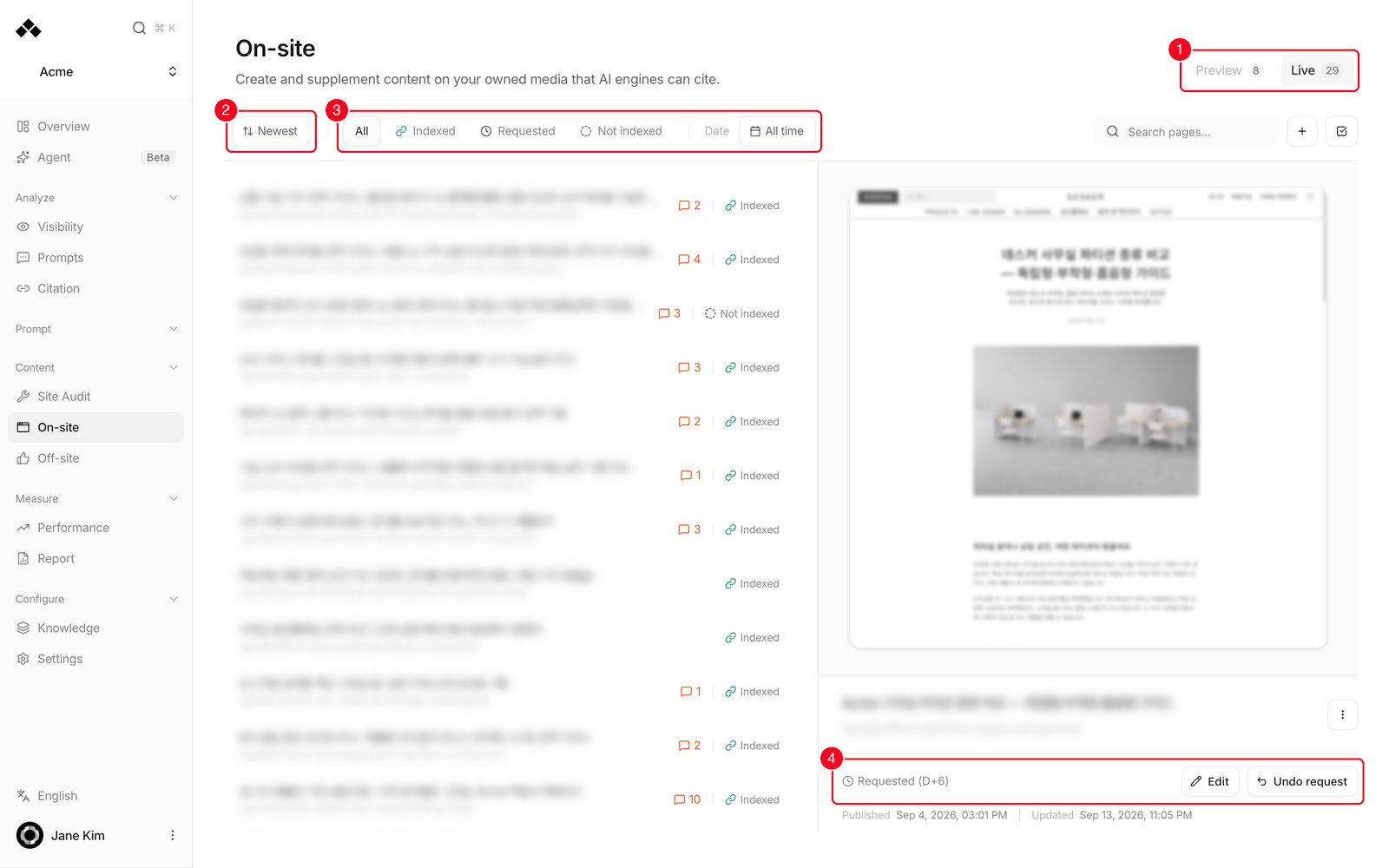
- 1. Preview · Live tabs — Preview holds pages that finished generating but are not published yet. Live holds pages already on your domain. The number beside each label is the page count.
- 2. Sort —
Newest,Oldest,Title A–Z, orPriority. - 3. Index filter — on the Live tab, narrow the list to
All,Indexed,Requested, orNot indexed. Beside it, Date offersAll time, the last 7, 14 or 30 days, and a Custom date range. - 4. Action row — the page’s index state on the left (here,
Requested (D+6)), and on the right Edit to open the editor plus Undo request while an index request is pending.
Where a published page actually lives
Publishing puts the page on your own domain:https://yourdomain.com/the-path, or https://yourdomain.com/a/the-path if your domain is wired in path mode with a short prefix.
The …anymorph.app address you see before publishing is the preview. It’s fine for reviewing and for sending to a colleague, but it is not the live page.
Publishing needs a connected domain. Press Publish before that is finished and you get “No active custom domain configured”. See Connect your domain.
When pages appear
Weekly generation is the default.- A week’s batch starts at 06:00 on Monday, in your workspace’s timezone.
- How many pages per week is set by Anymorph on your workspace. It isn’t a setting you change here.
- While a run is going, the Preview tab shows a New pages on the way banner reading
[ready]/[total] pages ready · [stage]. - Each page gets up to 45 minutes, and up to five are written at once. Drafts land in Preview one at a time as they finish.
Reading the statuses
Lifecycle
Failed and Excluded are different. Failed means the work broke; Excluded means it was skipped as a duplicate before writing started.
Review state
Review state is bookkeeping. Publish works from any of the three.
Priority
Rows on the Preview tab carry a small chip:! for High, M for Medium, L for Low. Higher means more expected impact. It’s there to order your review queue, and it stops mattering once the page is live.
Index state
The dot is green for indexed, blue for requested, and turns red once a request is more than seven days old. That’s your cue to chase it.
How to use it
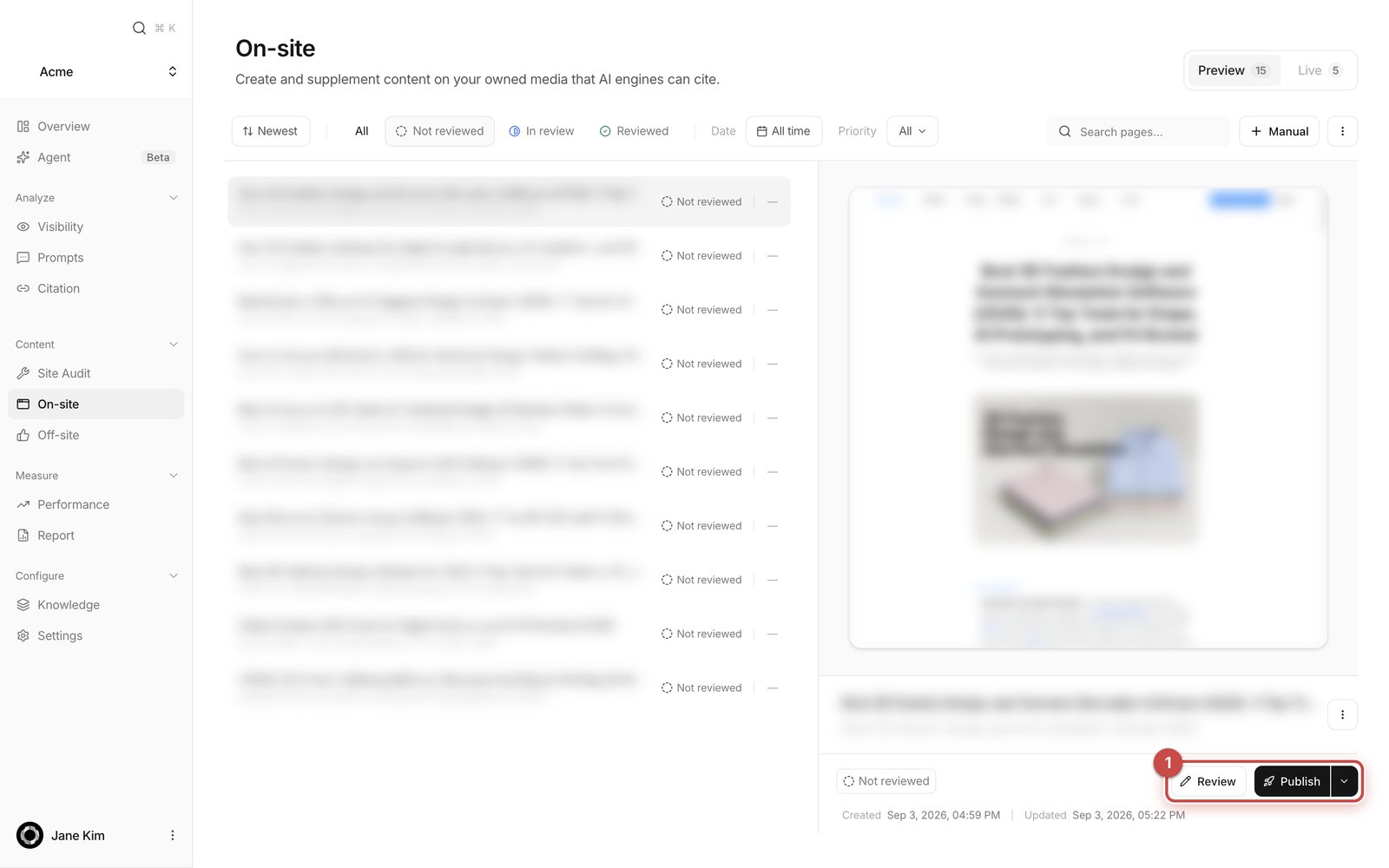
- 1. Review and Publish — Review opens the fullscreen editor. Publish pushes the preview you’re looking at to your domain; the caret beside it opens the scheduling menu.
1
Read the draft
Pick a row on the Preview tab and read the preview on the right. Hover it and click Open preview to see it full size in a new tab. What to fix and what to leave alone is covered in Reviewing content.
2
Fix what needs fixing
Click Review to open the editor. You can type directly, or ask the AI chat on the right for a change. See Page editor.
3
Mark the review state
Back in the list, click the state pill and choose
Not reviewed, In review, or Reviewed. It tells your team where things stand; it doesn’t gate publishing.4
Publish
Press Publish and confirm. What ships is the preview exactly as you see it. Unsaved editor drafts — including a teammate’s — are left out of this publish but preserved; save them to preview first if you want them included. Press Publish current preview and the page moves to the Live tab once it’s out.
5
Ask Google to index it
On the Live tab, select a page and press Request index. Three things happen at once: the page URL is copied, Google Search Console opens on that URL, and the request is recorded so the status reads
Requested. The rest of the flow is in Getting pages indexed.Scheduling a publish
The caret next to Publish opens Schedule publish. Pick one of the quick times, or use Custom time to set a date and time and press Schedule. Times are shown and entered in your workspace’s timezone. Once scheduled, the button shows the scheduled time and offers Publish now, Change time, and Cancel schedule. The same caret works on a bulk selection, so a whole batch can be scheduled for one time.Unpublish, rebuild, delete
The ”…” menu above the selected page holds three actions.- Unpublish — takes a live page back off the public site.
- Rebuild — remakes the page. For a live page, preview and live stay in step.
- Delete page — permanent, with a confirmation dialog first.
Add manually — writing one with the chat
Separate from the weekly batch, you can write the page you need right now. It doesn’t count against your weekly page count, and the row carries a small Manual tag in the list.1
Press the + button (Add manually)
An empty page is created and the fullscreen editor opens on it.
2
Tell the chat what it's about
The chat on the right opens with “Let’s write this page together”. Say what the page should cover and which AI engines matter. You can target ChatGPT, Gemini, Google AI Overview, Perplexity, Naver, and Google.
3
Watch it work
It runs in order: saving the topic and target, analyzing your measured demand, writing the brief, researching (usually 3–6 minutes), planning the sections, writing them one by one, reviewing (usually 2–4 minutes), then publishing the page. Each step reports its own progress.
4
Check the result
You get a note when the draft is ready, and any review findings land in the chat. To back out before anything is written, use Discard page in the banner.
Comments
A speech-bubble icon and a number on a row means that page has that many unresolved comments. The comments themselves are written and read inside the editor, attached to specific blocks.FAQ
Can I ask for more pages right now?
Can I ask for more pages right now?
Not for the batch. Extra runs are triggered by Anymorph. What you can do any time is Add manually, which writes one page with you and doesn’t count against the weekly page count.
Do I have to mark a page Reviewed before publishing?
Do I have to mark a page Reviewed before publishing?
No. Review state is bookkeeping only and publishing works from any state. It’s still useful when several people share the queue.
I pressed Publish — why isn't the page there yet?
I pressed Publish — why isn't the page there yet?
Publishing runs in the background. Building and shipping the page takes minutes, and it moves to the Live tab when that finishes. The button coming back isn’t the same as the page being live.
If it's live, is it in Google?
If it's live, is it in Google?
No. Live means it’s on your domain; indexing is Google’s decision. Press Request index on the Live tab. If the chip still reads “Requested” after a week it turns red.
Do I need Google indexing for ChatGPT to cite me?
Do I need Google indexing for ChatGPT to cite me?
No. ChatGPT and Perplexity collect pages independently and regularly cite pages Google never indexed. That’s why Overview shows published, indexed, and cited as three separate numbers rather than one funnel.
What happens to my unsaved editor edits when I publish?
What happens to my unsaved editor edits when I publish?
They’re excluded from this publish but not lost. Save them in the editor first if you want them to ship.
Is the preview panel showing me the live page?
Is the preview panel showing me the live page?
The panel always shows the preview build. To see a published page at its real address, hover the preview and click Open live page.
My Preview tab is empty
My Preview tab is empty
Either this week’s run hasn’t started, or you’ve already published everything, or your workspace’s weekly page count is set to zero. Ask us about the last one.
Related
Reviewing content
What to fix in a draft, and what to leave alone.
Page editor
The fullscreen editor and its AI chat.
Knowledge
The two documents that stop a problem recurring.
Getting pages indexed
Telling Google about a page you just published.