

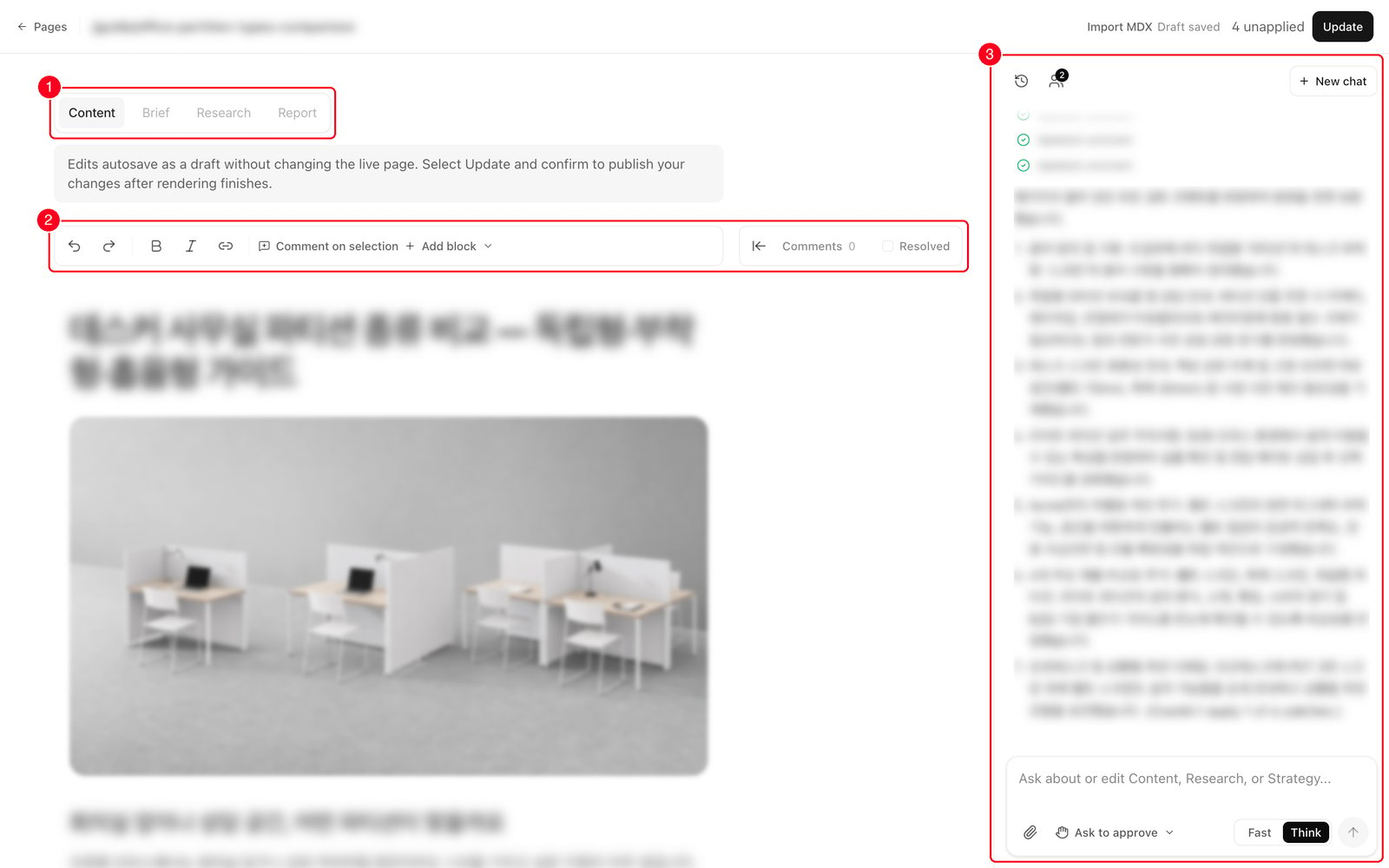
- 1. Document tabs — Content, Brief, Research, Report. A one-line description under the tabs tells you what that document is.
- 2. Format toolbar and comments — undo and redo, Bold, Italic, Link, Comment on selection and Add block. On the right: the open comment count and a Resolved checkbox.
- 3. AI chat panel — where you ask for changes or ask questions about the page. Drag its left edge to resize it.
Editing directly
Click into the body and type. It behaves like any blog editor.- Formatting: bold, italic, links, headings, lists, quotes, code blocks, dividers.
- Adding blocks: type
/anywhere or press Add block to open the Blocks & components menu — Heading 1, Heading 2, Bullet list, Numbered list, Quote, Code block, Divider, Image, Callout, CTA, Steps, Article header, FAQ, Table of contents, Promo box, Takeaways, Tabs, Accordion, Testimonials, Related content, Badge, Card, Code component. - Moving and deleting: hover a block and a small toolbar appears in the right margin — arrows to move it, a grip to drag it into place, a trash button to remove it.
- Images: use the slash menu’s Image, paste from your clipboard, or attach one in the chat. PNG, JPEG, WebP, GIF and AVIF up to 5 MB.
- Hero image: press Add hero image under the title. Once one is set, hover it for Replace or to remove it.
The things you can edit directly here are the title, the hero image, and the body. There are no fields for a search description or the URL slug.
Saving is not publishing
Three different things happen at three different moments. This is the part people mix up.
The [n] unapplied count in the header is how many changes your draft holds that haven’t been saved yet. Save opens a Save this draft? dialog listing those changes and a note that a recovery checkpoint is created first. Press Save changes and you get a message confirming the preview is rebuilding and the live site hasn’t changed.
On a published page, the same button reads Update and opens Update the live page?. Confirm and your public site changes a few minutes later, once building and publishing finish. The button returning is not the same as the page being updated.
Import MDX in the header replaces the whole draft with a file. It’s for cases where your developer or Anymorph hands you a finished page file; the dialog shows the full replacement side by side before Save draft, and it never publishes anything.
Asking the AI
Type what you want changed into the right-hand panel, in plain language. It can rewrite, restructure, shorten, add sections, insert components, and patch the page details — or just answer a question without touching anything. One rule matters most: by default the AI never changes the page silently. When it has an edit, a Review proposed changes card appears with a before/after for each patch. Open this change in the document jumps you to the spot. Nothing lands until you press Apply to draft; Discard throws it away. An undecided proposal is still waiting when you come back later, and if the page changed underneath it the card says so and asks you to discard and ask again. The small control at the top of the chat panel is the Edit approval mode. Ask to approve is the default described above. Full access applies safe edits to your draft straight away and only stops for conflicts. Either way, nothing reaches the preview or the live site until you press Save or Update. Getting good results:- Point at the place. Select the paragraph, or put your cursor in it, then describe the change. The selection is sent along as the working context.
- Ask it to research. For current facts, verification, or competitor evidence it searches the web and reads the sources. It keeps source URLs with facts it adds, and if a link needs a login or a subscription it says so rather than pretending to have read it. It won’t research for a pure rewording request.
- Attach files. Images up to 5 MB (they get inserted into the page), and PDF, Word, PowerPoint, Excel, EPUB or text files up to 25 MB (read as context).
- Fast / Think sets the response speed. Think is the default.
Comments
Comments attach to the exact text they’re about.- Select the sentence or words, then press Comment on selection in the toolbar. With nothing selected, the comment attaches to the whole block your cursor is in.
- Write in the card and send. The commented text is highlighted in amber.
- Reply on the card, or press Resolve to close it. Resolved threads are hidden unless you tick Resolved, and Reopen brings one back.
The four tabs
Brief and Report only appear on pages that have those records.
Going back to an older version
Mistakes made in this session come back with undo. For anything older, open Team history at the top of the chat panel. It lists AI edits made by your team; press View changes to read one, then Restore this version → Restore as draft to load it into the editor. Restoring never publishes — you still have to save it.One editor at a time
If a teammate got there first you’ll see “[name] is editing — read only” and editing is locked. Press Take over to continue the work yourself. Their draft is paused, not deleted. This isn’t real-time co-editing.Mark reviewed
Mark reviewed in the header records a sign-off for this review stage and turns into Reviewed. It doesn’t block or trigger publishing, and any later edit clears it automatically. It’s hidden on pages that are already live.FAQ
Does saving change my website?
Does saving change my website?
Not on a draft or preview page. Save commits a version and rebuilds the preview. Only Update, which appears on an already-published page, changes the public site — and only after building and publishing finish.
Do I need to keep saving as I work?
Do I need to keep saving as I work?
No. Your edits autosave as a private draft 1.5 seconds after you stop typing. Nobody else sees them until you save.
Will the AI change my page without asking?
Will the AI change my page without asking?
Not in the default Ask to approve mode: every edit is a before/after you have to Apply to draft, and Discard throws it away. If you switch the panel to Full access, safe edits go into your draft automatically. In both modes nothing is saved or published until you press Save or Update.
How do I point it at one paragraph?
How do I point it at one paragraph?
Select it, or put your cursor in it, then type the instruction. You can also select the text, press Comment on selection, and press Ask AI on the card.
Can the AI look things up on the web?
Can the AI look things up on the web?
Yes. Ask for current facts or verification and it searches, reads the sources, and keeps the source URLs with what it adds. It skips research for pure rewording.
Can two of us edit at once?
Can two of us edit at once?
No. The second person sees a read-only banner and can Take over. The first person’s draft is paused, not lost.
Where do I change the search description or the URL?
Where do I change the search description or the URL?
Not on this screen. The title, the hero image and the body are what you edit directly here.
Where do I see the page preview?
Where do I see the page preview?
Not in the editor. It’s in the preview panel of the On-site list.
What does Mark reviewed do?
What does Mark reviewed do?
It records a sign-off for this review stage. It doesn’t block or start publishing, and editing anything afterwards clears it.
Related
On-site
The page list, publishing, and index requests.
Reviewing content
What to fix in a draft, and what to leave alone.
Knowledge
The two documents every page is written from.
Knowledge feedback loop
Turning review feedback into a permanent fix.