

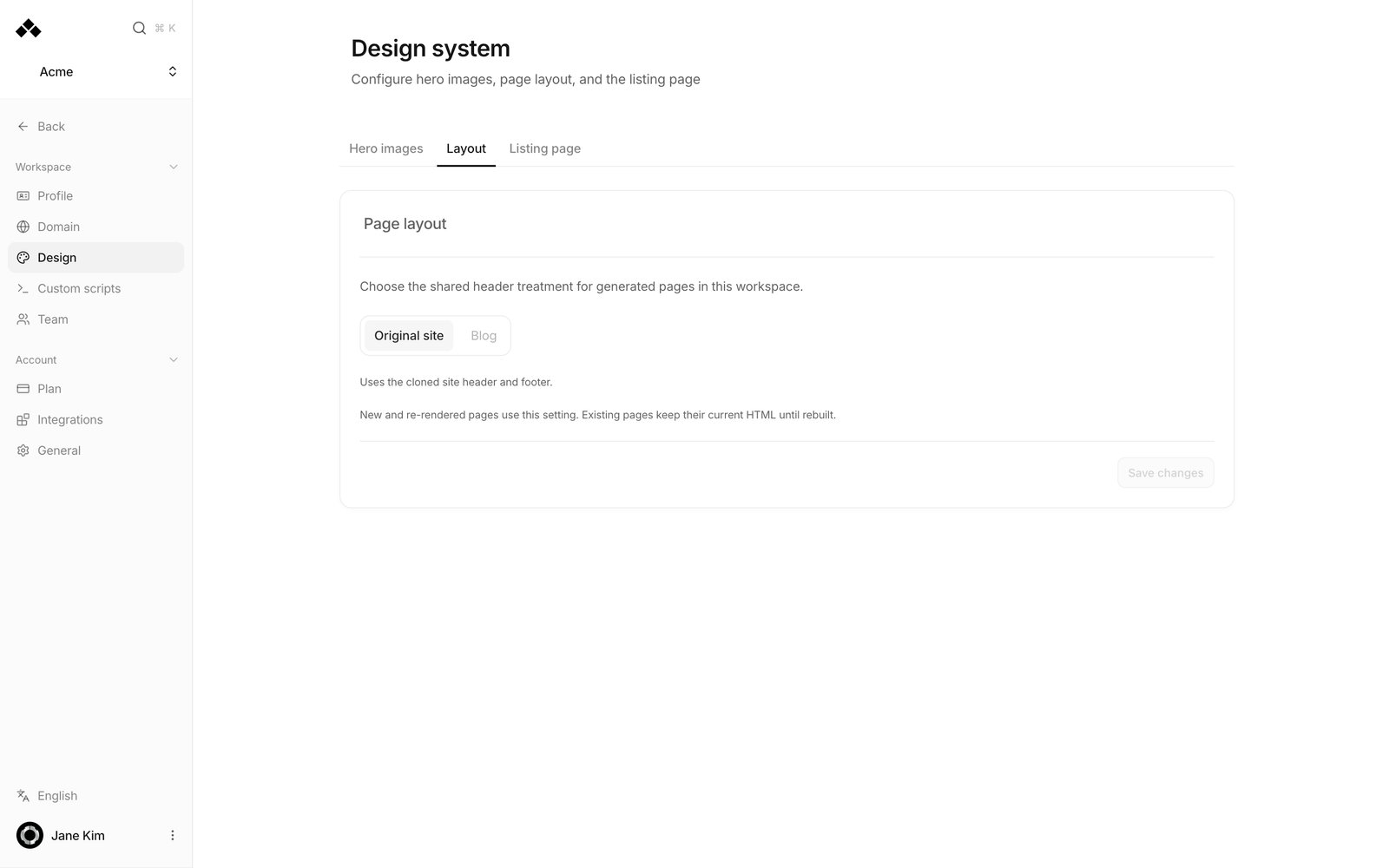
The three tabs
Hero images
Choose Headline treatment — Adapted headline (the title appears on the image) or No text — then describe your Headline direction and Typography direction. Commerce workspaces also get Product art direction, together with fixed rules: each required product appears exactly once, its identity is preserved, and no unrelated products or people are added. Save with Save hero settings.Layout
The setting applies to new and rebuilt pages. Existing pages keep their current appearance until they are rebuilt.
Listing page
A single hub page that lists your generated pages.How to use it
1
Change the header treatment
Layout tab → pick Original site or Blog → Save changes. Rebuild a page to apply it to something already generated.
2
Turn on the listing page
Listing page tab → switch Enabled on → set the Route path (for example
/anymorph/) → add a title and subtitle → save. It opens on your real address once a domain is connected.3
Make hero images consistent
Hero images tab → set Headline treatment and your direction notes → Save hero settings.
FAQ
I changed the layout but old pages look the same.
I changed the layout but old pages look the same.
That is expected. Only new and rebuilt pages pick up the setting.
Where do I set the colours and fonts?
Where do I set the colours and fonts?
You don’t. They are read from your own website when it is first analysed and applied to generated pages automatically. If they look wrong, contact Anymorph.
My Route path won't save.
My Route path won't save.
It accepts lowercase letters, numbers and hyphens only, and must start and end with a slash — for example
/anymorph/.What happens to the route if I turn the listing page off?
What happens to the route if I turn the listing page off?
It falls through to your own site.
Related
Domain
Connect the address that serves your pages.
Page editor
Edit an individual page.
On-site
Review and publish generated pages.
Custom scripts
Add tracking tags to generated pages.