

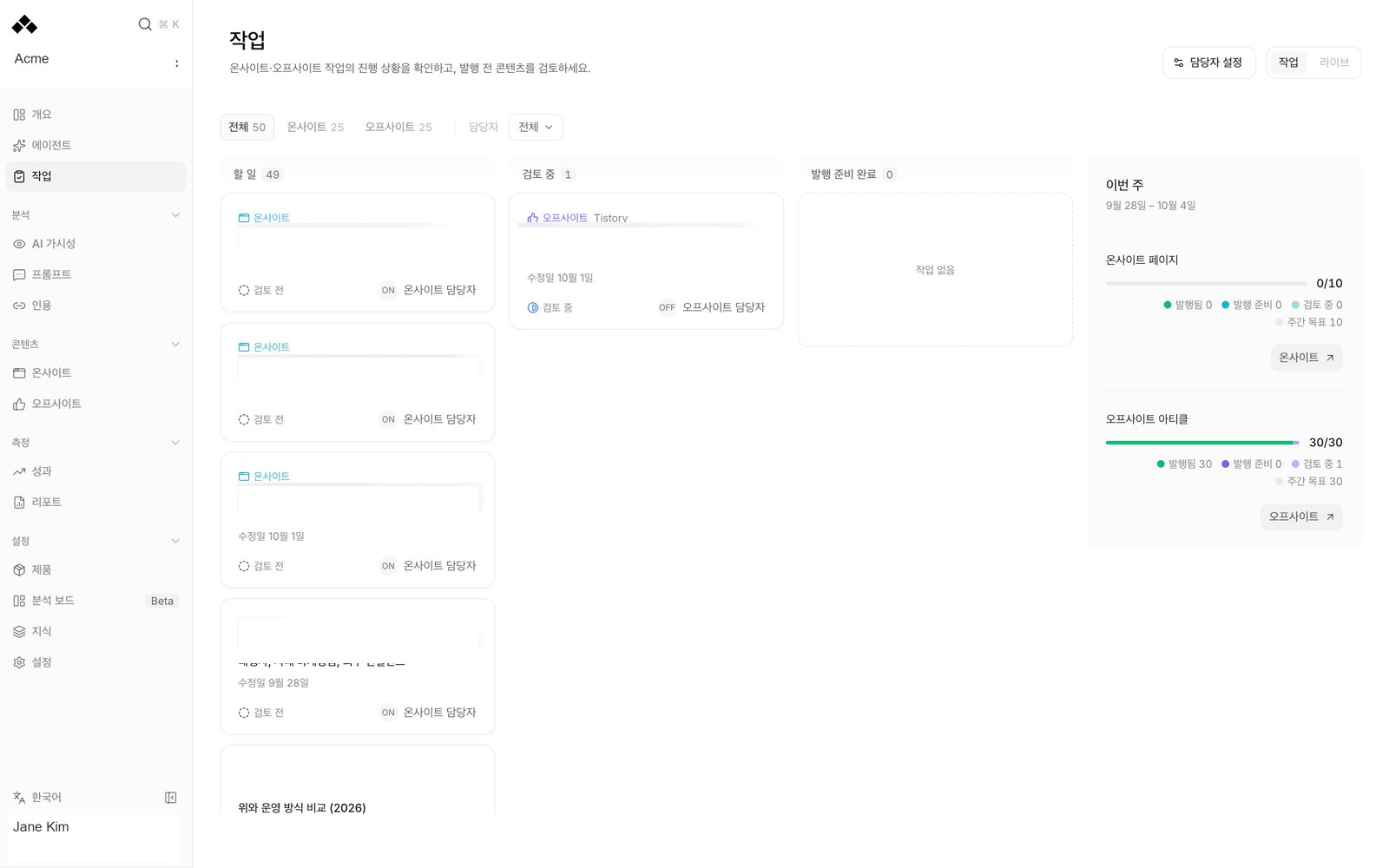
What’s on the screen
Tasks and Live
Tasks shows work awaiting action. During onboarding it also shows the recorded setup steps and their status. After onboarding, content reviews remain available. Live follows ongoing work and the week’s content progress; it does not replace the detailed publication state on the content lists. The review board separates Not reviewed, In review and Ready to publish. An on-site review and an off-site approval do not have the same effect, so open the item to see its actual buttons and destination before acting. Use Type, Assignee and, where available, Off-site type to narrow the list. All tasks and My tasks help you focus on the work assigned to you. Reset clears the selected filters. A card shows the content type, title, last update and review state. Open review opens the content inside a review drawer so you can read it without losing your place on the board. The drawer uses the same content review controls as On-site or Off-site.Ready to publish is a review state. It does not prove the page is publicly available. Check Live on the relevant content list and open the public address to confirm publication.
Assigning the work
Assignee settings sets an Onboarding owner, On-site owner and Off-site owner. These defaults apply to new tasks. You can choose another workspace member on an individual card, or leave it Unassigned. When changing a default, Apply to all current tasks also changes existing assignments for that type. Read this option before saving: changing a default alone is different from reassigning today’s queue. An onboarding owner cannot be changed from this setting after onboarding has completed. Assignments help your team divide work; they do not grant a new role or change who has access to the workspace. Invite people and manage roles in Team.Onboarding to-dos
The onboarding board lists the actions Anymorph and your team need to complete, grouped by stage. Examples include the kickoff, prompt confirmation, sample review, domain and analytics connections, and the first publication. Mark a to-do when you have actually completed it. These checks are manual notes shared with the workspace. A check does not automatically advance an onboarding stage, verify a connection, approve a sample, or publish a page. The overall stage progresses through the recorded onboarding process. Some actions depend on an earlier step. Read the waiting message to see what must happen first. If a step is waiting on Anymorph, ask your contact about that step instead of repeatedly checking the action.Weekly progress
The weekly section shows on-site pages and off-site articles, their published counts, items ready for publication, items under review and the weekly target. Read it as a progress view for the displayed week. Review queues and published totals answer different questions, so a draft leaving the review queue is not evidence of a new publication. The board is not a complete archive of every finished task. Review lists may show only the 25 most recently updated drafts; use Open on-site content or Open off-site content to reach the full lists.How to use it
1
Decide who owns each type of work
Open Assignee settings, choose workspace members for the three defaults, and decide whether to apply the change to current tasks. Press Save.
2
Find a draft that needs your review
Choose My tasks, or filter by Type and Assignee. Open a card with Open review.
3
Review the actual content
Check facts, images and destination. Edit through the content’s editor when needed. Use the content’s review and publication controls deliberately; a review check is not a publish button.
4
Confirm the result in its source
After publishing, open the corresponding content list and check its state and public address. For an onboarding action, confirm the work itself before marking the to-do.
FAQ
Does marking a to-do advance onboarding?
Does marking a to-do advance onboarding?
No. It records a manual check. It does not change stage gates or execute the work.
Does Ready to publish mean the article is live?
Does Ready to publish mean the article is live?
No. It means the review is ready. Publication is confirmed on the content list.
Why can't I find an older draft?
Why can't I find an older draft?
The board shows a bounded review queue. Open the full on-site or off-site list to find older items.
Can I assign a task to someone outside the workspace?
Can I assign a task to someone outside the workspace?
Choose from workspace members. Invite the person in Team first.
Why did my new default leave existing tasks unchanged?
Why did my new default leave existing tasks unchanged?
Defaults apply to new tasks. Select Apply to all current tasks when you also want to reassign the existing queue.
A source couldn't load. Is there no work?
A source couldn't load. Is there no work?
A loading error is not an empty queue. Use Retry. If the last successful status is shown, read the refresh warning before relying on it.
Related
Dashboard tour
Find your way around the workspace.
Visibility
Read the measurements behind your work.